How to Find What’s Jamming Your 2.4 GHz Smart Home
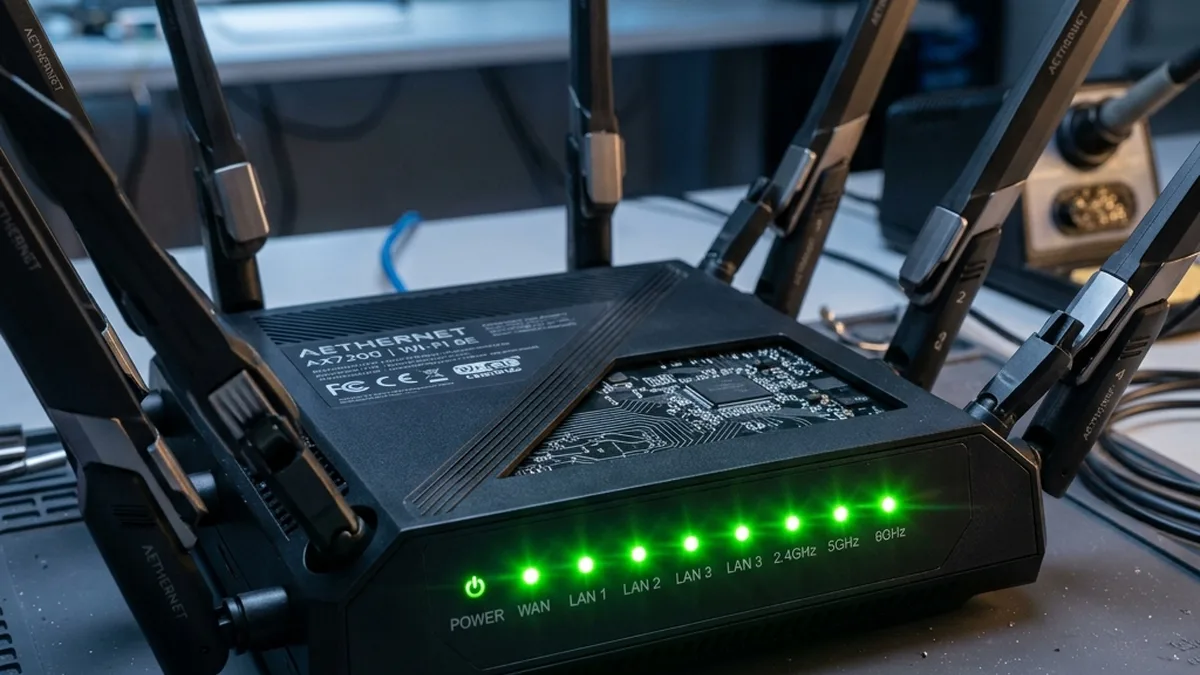
You’ve invested in the pinnacle of home networking: Multi-gigabit fiber internet, a cutting-edge 400 Netgear Orbi RBKE963 or Eero Pro 6E Mesh system, boasting Wi-Fi 6E capabilities. Yet, your supposedly “smart” lights exhibit a two-second delay, your security camera feed stutters and pixelates, resembling a low-bitrate stream from the early 2000s, and your smart plugs occasionally fail to respond. Your phone proudly displays “full bars,” indicating robust signal strength (RSSI). So, what precisely is the underlying issue? The paradox is that you are not suffering from a deficiency of signal strength, but rather a debilitating surplus of noise and unmanaged RF traffic. This noise, often invisible to standard network diagnostics, chokes the essential communication pathways of your IoT ecosystem.
Smart home reliability converges, again and again, on the same subject: radio frequency propagation and interference mitigation. In the contemporary smart home landscape, we are experiencing what can only be described as a 2.4GHz spectrum apocalypse. The picture is consistent: nearly every “smart” device—from your Wi-Fi enabled toaster and smart thermostat to your neighbor’s high-power baby monitor and garage door opener—is competing for airtime on the same critically narrow slice of the electromagnetic spectrum. This article will provide a highly technical, architect-level guide to understanding, mapping, and systematically clearing these congested airwaves to restore optimal performance to your smart home.
Resolving IoT Lag: A Hierarchical Troubleshooting Protocol
- Initial Symptom Assessment:
- Are smart devices exhibiting high latency, delayed responses, or intermittent connectivity?
- Is this behavior consistent across multiple devices or isolated to a single type?
- Have any new devices been introduced recently?
- 2.4GHz Spectrum Analysis:
- Utilize a dedicated Wi-Fi Analyzer tool (e.g., Android “Wi-Fi Analyzer” by VREM, macOS “Wireless Diagnostics,” or professional spectrum analysis hardware).
- Objective: Identify the Received Signal Strength Indicator (RSSI), Signal-to-Noise Ratio (SNR), and channel utilization for all 2.4GHz Wi-Fi networks in your operational vicinity.
- Key Question: Is there a clearly discernible, non-overlapping channel (1, 6, or 11 for 20MHz bandwidth) with significantly lower utilization and higher SNR?
- If NO: Proceed to “Channel Optimization.”
- If YES: Proceed to “Hub Physical Spacing & Coexistence.”
- Channel Optimization (Wi-Fi):
- Action: Manually configure your Wi-Fi Access Point (AP) or router’s 2.4GHz radio to the identified clearest non-overlapping channel (1, 6, or 11).
- Crucial Note: Avoid intermediate channels (e.g., 2, 3, 4, 5, 7, 8, 9, 10) as they induce Adjacent Channel Interference (ACI), which is often more detrimental than Co-Channel Interference (CCI). Disable “Auto” channel selection.
- Verification: Re-scan the spectrum to confirm the change and observe any improvements in device responsiveness.
- Hub Physical Spacing & Coexistence (Zigbee/Thread/BLE):
- Objective: Mitigate “Radio Bleed” and direct interference between co-located 2.4GHz transceivers.
- Action: Physically relocate Zigbee/Thread hubs (e.g., Philips Hue Bridge, Aqara M2 Hub, Home Assistant SkyConnect) at least 5 feet (approximately 1.5 meters) away from your primary Wi-Fi router or mesh nodes.
- Advanced Coexistence (if applicable): If using a Zigbee/Thread hub, configure its operating channel to minimize overlap with your chosen Wi-Fi channel.
- Recommended “Golden Combo”: Wi-Fi on Channel 1 (2.412 GHz) and Zigbee/Thread on Channel 25 (2.475 GHz) or Channel 26 (2.480 GHz).
- Evaluate and Iterate:
- Test device responsiveness and network stability.
- If issues persist, re-evaluate the spectrum, consider other non-Wi-Fi interference sources, or investigate advanced mitigation techniques (e.g., Wi-Fi 6 features, transmit power adjustments).
The 2.4GHz Crowded House: A Deep Dive into RF Physics and Protocol Layer Congestion
The 2.4GHz Industrial, Scientific, and Medical (ISM) band (2.400 GHz to 2.4835 GHz) is an unlicensed spectrum, making it a double-edged sword for IoT. Its superior propagation characteristics—better wall penetration and longer range compared to 5GHz or 6GHz—make it ideal for low-power, wide-coverage IoT devices. However, this ubiquity is precisely its downfall. The IEEE 802.11b/g/n standards define channels within this band, each 22MHz wide (or 20MHz for effective non-overlapping operation). Crucially, in most regulatory domains (e.g., FCC in North America), there are only three truly non-overlapping 20MHz channels: 1 (centered at 2.412 GHz), 6 (centered at 2.437 GHz), and 11 (centered at 2.462 GHz).
Understanding Co-Channel and Adjacent Channel Interference (CCI & ACI)
When your Wi-Fi router operates on Channel 6, and a neighbor’s router also broadcasts on Channel 6, your devices experience Co-Channel Interference (CCI). This isn’t strictly “jamming” in the traditional sense; rather, it’s a form of contention. Both networks adhere to the Carrier Sense Multiple Access with Collision Avoidance (CSMA/CA) protocol. Before transmitting, a device “listens” to the channel. If it detects another transmission, it defers its own, waiting for a clear opportunity. This shared “airtime” leads to increased latency, reduced throughput, and a higher rate of retransmissions as devices wait their turn. While suboptimal, CSMA/CA at least attempts to avoid direct collisions.
Far more insidious is Adjacent Channel Interference (ACI). This occurs when Wi-Fi networks operate on partially overlapping channels, such as Channel 6 and Channel 7, or Channel 1 and Channel 3. Unlike CCI, where devices can (theoretically) decode each other’s transmissions and defer, ACI involves spectral bleed-over. The signals from adjacent channels are not fully intelligible but are strong enough to raise the noise floor for the desired signal. This desensitizes the receiver, making it harder to distinguish the intended signal from the “noise.” The result is a drastically lower Signal-to-Noise Ratio (SNR), leading to corrupted packets, excessive retransmissions, and a severe degradation of effective throughput and responsiveness. ACI is often worse for network performance than CCI because it actively corrupts data rather than merely delaying it.
The Perils of “Auto” Channel Selection and 40MHz Bandwidth
Many modern routers default to “Auto” channel selection. While this sounds intelligent, it often isn’t. An “Auto” algorithm typically scans for the least utilized channel at boot-up or periodically. However, it might select a channel like 4, 7, or 9, which, while seemingly “clear” of other primary networks, will inevitably cause ACI with neighbors on 1 and 6, or 6 and 11. This creates a cascade of interference, degrading performance for all involved. Manual selection of 1, 6, or 11 is almost always the superior strategy.
Furthermore, some 2.4GHz Wi-Fi networks attempt to use 40MHz channel bonding for higher theoretical throughput. While beneficial in extremely isolated RF environments, in a typical residential setting, a 40MHz channel effectively occupies two non-overlapping 20MHz channels (e.g., 1+5 or 6+10). This drastically increases the likelihood of both CCI and ACI, consuming a disproportionate amount of the already limited spectrum and often leading to worse real-world performance than a stable 20MHz channel.
Beyond Wi-Fi: A Comprehensive Catalog of 2.4GHz EMI Sources
Wi-Fi networks are just one contributor to the 2.4GHz traffic jam. A myriad of other devices, utilizing different wireless protocols, also operate within this band, often without any semblance of polite coexistence mechanisms. These non-Wi-Fi sources generate Electromagnetic Interference (EMI) that can be devastating to Wi-Fi and other 2.4GHz-based IoT communications.
| Interference Source Category | Severity (Impact on Wi-Fi/IoT) | Technical Mitigation Strategies |
|---|---|---|
| Microwave Ovens | Catastrophic (Burst) | Microwaves typically operate around 2.45 GHz. Their magnetron generates broadband noise across the entire 2.4GHz ISM band during operation, effectively jamming all communications. Mitigation: Physically relocate smart hubs, routers, and critical IoT devices a minimum of 10-15 feet away from the microwave. Shielding is impractical for consumers. |
| Zigbee (IEEE 802.15.4) | High (Sustained) | Zigbee networks (e.g., Philips Hue, Aqara, SmartThings) operate within the same 2.4GHz band, typically on channels 11-26. Without proper channel planning, they can directly interfere with Wi-Fi. Mitigation: Implement the “Golden Combo”: Wi-Fi on Channel 1 and Zigbee on Channel 25 or 26. Physically separate Zigbee hubs from Wi-Fi APs by >5 feet. |
| Thread (IEEE 802.15.4) | High (Sustained) | Thread, like Zigbee, uses IEEE 802.15.4 and operates in the 2.4GHz band (typically channels 11-26). It faces identical coexistence challenges with Wi-Fi. Mitigation: Apply the same “Golden Combo” strategy as Zigbee: Wi-Fi on Channel 1, Thread on Channel 25 or 26. Ensure physical separation of Thread Border Routers from Wi-Fi APs. |
| Bluetooth Low Energy (BLE) | Low (Adaptive Frequency Hopping) | Bluetooth Low Energy (BLE), commonly used in smart home devices, utilizes 40 channels (2 MHz wide each). It employs Adaptive Frequency Hopping (AFH) to dynamically avoid congested Wi-Fi channels, and its three primary advertising channels (37, 38, 39) are strategically placed in the spectral gaps between Wi-Fi channels 1, 6, and 11. This design makes BLE highly resilient to interference, contributing only minor, transient noise bursts. Mitigation: Generally self-mitigating. Ensure Bluetooth devices are within their optimal range. Keep high-bandwidth Bluetooth devices away from critical Wi-Fi/Zigbee hubs if possible. |
| Cordless Phones (2.4GHz) | High (Legacy) | Older cordless phones used the 2.4GHz band. These devices often broadcast with high power and rudimentary interference avoidance, causing significant CCI. Mitigation: Replace with modern DECT 6.0 (1.9 GHz) or 5.8 GHz cordless phones. If replacement isn’t an option, physically distance the base station. |
| Wireless Video Transmitters / Baby Monitors | Catastrophic (Sustained) | Many legacy wireless cameras and baby monitors operate continuously in the 2.4GHz band, often with high transmit power and minimal interference mitigation, acting as persistent jammers. Mitigation: Upgrade to Wi-Fi-based (5GHz preferred) or DECT-based systems. Physically distance them from your main network infrastructure. |
| USB 3.0 Devices/Cables | Moderate (Broadband Noise) | Unshielded or poorly shielded USB 3.0 devices (e.g., external hard drives, docks) and cables can emit broadband noise around 2.4GHz due to their high-frequency data transfer. Mitigation: Use high-quality, shielded USB 3.0 cables. Increase physical distance between USB 3.0 peripherals and Wi-Fi/IoT antennas. |
| Fluorescent Lights, Motors, Faulty Electrical Wiring | Moderate (Broadband Noise) | These sources can generate electrical noise that radiates into the RF spectrum, affecting 2.4GHz communications. Mitigation: Replace old fluorescent fixtures with LED. Ensure proper grounding and shielding of electrical components. Use surge protectors with EMI/RFI filtering. |
Zigbee, Thread, and Wi-Fi: The Friendly Fire
The primary conflict in a smart home often arises between Wi-Fi and other IEEE 802.15.4-based mesh networks like Zigbee and Thread. Both protocols operate in the 2.4GHz ISM band. While Wi-Fi uses channels 1-11 (or 1-13 in some regions), Zigbee/Thread typically use channels 11-26. The key is their differing channel centers and bandwidths. Zigbee channels are 2MHz wide, and Thread channels are 5MHz wide, but they are mapped across the same 2.4GHz spectrum as Wi-Fi.
If your Wi-Fi is on Channel 1, it significantly overlaps with Zigbee channels 11-14. If your Wi-Fi is on Channel 6, it directly overlaps with Zigbee channels 15-19. If your Wi-Fi is on Channel 11, it overlaps with Zigbee channels 20-24. This overlap creates direct interference, leading to packet loss, increased retransmissions, and network instability for both networks. The “Golden Combo” of Wi-Fi on Channel 1 and Zigbee/Thread on Channel 25 (or 26 for Thread, which specifically targets the highest available channel to avoid Wi-Fi) is not merely a recommendation; it is an engineering best practice. Channel 1 for Wi-Fi (2.412 GHz) and Channel 25 (2.475 GHz) or Channel 26 (2.480 GHz) for Zigbee/Thread are the furthest points in the 2.4GHz spectrum, maximizing spectral separation and minimizing cross-protocol interference. While Zigbee Channel 25 has a minimal spectral overlap with the very upper edge of Wi-Fi Channel 11 (2470-2473 MHz), Channel 26 is entirely outside the Wi-Fi 1, 6, and 11 spectrums, making it the most robust choice for Thread and Zigbee in highly congested environments. This strategy ensures your smart lights, sensors, and other critical 802.15.4 devices respond instantly, even in high-density environments.
Beyond channel selection, physical proximity between the Wi-Fi router and the Zigbee/Thread hub is critical. Both devices are powerful 2.4GHz transceivers. When placed too close (e.g., within 3 feet), the strong transmit signal from one can desensitize the receiver of the other, a phenomenon known as receiver desensitization or “radio bleed.” This can occur even if their channels are optimally separated. A minimum physical separation of 5 feet is recommended.
The Wi-Fi 6 (802.11ax) Savior: Advanced Coexistence Mechanisms
For smart home enthusiasts, particularly those managing complex Home Assistant deployments with 50+ IoT devices, upgrading to Wi-Fi 6 (802.11ax) is more than just a speed bump; it’s a fundamental shift in how networks handle congestion and interference. The most impactful feature for the 2.4GHz band is BSS Coloring, also known as Spatial Reuse.
Wi-Fi 6 Enhancements for IoT Coexistence
Wi-Fi 6 (802.11ax) introduces several key features that significantly improve performance and coexistence for IoT devices, particularly within the crowded 2.4GHz band:
| Feature | Description | Impact on IoT Performance |
|---|---|---|
| BSS Coloring (Spatial Reuse) | Assigns a unique “color” (6-bit identifier) to each Wi-Fi 6 network. Devices can transmit simultaneously with “different color” networks if the detected signal is below a relaxed interference threshold. | Reduces Congestion & Latency: Allows Wi-Fi 6 devices to effectively ignore distant, non-interfering networks operating on the same channel, significantly improving airtime efficiency and responsiveness in dense 2.4GHz environments. |
| OFDMA (Orthogonal Frequency-Division Multiple Access) | Divides Wi-Fi channels into smaller sub-channels (Resource Units or RUs). This enables an Access Point (AP) to simultaneously communicate with multiple clients within a single transmission frame, even for small packets. | Increases Efficiency for Small Packets: Multiple small IoT data bursts (e.g., sensor readings) can be transmitted concurrently, drastically reducing latency and improving throughput for a large number of low-bandwidth IoT devices. |
| Target Wake Time (TWT) | Allows the AP to schedule specific wake-up times for individual client devices. IoT devices can remain in a deep sleep state for extended periods, waking up only when scheduled to transmit or receive data. | Extends Battery Life: Dramatically conserves power for battery-powered IoT sensors and devices, extending operational lifespan from months to years. Also reduces unnecessary chatter on the airwaves, contributing to overall spectrum cleanliness. |
Mapping the Invisible: Advanced Diagnostic Tools and Techniques
Effective interference mitigation begins with accurate diagnosis. Standard Wi-Fi signal strength indicators (RSSI) are insufficient; you need to understand the entire RF environment.
Wi-Fi Analyzers (Software-Based)
These applications provide a spectral view of the 2.4GHz band, displaying all detected Wi-Fi networks, their channels, RSSI values, and often, channel utilization.
 +-----------------------------------------------------------------+
 |             2.4GHz Wi-Fi Spectrum Analysis (Conceptual)         |
 |                                                                 |
 |   CH 1      CH 6      CH 11                                     |
 |  (2.412)   (2.437)   (2.462)                                    |
 |     |         |         |                                     |
 |     |         |         |                                     |
 |  -40dBm --+     +-- -50dBm (My_WiFi_2.4G)                       |
 |           |     |                                             |
 |  -60dBm --+-----+---------------------------------------------+
 |           |     |                                             |
 |  -70dBm --+-----------+-- -75dBm (Neighbor_A)                 |
 |           |           |                                       |
 |  -80dBm --+-----------+-----------------------+-- -82dBm (Neighbor_B)|
 |           |           |                       |               |
 |  -90dBm -----------------------------------------------------+
 |           |           |                       |               |
 | Noise Floor (Typically -95dBm to -100dBm)                     |
 +-----------------------------------------------------------------+
 Legend:
 - X-axis: Frequency (Channels 1-11)
 - Y-axis: Signal Strength (dBm)
 - Overlapping peaks indicate Co-Channel or Adjacent Channel Interference.
- Android: “Wi-Fi Analyzer” by VREM is a classic, free, and highly effective tool.
- macOS: Built-in “Wireless Diagnostics” (hold Option key + click Wi-Fi icon in menu bar, then select “Open Wireless Diagnostics,” then “Window” > “Scan” or “Performance”). It provides detailed channel graphs and recommendations.
- Windows: Tools like Acrylic Wi-Fi Home or inSSIDer offer similar functionalities.
Key Metrics to Observe:
- RSSI (Received Signal Strength Indicator): Measures the power of the received Wi-Fi signal. Higher (closer to 0 dBm, e.g., -40 dBm is better than -80 dBm) is better.
- Noise Floor: The aggregate power of all non-Wi-Fi signals and background RF energy. A lower (more negative) noise floor is better.
- SNR (Signal-to-Noise Ratio): The difference between RSSI and the Noise Floor. A higher SNR (e.g., >25 dB) indicates a cleaner signal.
- Channel Utilization: The percentage of time a channel is busy. High utilization (>50%) indicates congestion, even if your RSSI is good.
Spectrum Analyzers (Hardware-Based)
For truly advanced diagnostics, especially when non-Wi-Fi interference is suspected, a dedicated spectrum analyzer is invaluable. Unlike Wi-Fi analyzers which only see 802.11 packets, a spectrum analyzer visualizes all RF energy across a given frequency range. This allows you to identify rogue devices like microwaves, cordless phones, or faulty electronics that are spewing broadband noise but aren’t Wi-Fi compliant. Tools like the Ekahau Sidekick or MetaGeek Chanalyzer provide detailed real-time spectral analysis, showing energy spikes and patterns that correlate with specific interference sources.
Architecting a Resilient IoT Network: Step-by-Step Implementation Guide
Building on the diagnostics, here’s a structured approach to optimize your smart home’s RF environment.
- Comprehensive Site Survey & Interference Mapping:
- Action: Walk through your home with your chosen Wi-Fi Analyzer. Map out RSSI, SNR, and channel utilization in different rooms, paying close attention to areas with high IoT device density or suspected interference (e.g., kitchen for microwaves).
- Objective: Identify existing Wi-Fi channels (yours and neighbors’), their signal strengths, and the overall noise floor. Document potential EMI sources.
- Optimal 2.4GHz Wi-Fi Channel Selection:
- Action: Based on your survey, identify the clearest non-overlapping channel (1, 6, or 11) with the lowest utilization and highest SNR.
- Configuration: Log into your router/AP administrative interface. Navigate to the Wireless settings for the 2.4GHz band. Disable “Auto” channel selection And manually set the channel to your chosen optimal channel. Ensure the channel width is set to 20MHz (avoid 40MHz in congested 2.4GHz environments).
- Verification: After applying changes, re-scan with your Wi-Fi Analyzer to confirm the network is operating on the new channel and observe any immediate improvements.
- Zigbee/Thread Channel Coexistence Strategy:
- Action: If you have a Zigbee or Thread hub, access its configuration interface (e.g., Philips Hue app, Home Assistant Zigbee integration settings).
- Configuration: Set the Zigbee/Thread channel to 25 or 26. This, combined with Wi-Fi on Channel 1, creates the most spectrally separated configuration.
- Crucial Note: Changing a Zigbee/Thread channel might require re-pairing some devices, especially older ones. Plan for this downtime.
- Strategic Physical Placement of Hubs and APs:
- Action: Relocate all Zigbee/Thread hubs at least 5 feet (1.5 meters) away from your Wi-Fi router, mesh nodes, and other significant 2.4GHz emitters (microwaves, cordless phone bases).
- Consideration: Position Wi-Fi Access Points centrally and at a moderate height (e.g., bookshelf level, not floor or ceiling) to optimize omnidirectional coverage. Avoid placing them inside cabinets or behind large metal objects.
- SSID Segmentation and Band Steering Configuration:
- Action (Optional but Recommended): Create a dedicated 2.4GHz SSID specifically for IoT devices. Many routers allow this.
- Configuration: Connect all low-bandwidth, 2.4GHz-only IoT devices to this dedicated SSID. For high-bandwidth devices (laptops, phones, streaming devices), ensure they connect to your 5GHz or 6GHz SSIDs.
- Band Steering: If your router supports band steering, enable it. This feature intelligently directs devices to the optimal band (5GHz/6GHz for capable devices, 2.4GHz for others) based on signal strength and network load, reducing congestion on the 2.4GHz band.
- Transmit Power Optimization:
- Action (Advanced): In some high-density scenarios, reducing the 2.4GHz transmit power of your Wi-Fi AP can be beneficial.
- Rationale: High transmit power can create a large “footprint” that exacerbates CCI/ACI with neighbors and causes self-interference. Reducing power can shrink your BSS, allowing neighbors to reuse channels more effectively, and may improve overall local SNR.
- Caution: This requires careful testing to ensure adequate coverage is maintained for all your devices.
- Firmware Updates and Device Health Checks:
- Action: Regularly update firmware for all routers, APs, and smart hubs. Manufacturers often release updates that improve RF performance, implement better coexistence algorithms, or fix bugs.
- Check Device Logs: Review logs on your router and smart hubs for errors, disconnections, or high retransmission rates, which are indicators of ongoing interference.
Comprehensive FAQ: Demystifying IoT RF Challenges
Q1: Why is my “Auto” channel selection not working effectively?
A: Router “Auto” channel selection algorithms are often simplistic. They typically perform a scan at boot-up or periodically, selecting the channel that appears least utilized at that specific moment. However, they rarely account for:
- Adjacent Channel Interference (ACI): An “Auto” scan might see Channel 7 as clear, but it heavily overlaps and interferes with both Channel 6 and Channel 11 networks, causing significant degradation for all.
- Dynamic Nature of Interference: A channel clear at 3 AM might be heavily congested during peak hours.
- Non-Wi-Fi Interference: “Auto” algorithms cannot detect or avoid interference from microwaves, Bluetooth, or Zigbee, as these are not 802.11 signals.
For optimal, stable performance, manual selection of 1, 6, or 11 based on a dedicated Wi-Fi analyzer scan is always superior.
Q2: Should I use 40MHz channel width for my 2.4GHz Wi-Fi network?
A: In almost all typical smart home environments, no, you should not use 40MHz channel width on 2.4GHz. While 40MHz offers higher theoretical throughput by bonding two 20MHz channels (e.g., Channel 1 + Channel 5), it consumes 40MHz of the already scarce 83.5MHz 2.4GHz ISM band. This leaves only one more non-overlapping 20MHz channel (e.g., if you use 1+5, only Channel 11 is left). In congested residential areas, 40MHz operation drastically increases the likelihood of both Co-Channel Interference (CCI) and Adjacent Channel Interference (ACI), leading to worse real-world performance, higher latency, and instability for your IoT devices. Stick to 20MHz channel width on 1, 6, or 11.
Q3: How does Bluetooth coexist with Wi-Fi and Zigbee on 2.4GHz?
A: Bluetooth Low Energy (BLE), the predominant Bluetooth standard in smart home devices, employs Adaptive Frequency Hopping (AFH) across 40 channels (each 2 MHz wide) within the 2.4GHz band. Unlike Classic Bluetooth’s fixed 79-channel FHSS, BLE’s AFH dynamically identifies and avoids channels heavily used by Wi-Fi or other interferers. Furthermore, BLE strategically places its three primary advertising channels (37, 38, 39) in the spectral gaps between Wi-Fi channels 1, 6, and 11 to minimize initial discovery interference. This intelligent design makes BLE highly resilient to interference, ensuring its impact on Wi-Fi and Zigbee is generally minimal, contributing only transient, low-level noise.
Q4: What is the “hidden node problem” and how does it relate to IoT interference?
A: The “hidden node problem” occurs in wireless networks when two or more wireless clients are within range of the same Access Point (AP), but out of range of each other. If Client A wants to transmit to the AP, it performs a Clear Channel Assessment (CCA). If it doesn’t “hear” Client B, it might transmit simultaneously, causing a collision at the AP. This leads to retransmissions and reduced throughput. In IoT, this can manifest if many low-power devices are scattered throughout a large home, all communicating with a central AP or hub. While less common with Wi-Fi 6’s spatial reuse, it can still contribute to perceived congestion and latency in older Wi-Fi networks or very large 2.4GHz deployments. RTS/CTS (Request To Send/Clear To Send) mechanisms can mitigate this, but they add overhead.
Q5: My smart devices support 5GHz Wi-Fi. Should I move them there?
A: Absolutely, if the device supports 5GHz Wi-Fi, it’s highly recommended to connect it to the 5GHz band. The 5GHz band offers significantly more non-overlapping channels (typically 24 in the US, compared to 3 in 2.4GHz), much higher bandwidth, and less susceptibility to interference from non-Wi-Fi sources. While 5GHz has a shorter range and poorer wall penetration, for devices that are physically closer to an AP, it provides a far cleaner and more performant connection. This offloads traffic from the congested 2.4GHz band, freeing it up for devices that are 2.4GHz-only (which is the vast majority of IoT devices).
Q6: Can my neighbor’s Wi-Fi 6 network interfere with my older Wi-Fi 5 (802.11ac) IoT devices?
A: Yes, absolutely. While Wi-Fi 6 (802.11ax) introduces advanced coexistence features like BSS Coloring, these benefits primarily apply to other Wi-Fi 6 devices. Your older Wi-Fi 5 or Wi-Fi 4 (802.11n) IoT devices will still operate under their legacy CSMA/CA rules. If your neighbor’s Wi-Fi 6 network is on an overlapping channel with your 2.4GHz network, your older devices will still perceive it as interference and defer transmissions, leading to performance degradation. The Wi-Fi 6 network’s ability to transmit simultaneously with a different “color” network doesn’t prevent your older devices from hearing and reacting to the neighbor’s transmissions. This underscores the importance of proper channel planning even if your neighbors upgrade before you do.
Conclusion: Directing the Digital Traffic Flow
In the intricate ecosystem of a modern smart home, the airwaves are not merely conduits for data; they are a vital, shared resource that demands careful management. The “Invisible Traffic Jam” of 2.4GHz RF congestion is a nuanced problem, stemming from a confluence of co-channel and adjacent channel interference, compounded by non-Wi-Fi EMI and the inherent limitations of unlicensed spectrum. Achieving a truly responsive and reliable smart home experience isn’t about simply having “full bars” or the fastest internet; it’s about intelligently directing the digital traffic, minimizing noise, and maximizing the Signal-to-Noise Ratio for every connected device.
By adopting a proactive, technically informed approach—utilizing spectrum analysis tools, meticulously planning your Wi-Fi and Zigbee/Thread channels, strategically placing your hardware, and leveraging the advanced coexistence features of Wi-Fi 6—you transform from a passive victim of RF chaos into an active conductor of your home’s digital symphony. Stop fighting the traffic; start directing it. Your smart home will thank you with seamless, instantaneous responses, proving that even in the most crowded digital landscapes, intelligent design can clear the air.
About these guides
These guides are compiled and maintained by the Smart Home Expert editorial desk. Each one is built from manufacturer documentation and the published Zigbee, Z-Wave, Thread and Wi-Fi specifications, then written up as a diagnostic sequence you can follow in order. Found something that does not match your hardware? Tell us and we will correct the sheet.
Specifications and references
The primary documentation for the protocols and products discussed above. Where this guide gives a figure — a frequency, a voltage, a timeout — these are where it comes from.