Zigbee Devices Dropping Off as Your Mesh Grows
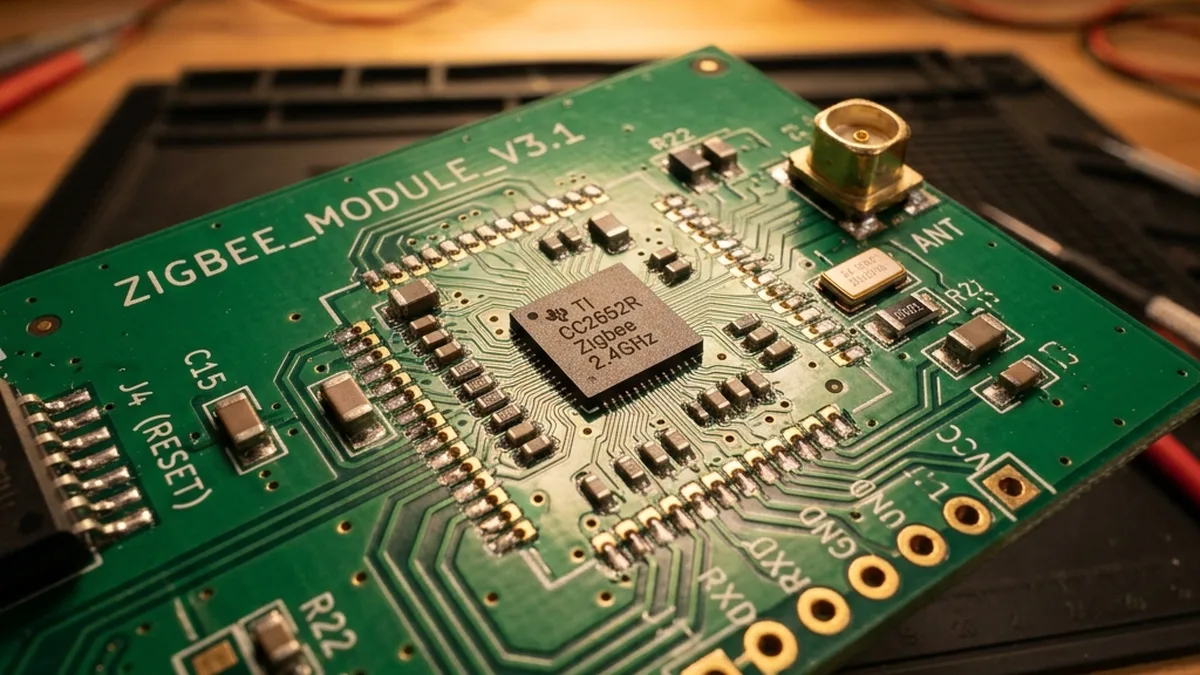
Executive Summary: Zigbee mesh networks, while foundational to modern smart homes, operate with finite memory resources, particularly concerning their routing and neighbor tables. Exceeding these limits in a Coordinator or Router leads to “Routing Table Exhaustion,” manifesting as severe network instability: Unresponsive devices, significant command latency, and persistent “device offline” errors. This master guide provides an in-depth, architect-level analysis of the underlying Zigbee protocol mechanisms, diagnostic methodologies, and advanced remediation strategies. We delve into RF characteristics, parent-child relationship optimization, firmware considerations, and strategic mesh restructuring to restore and maintain robust, high-performance Zigbee infrastructure.
Understanding the Zigbee Mesh Architecture: A Deep Dive
To effectively diagnose and resolve routing table exhaustion, one must possess an intricate understanding of the Zigbee protocol’s foundational architecture. Zigbee, built upon the IEEE 802.15.4 standard for low-rate wireless personal area networks (LR-WPANs), is far from a simple broadcast mechanism. It’s a sophisticated self-organizing, self-healing mesh network designed for low-power, low-bandwidth applications, primarily operating in the 2.4 GHz Industrial, Scientific, and Medical (ISM) radio band.
The IEEE 802.15.4 physical layer (PHY) specifies Direct Sequence Spread Spectrum (DSSS) modulation and Orthogonal Quadrature Phase Shift Keying (O-QPSK) for robust communication in noisy environments. Within the 2.4 GHz band, Zigbee utilizes 16 channels (channels 11 through 26), each 5 MHz wide. This channel allocation is critical, as it directly impacts coexistence with other 2.4 GHz wireless technologies, notably Wi-Fi, which can introduce significant interference and degrade Zigbee network performance, contributing to perceived routing issues.
Roles and Responsibilities: Coordinator, Router, and End Device
Every device in a Zigbee network assumes one of three distinct roles, each with specific responsibilities and hardware requirements:
- Zigbee Coordinator (ZC): The paramount device in any Zigbee network. There can only be one ZC per network. It initiates the network, assigns network addresses, manages security keys, and acts as the central repository for network topology information. A ZC is typically a mains-powered device with substantial processing power and memory, as it must maintain the entire network’s routing tables, child tables, and binding tables. Its capacity directly dictates the theoretical maximum number of devices the network can support.
- Zigbee Router (ZR): Mains-powered devices that extend the network’s range and act as intermediaries for communication between other devices. ZRs can relay messages, store routing information, and allow End Devices to connect to the network. They maintain their own neighbor and routing tables, enabling multi-hop communication. Examples include smart plugs, light switches, and dedicated repeaters. A well-distributed network of ZRs is crucial for network stability and coverage.
- Zigbee End Device (ZED): Typically battery-powered sensors or actuators (e.g., motion sensors, contact sensors, temperature sensors). ZEDs are designed for ultra-low power consumption, spending most of their time in a deep sleep state. They cannot act as routers or relay messages for other devices. They communicate directly with their designated parent (a ZC or ZR) and rely on that parent to buffer messages for them while they are asleep.
The Finite Nature of Routing Tables
The “routing table” is not a singular entity but a collection of memory-constrained data structures residing within each ZR and the ZC. These tables are fundamental to how Zigbee devices find and communicate with each other across the mesh.
- Neighbor Table (NT): This table stores information about devices within immediate radio range. Each entry includes the device’s 64-bit IEEE address, 16-bit network address, link quality indicator (LQI), and the relationship (parent, child, sibling). When a device attempts to join the network or communicate, it first checks its neighbor table. A “Neighbor Table Full” error prevents new devices from joining or existing devices from re-establishing a parent link if their current parent’s table is saturated. Typical limits range from 8 to 32 entries for standard routers, and up to 100+ for high-capacity coordinators.
- Route Table (RT): This table stores the next-hop information for destinations that are not direct neighbors. When a device needs to send a packet to a non-neighbor, it consults its route table to find the optimal path through the mesh. The route table is populated dynamically using the AODV (Ad-hoc On-demand Distance Vector) routing protocol. A “Route Table Full” error means the device cannot store new paths or has to discard older, less frequently used ones, leading to packet drops and increased latency. These tables are often smaller than neighbor tables, with limits ranging from 16 to 64 entries.
- Child Table (CT): Maintained by ZCs and ZRs, this table lists all the End Devices that have chosen this node as their parent. Each entry typically includes the child’s network address and its IEEE address. The size of the child table directly dictates how many End Devices a ZC or ZR can directly support. This is often the most critical bottleneck for ZCs, with typical limits around 20-32 direct children.
- Binding Table (BT): This table stores information about which devices are “bound” together, allowing for direct communication between them without necessarily involving the coordinator for every command. For instance, a smart switch might be bound directly to a smart bulb. While less directly related to routing exhaustion, a full binding table can impact device functionality and responsiveness.
When a coordinator or a primary router is overloaded with too many direct children or has too many active routes, it effectively hits a “hard wall” in its memory allocation. Unlike Wi-Fi, where a single access point can easily manage dozens of clients through a centralized MAC layer, Zigbee’s distributed mesh nature places routing and forwarding responsibilities on individual nodes, each with limited embedded system resources.
The Anatomy of a Routing Failure: Beyond Simple Disconnects
Routing table exhaustion isn’t a single failure state but a cascade of issues stemming from insufficient memory resources on critical network nodes. It typically manifests in distinct scenarios, each requiring a nuanced understanding of the underlying protocol mechanics.
Neighbor Table Full vs. Route Table Full
These two conditions, while related, signify different stages and types of network stress:
- Neighbor Table Full: This occurs when a ZC or ZR has reached its maximum capacity for tracking directly adjacent devices.
- Impact: New devices attempting to join the network will fail immediately, as the potential parent cannot allocate an entry in its neighbor table. Existing devices that lose their parent (e.g., due to power cycle, temporary signal loss) may struggle or fail to re-parent, leading to prolonged “offline” states. This is often an early indicator of network stress, particularly around the coordinator or heavily utilized routers.
- Mechanism: When a device (child) sends an association request or a rejoining request, the potential parent (ZC/ZR) must check if it has an available slot in its neighbor table and, if it’s a ZR/ZC, its child table. If these tables are full, the association response will indicate failure (e.g.,
MAC_ASSOCIATION_RESPONSE_DENIED).
- Route Table Full: This occurs when a ZC or ZR has reached its maximum capacity for storing multi-hop paths to devices that are not direct neighbors.
- Impact: Devices already on the network will experience intermittent connectivity, significant command latency, and frequent packet drops. Commands sent to distant devices may time out or fail to reach their destination. The network might attempt to find longer, less efficient paths, or simply drop the packet if no viable route can be stored. This leads to a general feeling of an “unresponsive” smart home.
- Mechanism: Zigbee uses the AODVjr (AODV junior) routing protocol, a simplified version of AODV. When a source device needs to send data to a destination not in its neighbor table, it initiates a Route Request (RREQ). Intermediate routers that receive the RREQ either have a route to the destination in their Route Table or forward the RREQ. If a router’s RT is full, it cannot store the new route discovered by the RREQ, even if a path exists. This forces repeated RREQs or packet drops. Stale routes that are not properly aged out (a common issue in older firmware/Zigbee HA profiles) exacerbate this problem by occupying valuable table entries.
Consider the following simplified network topology:
[Coordinator (ZC)] (Child Table Limit: 20)
       |
       +------------------------------------+
       |                                    |
   [Router A] (Child Table Limit: 10)   [Router B] (Child Table Limit: 10)
       |                                    |
       +-------+-------+                    +-------+-------+
       |       |       |                    |       |       |
[ED_A1] [ED_A2] [ED_A3] ... [ED_A10]       [ED_B1] [ED_B2] [ED_B3] ... [ED_B10]
In this scenario, if Router A has 10 End Devices (ED_A1 to ED_A10) as direct children, and its child table limit is 10, any new End Device (e.g., ED_A11) attempting to parent with Router A will be denied. This is Neighbor Table Exhaustion specifically concerning the child table. Similarly, if the ZC has 20 direct children and its child table limit is 20, it cannot accept any more direct children.
Now, let’s consider a routing path:
[Coordinator] -------- [Router 1] -------- [Router 2] -------- [End Device X]
   (Route Table)         (Route Table)       (Route Table)
   Path to ED_X: R1 -> R2 -> ED_X
If Router 1’s route table is full, it cannot store the path to End Device X. Even if Router 1 can communicate with Router 2, it might not be able to forward packets to End Device X if it cannot establish or maintain the route entry. This leads to packet drops and retransmissions, consuming more network bandwidth and processing power, further exacerbating the issue.
The Role of Link Status Messages and Route Discovery
Zigbee networks rely on periodic Link Status messages exchanged between neighbors to maintain an up-to-date view of link quality and availability. These messages carry information about the sender’s neighbors and their link costs. When a link degrades or a device goes offline, Link Status messages help the network adapt. However, in an exhausted state, routers might struggle to process these messages efficiently or update their tables, leading to stale route entries that consume valuable memory.
Route discovery, initiated by an RREQ, involves broadcasting the request across the network until the destination or a router with a valid path is found. This process generates network traffic. If routers’ tables are full, RREQs may fail to establish new routes, leading to repeated RREQs, which can consume significant network bandwidth and processor cycles, particularly on the coordinator. This can be misdiagnosed as “broadcast storms,” but it’s often a symptom of underlying table exhaustion preventing efficient routing.
Diagnostic Table: Advanced Zigbee Network Symptoms and Analysis
Identifying routing table exhaustion requires a keen eye for subtle network behaviors and access to diagnostic tools. Here’s an expanded table detailing common symptoms, their deeper technical causes, and advanced diagnostic actions.
| Symptom | Likely Technical Cause | Advanced Diagnostic Action | Underlying Protocol Impact |
|---|---|---|---|
| Intermittent “Device Offline” / Unresponsive Devices | Route Table Overflow, Stale Route Entries, High Latency Links |
|
|
| New Device Joining Fails Immediately or Times Out | Neighbor Table Exhaustion (Child Table Full) on potential parent (ZC/ZR) |
|
|
| Command Latency > 2 seconds (e.g., light switch delay) | Multi-hop Route Congestion, Repeated Route Discovery, High Interference |
|
|
| Coordinator Lockup / Requires Frequent Reboot | Firmware Buffer Overflow, Excessive Network Traffic Processing, Memory Leak |
|
|
| Battery Devices Drain Rapidly | Frequent Rejoining Attempts, Poor Link Quality, Parent Device Instability |
|
|
| Specific Device Types Always Offline | Incompatible Firmware, Poor Antenna Design, High RF Attenuation |
|
|
Step-by-Step Troubleshooting and Remediation: An Architect’s Guide
Resolving Zigbee routing table exhaustion requires a systematic, analytical approach. This structured process moves from network mapping to advanced RF optimization, ensuring a resilient smart home infrastructure.
- Map Your Network Topology and Identify Chokepoints:
Utilize your Zigbee gateway’s visualization tools (e.g., Zigbee2MQTT’s frontend, Home Assistant‘s ZHA network map, Hubitat’s topology map, SmartThings Groovy IDE network view). These tools graphically represent parent-child relationships and routing paths. Focus on identifying:
- Overloaded Parents: Look for any single coordinator or router acting as a parent for an unusually high number of direct children (e.g., 15+ End Devices). These are prime candidates for child table exhaustion.
- Long, Inefficient Routes: Identify devices that are 3, 4, or even more hops away from the coordinator. While multi-hop is inherent to mesh, excessive hops increase latency and the likelihood of route table saturation on intermediate routers.
- Low LQI/RSSI Values: Pay attention to Link Quality Indicator (LQI) and Received Signal Strength Indicator (RSSI) values. LQI ranges from 0-255 (higher is better), while RSSI is typically negative dBm (closer to 0 is better). Consistently low LQI (<100) or RSSI (<-80 dBm) indicates a weak link, leading to more retransmissions and increased table activity.
    [Coordinator]
          |
          +----(LQI: 200)----+
          |                   |
      [Router A]           [Router B]
      (15 Children)        (3 Children)
          |                   |
          +----(LQI: 70)----+   +----(LQI: 220)----+
          |                   |                   |
      [End Device 1]      [End Device 2]      [End Device 3]
      (Unresponsive)
In this example, Router A is overloaded, and End Device 1 has a poor link quality, likely routing through Router A. This is a clear chokepoint.
- Introduce “Router” Load Balancers Strategically:
If a specific router or the coordinator is overloaded, introduce additional mains-powered Zigbee devices (dedicated repeaters, smart plugs, wired light switches, modern smart bulbs) near the cluster of affected End Devices. The goal is to provide alternative, less congested parent options.
- Placement: Place new routers strategically between the overloaded parent and the End Devices struggling with connectivity. Aim for roughly half the maximum radio range (e.g., 5-10 meters indoors) for optimal link quality.
- Device Quality: Prioritize routers with robust chipsets (e.g., Silicon Labs EFR32, Texas Instruments CC2652/CC1352) and good antenna design. Generic smart bulbs, while acting as routers, can sometimes have less robust firmware or smaller table capacities compared to dedicated repeaters.
- Perform a Strategic Network “Heal” or Power Cycle:
This is a critical step to force devices to re-evaluate their parent-child relationships and routing paths. It’s not a simple “turn it off and on again”; the order matters:
- Coordinator First: Power down your Zigbee coordinator for at least 60 seconds (some recommend 5-10 minutes to ensure all volatile memory is cleared). This forces all End Devices to enter an “orphan scan” state, actively searching for a new parent.
- Routers Next: While the coordinator is off, power down any problematic or overloaded routers. Ensure your newly introduced routers (load balancers) are powered on first.
- Reboot Order: Power on the coordinator. Wait 5-10 minutes for it to fully boot and establish its network. Then, power on your strategically placed new routers. Finally, power on the older, potentially overloaded routers. End Devices will then start rejoining, ideally selecting the less congested, stronger signal parents.
- Individual Device Rejoin: For stubborn End Devices, you may need to power cycle them individually (remove battery or cycle mains power) to force them to rejoin the network and find a new parent.
- Minimize Battery-Powered “Parents” (If Applicable):
While rare in modern Zigbee 3.0 stacks, some older or non-compliant firmware might erroneously allow battery-powered devices to attempt to act as routers. This is a critical failure point. Battery-powered devices enter deep sleep states to conserve power, making them unreliable parents as they cannot consistently relay messages or maintain routing tables. Verify that all your active routers are mains-powered. If you encounter a battery-powered device attempting to route, it indicates a firmware bug or misconfiguration that needs immediate attention (e.g., firmware update, replacement).
- Optimize LQI Thresholds and Mitigate RF Interference:
A “too dense” mesh with poor LQI can be as problematic as a sparse one. High density can lead to increased collisions and retransmissions, consuming valuable table space for recovery attempts. Low LQI indicates unreliable links, forcing devices to constantly search for better routes.
- LQI/RSSI Analysis: Aim for LQI values consistently above 150-200 and RSSI values better than -70 dBm for critical devices. Below these thresholds, expect performance degradation.
- Channel Optimization: The 2.4 GHz ISM band is shared. Wi-Fi channels 1, 6, and 11 heavily overlap with Zigbee channels.
        Wi-Fi Channel 1 (2401-2423 MHz): Overlaps Zigbee 11-14
        Wi-Fi Channel 6 (2426-2448 MHz): Overlaps Zigbee 16-19
        Wi-Fi Channel 11 (2451-2473 MHz): Overlaps Zigbee 21-24
        Zigbee Channel 25 & 26: Generally clear of Wi-Fi 1, 6, 11 (26 often lower power)
Use a Wi-Fi analyzer app (on your phone) to identify the least congested Wi-Fi channels in your environment. Then, select a Zigbee channel that minimally overlaps with your Wi-Fi (e.g., if Wi-Fi is on channel 6, choose Zigbee channel 11, 12, 13, 14, 20, 25, or 26). Changing the Zigbee channel typically requires rebuilding the network, so this is a last resort but highly effective.
- Physical Obstructions: Concrete walls, large metal appliances, and even water pipes can significantly attenuate 2.4 GHz signals. Consider these when placing routers.
- Ensure Latest Firmware on Coordinator and Routers:
Firmware updates often include critical bug fixes, performance enhancements, and, crucially, increased table capacities or improved route aging algorithms. Regularly check for and apply updates for your Zigbee coordinator (e.g., ConBee II, Sonoff Zigbee 3.0 Dongle Plus) and smart home hub (e.g., Hubitat, SmartThings). Some advanced routers (e.g., Ikea TRÅDFRI Repeater, certain smart plugs) also receive firmware updates via Over-The-Air (OTA) updates through your coordinator.
- Consider Network Segmentation for Large Deployments:
If your smart home exceeds 70-100 Zigbee devices, even with optimal routing, a single coordinator might struggle due to its inherent CPU and RAM limitations. In such cases, consider segmenting your network into two or more distinct Zigbee networks, each with its own coordinator operating on a different, non-overlapping channel (e.g., Network 1 on Zigbee channel 11, Network 2 on Zigbee channel 25). This distributes the load and table requirements across multiple physical devices.
Advanced Analysis: The Evolution of Zigbee and Hardware Impact
The capabilities and limitations of a Zigbee network are intrinsically tied to the underlying hardware and the evolution of the Zigbee specification itself.
Why Zigbee 3.0 Makes a Difference
Older Zigbee Home Automation (HA 1.2) profiles were functional but rigid. They often lacked robust mechanisms for dynamic network management, leading to persistent issues like stale route entries. When a device moved or a parent went offline, the network often failed to “forget” the old route, keeping the entry in the table indefinitely. This led to gradual table saturation even in relatively stable networks.
Zigbee 3.0, released in 2016, represents a significant leap forward. It unifies previous application profiles (HA, Light Link, Health Care) into a single, comprehensive standard, bringing several critical improvements directly addressing routing table exhaustion:
- Improved Route Aging and Garbage Collection: Zigbee 3.0 mandates better “aging” of routing table entries. Stale or unused routes are automatically purged more efficiently to make room for new, active connections. This proactive memory management reduces the likelihood of tables filling up with obsolete data.
- Enhanced Device Discovery and Joining: The unified profile and improved security mechanisms streamline the joining process, making it more robust and less prone to failures, even in congested environments.
- Distributed Addressing: While still using 16-bit short addresses, Zigbee 3.0’s underlying network layer enhancements contribute to more efficient address allocation and management.
- Standardized Commissioning: A more consistent commissioning experience means devices are less likely to join sub-optimally, reducing the initial burden on the network.
- Increased Robustness: Overall, Zigbee 3.0 networks are designed to be more resilient to changes in topology and device availability, reducing the frequency of re-routing events that stress table capacities.
The Impact of Modern Chipsets: EFR32, CC2652, and Beyond
The “brain” of your Zigbee coordinator and routers is a System-on-Chip (SoC) that integrates the microcontroller, radio transceiver, and memory. The capabilities of this SoC directly dictate the practical limits of your Zigbee network. Here’s a comparison of typical table capacities:
| Table Type | Older Chipsets (e.g., CC2531) | Modern Chipsets (e.g., EFR32, CC2652) |
|---|---|---|
| Neighbor Table | ~8-16 entries | 100+ entries (on coordinators) |
| Route Table | ~16-32 entries | 64-128+ entries |
| Child Table | ~8-16 entries | 50-100+ entries (on coordinators) |
| RAM | ~8KB | 64KB-256KB+ |
| Flash Memory | Limited (e.g., 128KB) | 256KB-1MB+ |
If you are still running a legacy Zigbee network on older hardware, the most effective solution for persistent routing table exhaustion is often a hardware upgrade to a coordinator based on these modern chipsets. This provides a fundamental increase in capacity and resilience that software optimizations alone cannot achieve.
Frequently Asked Questions (FAQ)
Does adding more routers always improve the mesh?
No, not necessarily. While adding routers generally extends coverage and provides more routing paths, there’s a point of diminishing returns. If you have an excessive number of routers (e.g., 50 routers in a small 1,000 square foot apartment), you can introduce “network overhead” or even “broadcast storms.” Every Zigbee packet requires acknowledgments and may be repeated by multiple routers to ensure delivery. With too many routers, packets are repeated unnecessarily many times, consuming bandwidth, increasing collisions, and overwhelming the coordinator’s processing capacity with redundant traffic. The goal is strategic placement for coverage and load balancing, not simply maximum density.
What is the practical physical limit of a Zigbee network?
The Zigbee protocol technically supports up to 65,535 nodes (2^16-1 network addresses). However, this is a theoretical limit. Practically, most home-grade coordinators are limited to 50–100 total devices due to the RAM, Flash memory, and processing power constraints on the coordinator’s SoC. The most common bottleneck is the coordinator’s child table and route table capacity. If you exceed this practical limit, or your network’s complexity demands it, you must split your network into two or more distinct Zigbee networks, each with its own coordinator operating on a different, non-overlapping channel (e.g., Channel 11 and 25).
Why do my smart bulbs act as routers, and is it always good?
Most Zigbee smart bulbs are designed to be “always-on” routers because they are mains-powered. This is a deliberate design choice to extend the mesh network’s coverage and provide more routing options. However, this isn’t always beneficial. If these bulbs are frequently power-cycled (e.g., via a traditional wall switch cutting power), they cause disruptions. When a router goes offline, all its children (End Devices) become orphans, and the network must re-calculate routes around the missing node. This process consumes significant routing table entries for temporary paths and can destabilize the entire mesh, leading to temporary table exhaustion. It’s best to use smart bulbs that are always powered or to use dedicated, stable routers.
What is the difference between LQI and RSSI?
RSSI (Received Signal Strength Indicator) is a direct measurement of the power present in a received radio signal, usually expressed in negative dBm (e.g., -50 dBm is stronger than -80 dBm). It indicates the raw signal strength.
LQI (Link Quality Indicator) is a value ranging from 0 to 255 (with 255 being the best quality). LQI is a more nuanced metric that considers not just signal strength (RSSI) but also signal-to-noise ratio (SNR), packet error rate, and other factors that affect the reliability of the communication link. A high RSSI with a low LQI can indicate significant interference. For Zigbee, LQI is generally a more reliable indicator of link quality than RSSI alone, as it better reflects the usability of the link for data transmission.
How does Wi-Fi interfere with Zigbee, and how can I mitigate it?
Both Wi-Fi and Zigbee operate in the 2.4 GHz ISM band, leading to potential co-channel or adjacent-channel interference. Wi-Fi channels 1, 6, and 11 are the most common and widest, overlapping significantly with Zigbee’s 16 channels.
To mitigate:
- Channel Scan: Use a Wi-Fi analyzer app to identify the least congested Wi-Fi channels in your home.
- Zigbee Channel Selection: Choose a Zigbee channel that minimally overlaps with your Wi-Fi. The general recommendation is:
- If Wi-Fi is on Channel 1 (overlaps Zigbee 11-14), choose Zigbee Channel 15, 20, 25, or 26.
- If Wi-Fi is on Channel 6 (overlaps Zigbee 16-19), choose Zigbee Channel 11, 12, 13, 14, 20, 25, or 26.
- If Wi-Fi is on Channel 11 (overlaps Zigbee 21-24), choose Zigbee Channel 11, 12, 13, 14, 15, 20, 25, or 26.
- Zigbee Channel 26 often has the least Wi-Fi interference but might have slightly reduced range due to regulatory power limits in some regions.
- Physical Separation: Keep your Zigbee coordinator physically separated from your Wi-Fi router by at least 1-2 meters.
- Reduce Wi-Fi Congestion: Move high-bandwidth Wi-Fi devices to the 5 GHz band if possible.
Can I have multiple Zigbee networks in one home?
Yes, absolutely. For very large smart homes or complex deployments exceeding 70-100 devices, having multiple independent Zigbee networks is often the most stable and scalable solution. Each network requires its own coordinator and must operate on a distinct, non-overlapping Zigbee channel to prevent interference between the networks. For example, one network could manage all lighting on channel 11, and another could handle all sensors and switches on channel 25. While devices on separate networks cannot communicate directly via Zigbee, they can be integrated and managed through a central smart home hub software (e.g., Home Assistant, Hubitat) that bridges the different Zigbee coordinators.
What about Thread and Matter? How do they relate?
Thread is an IP-based mesh networking protocol built on IEEE 802.15.4, similar to Zigbee in its physical layer, but fundamentally different in its network layer. Thread is designed to be more robust, scalable, and secure, with every device (except End Devices) acting as a router. It natively supports IPv6, making it highly compatible with modern network architectures.
Matter is an application layer standard that runs over IP-based networks, including Wi-Fi, Ethernet, and Thread. Matter’s goal is to provide universal interoperability between smart home devices, regardless of the underlying connectivity protocol.
While Zigbee and Thread are distinct, the underlying IEEE 802.15.4 radio hardware is often the same (e.g., many modern EFR32 and CC2652 chips support both protocols). Future devices may be “multi-protocol” and switch between Zigbee and Thread. For now, Zigbee remains a robust and widely adopted standard, but Thread and Matter represent the future direction for interoperability and IP-native IoT communication, potentially alleviating some of the routing complexity inherent in older Zigbee implementations by leveraging IP’s mature routing mechanisms.
Conclusion
Rebuilding and optimizing your Zigbee mesh is not merely about adding more devices; it’s about meticulously engineering a balanced, tiered, and resilient network architecture. Routing table exhaustion, while frustrating, is a solvable problem that stems from fundamental resource limitations and suboptimal network design. By delving into the technical intricacies of the Zigbee protocol, understanding the roles of coordinators, routers, and end devices, and leveraging modern hardware and firmware, you can move beyond intermittent connectivity to a consistently responsive smart home.
The key takeaways are clear: Proactively map your network, strategically distribute routing load with high-quality mains-powered devices, employ systematic network healing, and, critically, manage the radio frequency environment. Upgrading to modern Zigbee 3.0-compliant hardware with capable chipsets (EFR32, CC2652) provides a foundational increase in capacity and stability. Treat your mesh like a living, dynamic ecosystem; it requires balance, clear communication paths, and room to grow. When you optimize the parent-child relationships, manage interference, and keep your firmware current, you transform a fragile, frustrating setup into a robust, enterprise-grade smart home infrastructure.
About these guides
These guides are compiled and maintained by the Smart Home Expert editorial desk. Each one is built from manufacturer documentation and the published Zigbee, Z-Wave, Thread and Wi-Fi specifications, then written up as a diagnostic sequence you can follow in order. Found something that does not match your hardware? Tell us and we will correct the sheet.
Specifications and references
The primary documentation for the protocols and products discussed above. Where this guide gives a figure — a frequency, a voltage, a timeout — these are where it comes from.