Smart Bulbs Keep Going Offline? Here’s Why
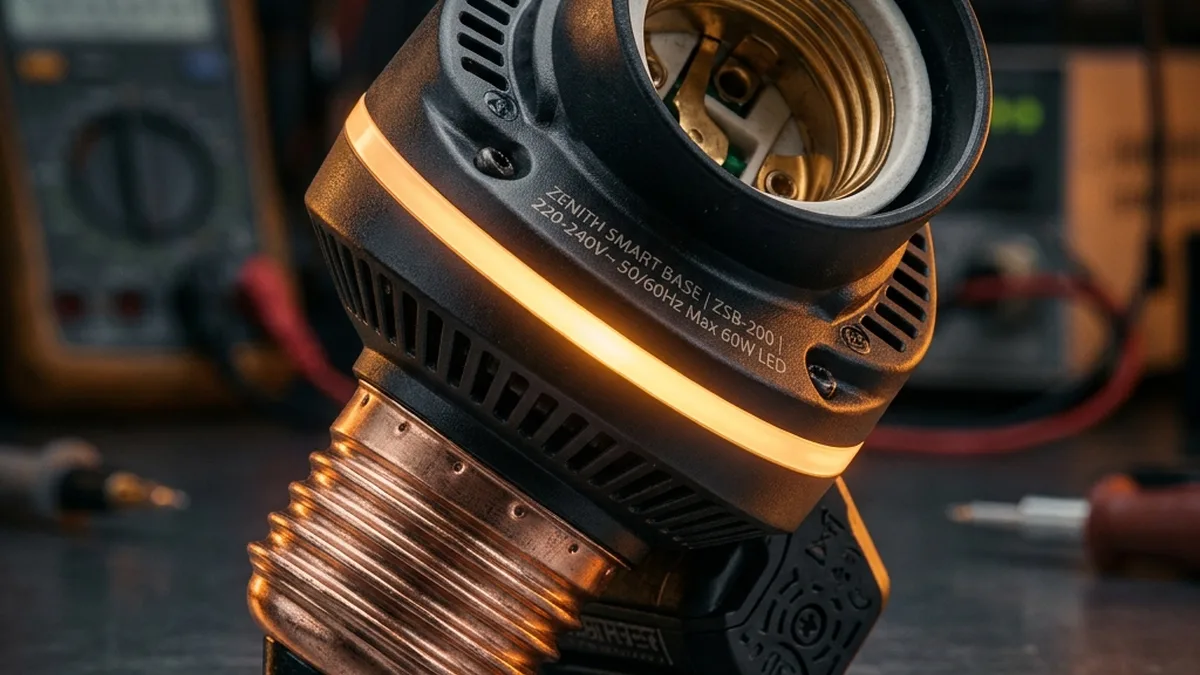
There’s nothing more frustrating than walking into a room, asking your smart assistant to turn on the lights, and hearing that dreaded “I’m sorry, I couldn’t reach the device” response. We’ve all been there. Smart bulbs are often the initial foray into a connected home, yet they frequently prove to be among the most finicky components within the entire ecosystem. The immediate inclination is to blame the bulb itself, the reality is almost always a complex interplay of network configuration, environmental RF interference, and protocol-specific nuances.
Ranging from high-end Philips Hue systems to budget-friendly Xiaomi and generic Wi-Fi bulbs, the root causes of connectivity failures are rarely simple. They typically involve a tug-of-war between your local network’s stability, pervasive wireless EMI (Electromagnetic Interference), co-channel congestion, and the specific communication protocol your bulbs are leveraging—be it Wi-Fi, Zigbee, Thread, or even Bluetooth Low Energy (BLE). This guide sets out a systematic, multi-layered approach to diagnosing and resolving these persistent dropouts, ensuring a truly rock-solid smart lighting experience.
The Foundational Pillars of Smart Bulb Connectivity
At its core, smart lighting relies on robust, low-latency communication. If your bulbs cannot reliably communicate with their respective hubs, border routers, or directly with your Wi-Fi router, they revert to being expensive, unintelligent LEDs. Understanding the underlying technologies is paramount to effective troubleshooting.
Understanding the Wireless Landscape: Protocols and Their Peculiarities
Each wireless protocol employed by smart bulbs has distinct characteristics, advantages, and limitations that directly impact reliability and scalability.
Wi-Fi (2.4GHz): The Double-Edged Sword
Most entry-level smart bulbs utilize 2.4GHz Wi-Fi (IEEE 802.11b/g/n). This frequency band is favored for its superior range and wall-penetration capabilities compared to 5GHz Wi-Fi. However, this ubiquity is also its greatest weakness. The 2.4GHz spectrum is incredibly congested, shared not only by your Wi-Fi network but also by countless other devices, including microwaves, cordless phones, Bluetooth devices, baby monitors, and your neighbors’ Wi-Fi networks. Wi-Fi bulbs typically connect directly to your router, each requiring its own IP address and maintaining a constant connection. This can quickly overwhelm consumer-grade routers, leading to dropped connections and increased network latency, especially in setups with more than 5-10 Wi-Fi-only bulbs.
Zigbee: The Resilient Mesh
Zigbee (IEEE 802.15.4) is a low-power, low-data-rate wireless mesh network protocol. Devices like Philips Hue, IKEA Tradfri, and many Tuya-based Zigbee bulbs rely on a central hub (coordinator) to manage the network. The beauty of Zigbee lies in its mesh capabilities: Devices (routers, typically mains-powered bulbs or outlets) can relay signals for other devices (end devices), extending the network’s range and improving reliability. If one router fails, the network can often self-heal by routing traffic through another. Zigbee operates on channels within the 2.4GHz spectrum, often overlapping with Wi-Fi channels, which is a critical source of interference.
Thread & Matter: The Future-Proof Standard
Thread (IEEE 802.15.4) is an IP-based, low-power mesh networking protocol designed for IoT. Unlike Zigbee, Thread devices are addressable via IPv6, eliminating the need for a proprietary hub and enabling direct cloud or local control via a Thread Border Router (e.g., Apple HomePod Mini, Amazon Echo Show 10, Google Nest Hub). Matter is the application layer protocol that runs over Thread (and Wi-Fi/Ethernet), providing universal interoperability. This combination offers unparalleled reliability, security (AES encryption), and scalability. The mesh network is self-healing, and its IPv6 foundation allows for seamless integration into modern network architectures. Thread also operates in the 2.4GHz band, requiring careful channel management.
Bluetooth Low Energy (BLE): Niche Applications
Some smart bulbs, particularly those designed for single-room control or direct smartphone pairing without a hub, utilize Bluetooth Low Energy (BLE). BLE operates on 40 channels, each 2 MHz wide, within the 2.4GHz ISM band. It employs Adaptive Frequency Hopping (AFH) to dynamically avoid congested Wi-Fi channels, and its three dedicated advertising channels (37, 38, 39) are strategically placed in the spectral gaps of Wi-Fi channels 1, 6, and 11 to minimize interference during device discovery. While simple for direct control, BLE’s range is limited (typically 30-50 feet line-of-sight). Although Bluetooth Mesh exists, most BLE smart bulbs for direct control do not inherently form a mesh network for extending range or reliability. It’s generally not recommended for whole-home smart lighting solutions requiring robust, continuous connectivity without a dedicated mesh implementation.
| Protocol | Frequency Band | Network Topology | Typical Range (Indoor) | Reliability Score | Key Advantages | Key Disadvantages |
|---|---|---|---|---|---|---|
| Wi-Fi (2.4GHz) | 2.4 GHz | Star | 100-150 ft | Low-Medium | Direct connection, no hub needed | Congestion, router load, power draw |
| Zigbee | 2.4 GHz (or 900 MHz EU/US) | Mesh | 30-60 ft (per hop) | High | Self-healing mesh, low power, scalable | Requires hub, 2.4GHz interference |
| Thread (Matter) | 2.4 GHz | Mesh (IPv6) | 50-100 ft (per hop) | Ultra-High | IP-based, self-healing, secure, interoperable | Requires Border Router, newer standard |
| BLE | 2.4 GHz | Star (Point-to-Point) | 30-50 ft | Low | Simple direct pairing, very low power | Limited range, no mesh, not scalable |
Radio Frequency (RF) Physics and Signal Propagation
The unseen world of radio waves plays a crucial role in smart device connectivity. Understanding fundamental RF principles helps in diagnosing and mitigating issues.
Signal Attenuation & Path Loss
Wireless signals lose strength as they travel through space (path loss). This attenuation is exacerbated by physical barriers. In older construction with thick plaster and lath walls the drop-off is severe, and can exceed 15 dBm per wall. Materials like concrete, brick, and even water (e.g., large aquariums, human bodies) significantly absorb RF energy. Metal appliances, large mirrors, and even heavy furniture can act as signal blockers or reflectors. Warning: Placing a hub inside a metal cabinet or directly behind a large TV can reduce its effective range by up to 70% due to Faraday cage effects and signal absorption.
Interference: EMI, Co-Channel, Adjacent Channel
- EMI (Electromagnetic Interference): Non-Wi-Fi sources like microwaves, poorly shielded electronics, fluorescent lights, and even some HVAC systems emit electromagnetic noise that can disrupt 2.4GHz signals. This manifests as random packet loss or temporary disconnections.
- Co-Channel Interference: This occurs when multiple Wi-Fi networks (or other 2.4GHz devices like Zigbee) operate on the same channel within range of each other. While devices can theoretically coexist, they must take turns transmitting, leading to reduced throughput, increased latency, and perceived “dropouts.”
- Adjacent Channel Interference: More insidious, this happens when networks operate on overlapping but not identical channels (e.g., Wi-Fi channel 1 and channel 2). The spectral masks of these channels overlap, causing noise and corruption that is harder for devices to filter out, often leading to more severe performance degradation than pure co-channel interference.
Multipath & Reflection
In indoor environments, RF signals bounce off walls, floors, and objects, creating multiple paths for the signal to reach the receiver. While sometimes beneficial (non-line-of-sight communication), these reflected signals can arrive out of phase with the direct signal, causing destructive interference and signal cancellation at specific points in space. This phenomenon, known as multipath fading, can create “dead spots” or areas of significantly reduced signal strength, even in close proximity to the access point. This is why slightly repositioning a bulb or router can sometimes yield dramatic improvements.
Deep Dive: Common Causes of Connectivity Failure (and their technical underpinnings)
The 2.4GHz Congestion Crisis: A Technical Breakdown
As highlighted, the 2.4GHz band is a battleground. For Wi-Fi, there are 11 (in North America) or 13 (in Europe/Asia) channels, but only channels 1, 6, and 11 are non-overlapping.
Wi-Fi Channel Overlap and Spectral Efficiency
Each Wi-Fi channel occupies 22 MHz of bandwidth. Channel 1 uses 2401-2423 MHz, channel 2 uses 2406-2428 MHz, and so on. This overlap means that if your router is on channel 3 and your neighbor’s is on channel 4, they are directly interfering with each other. This interference reduces the effective Signal-to-Noise Ratio (SNR), forcing devices to retransmit packets, which increases latency and decreases effective bandwidth, often causing smart bulbs to time out and appear offline. The “Quick Verdict” identifies this as a primary culprit because many routers default to “Auto” channel selection, which often picks a sub-optimal channel.
Non-Wi-Fi Interference Sources
Beyond Wi-Fi, the 2.4GHz ISM (Industrial, Scientific, and Medical) band is home to a plethora of devices. A microwave oven, for instance, can emit significant RF energy across the entire 2.4GHz band when operating, effectively jamming all Wi-Fi and Zigbee communication in its vicinity. Older cordless phones, certain wireless cameras, and even poorly shielded USB 3.0 devices can contribute to a high noise floor, making it difficult for low-power smart bulbs to maintain a stable link.
IP Address Management & DHCP Leases
For Wi-Fi bulbs, stable IP address assignment is critical. Most home networks use DHCP (Dynamic Host Configuration Protocol) to assign IP addresses automatically.
DHCP Conflicts and Lease Expiration
If your router’s DHCP server has a short lease time, or if you have many devices joining and leaving the network, a bulb might lose its IP address or be assigned an address that another device is already using (an IP conflict). This can lead to the bulb becoming unresponsive. Older routers, especially those with limited memory or CPU, struggle to manage large DHCP lease tables, exacerbating these issues. When a DHCP lease expires, the device must renew it. If the DHCP server is unavailable or slow to respond, the device can drop off the network. This is particularly noticeable in large smart home deployments.
mDNS/Bonjour Resolution Issues
Many smart devices, especially those integrating with Apple HomeKit or Google Home, use mDNS (multicast DNS) or Bonjour for local service discovery. This allows devices to find each other on the local network without a central DNS server. If your router or network configuration blocks or mismanages multicast traffic, devices may fail to discover each other, leading to “device not found” errors even if they have a valid IP address and are technically online.
Firmware Integrity and Device Stability
The software running on your smart bulb’s microcontroller (MCU) is its firmware. It dictates how the device communicates, responds to commands, and manages its radio module.
Corrupted Firmware & OTA Update Failures
A firmware update can sometimes be interrupted (e.g., power loss), leading to corrupted firmware that causes erratic behavior or complete failure. In the Xiaomi community, for example, a simple firmware mismatch between the bulb and the region-specific hub firmware can cause a total system hang. Failed Over-The-Air (OTA) updates are a common culprit for device instability. A partially updated or corrupted firmware image can result in memory leaks, CPU overloads, or radio module malfunctions, leading to intermittent disconnections.
Insufficient Device Resources (RAM/Flash)
Budget bulbs sometimes come with minimal RAM and flash memory. When processing complex commands, maintaining multiple network connections, or performing internal tasks, these limited resources can be exhausted, causing the device’s MCU to crash or its network stack to fail. Some bulbs incorporate a hardware watchdog timer to reboot the device in such scenarios, but this often manifests as an inexplicable momentary dropout.
Power Supply Fluctuation & Brownouts
While often overlooked, the quality and stability of the electrical power supplied to the bulb or hub are critical.
Impact on Radio Module and MCU
Momentary power fluctuations, known as “brownouts,” or noisy electrical lines can disrupt the sensitive electronics within a smart bulb, particularly its radio module and microcontroller. Even a brief dip in voltage below the operating threshold can cause the radio to reset or the MCU to become unstable, leading to a temporary loss of network connectivity. This is more prevalent in older homes with less stable wiring or during peak electrical loads on a circuit.
Advanced Troubleshooting Protocol: A Systematic Approach
This protocol moves beyond basic resets, diving into network diagnostics and configuration adjustments that address the root causes of smart bulb instability.
Phase 1: Initial Diagnostics & Physical Layer Verification
Step 1.1: Power Cycle & Hardware Reset
Before delving into complex network issues, always start with the basics. A full power cycle can clear transient software glitches or network stack errors.
- Physical Power Off: For the specific bulb, turn off the physical light switch or unplug the fixture. Maintain power off for a full 30 seconds. This ensures all residual charge in capacitors dissipates and the device performs a cold boot.
- Power On Observation: Restore power. For certain bulbs, like TP-Link Kasa, watch for a single blink or a specific light sequence to confirm a successful power-on handshake and initial network connection attempt. If no indication, proceed to next steps.
- Hub/Router Power Cycle: If multiple bulbs are affected, power cycle your smart home hub (Zigbee/Thread) and then your primary Wi-Fi router/access points. Wait 2-3 minutes for all network components to fully boot and re-establish their connections before testing the bulbs.
Step 1.2: Environmental & Proximity Scan
Assess the physical environment for potential RF interference and signal attenuation.
- RSSI Measurement: Use a Wi-Fi Analyzer app (e.g., NetSpot, Wi-Fi Analyzer by farproc for Android, or specific router diagnostic tools) to measure the Received Signal Strength Indicator (RSSI) at the bulb’s location. A healthy RSSI for 2.4GHz devices is typically -65 dBm or stronger (closer to 0 is stronger, e.g., -40 dBm is excellent). Values weaker than -70 dBm indicate a problematic signal.
- Interference Scan: While using the Wi-Fi Analyzer, observe the 2.4GHz spectrum for other Wi-Fi networks and sources of noise. Look for high signal strength from neighboring networks on your channel or adjacent channels.
- Physical Obstruction Check: Identify any large metal objects, thick walls, or appliances between the bulb and its nearest access point or hub. Temporarily move the bulb to a location closer to the router/hub, ideally with line-of-sight, to rule out physical attenuation.
Step 1.3: Router Health Check
Ensure your network’s foundation is stable.
- Router Firmware: Verify your Wi-Fi router’s firmware is up to date. Manufacturers frequently release updates to improve stability, security, and device compatibility.
- Client Limit: Check your router’s specifications for its maximum recommended number of connected clients. Consumer-grade routers often struggle past 20-30 devices, especially 2.4GHz Wi-Fi IoT devices.
- CPU/Memory Usage: If your router provides statistics, check its CPU and memory utilization. High usage can indicate an overloaded device struggling to manage network traffic.
Phase 2: Network Layer Optimization
Step 2.1: Wi-Fi Channel Analysis & Static Assignment
This is the most impactful step for 2.4GHz Wi-Fi devices.
- Identify Optimal Channel: Using a Wi-Fi Analyzer, identify the least congested non-overlapping 2.4GHz channel (1, 6, or 11) in your environment. Look for the channel with the fewest strong neighboring networks.
- Access Router Settings: Log into your Wi-Fi router’s administrative interface (typically via a web browser at 192.168.1.1 or 192.168.0.1).
- Set Static Channel: Navigate to the 2.4GHz Wi-Fi settings. Change the channel selection from “Auto” to your chosen static channel (1, 6, or 11). Avoid using channels 2-5, 7-10, or 12-13 if channels 1, 6, or 11 are available, as they cause adjacent channel interference.
- Test: After applying changes, reboot your router and then test the smart bulbs.
Step 2.2: Static IP Configuration (for Wi-Fi bulbs)
Prevents DHCP-related dropouts.
- Find Bulb’s MAC Address: Locate the MAC address of the problematic Wi-Fi bulb, usually found in its companion app’s device info or printed on the bulb itself.
- Access Router’s DHCP Settings: In your router’s administration interface, find the DHCP server settings, specifically the “DHCP Reservation” or “Static Lease” section.
- Assign Static IP: Enter the bulb’s MAC address and assign a static IP address from within your router’s DHCP pool, but outside the dynamic range if possible (e.g., if dynamic range is 192.168.1.100-192.168.1.200, use 192.168.1.20 or 192.168.1.201). This ensures the bulb always gets the same IP address.
- Reboot Bulb: Power cycle the bulb after making this change to ensure it requests and receives the new static IP.
Step 2.3: Zigbee/Thread Channel Optimization (for Hub-based systems)
If using Zigbee or Thread, their 2.4GHz channels can also conflict with Wi-Fi.
- Identify Overlap: Refer to the table below for common Wi-Fi and Zigbee channel overlaps. Thread typically maps to Zigbee channels.
- Access Hub Settings: Log into your Zigbee hub’s administration interface or companion app (e.g., Philips Hue app: Settings > Bridge Settings > Zigbee Channel).
- Select Non-Overlapping Channel: Choose a Zigbee/Thread channel that minimizes overlap with your primary Wi-Fi channel. For example, if your Wi-Fi is on channel 11, try Zigbee channel 26 (which has no direct overlap) or 25. If Wi-Fi is on channel 1, try Zigbee channel 20 or 25 (which are clear of Wi-Fi channel 1 and have minimal overlap with Wi-Fi channel 6). If Wi-Fi is on channel 6, try Zigbee channel 11 or 26.
- Channel Map:
Wi-Fi Channel Frequencies (2.4 GHz, 22 MHz wide) 1 (2412 MHz) |--------| 2 (2417 MHz) |--------| 3 (2422 MHz) |--------| 4 (2427 MHz) |--------| 5 (2432 MHz) |--------| 6 (2437 MHz) |--------| 7 (2442 MHz) |--------| 8 (2447 MHz) |--------| 9 (2452 MHz) |--------| 10 (2457 MHz) |--------| 11 (2462 MHz) |--------| Zigbee/Thread Channel Frequencies (2.4 GHz, 2 MHz wide, 5 MHz spacing) 11 (2405 MHz) |----| 12 (2410 MHz) |----| 13 (2415 MHz) |----| 14 (2420 MHz) |----| 15 (2425 MHz) |----| 16 (2430 MHz) |----| 17 (2435 MHz) |----| 18 (2440 MHz) |----| 19 (2445 MHz) |----| 20 (2450 MHz) |----| 21 (2455 MHz) |----| 22 (2460 MHz) |----| 23 (2465 MHz) |----| 24 (2470 MHz) |----| 25 (2475 MHz) |----| 26 (2480 MHz) |----| -
Key Overlap Zones (approximate):
Wi-Fi Channel Frequency Range Significantly Overlapping Zigbee Channels Minimally Overlapping Zigbee Channels 1 2401-2423 MHz 11-14 15 6 2426-2448 MHz 16-19 15, 20 11 2451-2473 MHz 21-24 20 Non-Overlapping with Wi-Fi 1, 6, 11 2475 MHz, 2480 MHz N/A 25, 26 - Re-pair Devices (if necessary): Some hubs may require you to re-pair devices after a channel change, though many mesh networks will automatically re-establish.
Step 2.4: Router Configuration Review (DHCP, QoS, Firewall)
Beyond channels, other router settings can impact stability.
- DHCP Lease Time: Increase your DHCP lease time to 24 hours or longer (e.g., 7 days) to reduce the frequency of IP renewal requests.
- QoS (Quality of Service): If your router has QoS settings, ensure they are not prioritizing bandwidth-heavy activities (like streaming 4K video) to the detriment of low-bandwidth IoT devices, which require consistent, low-latency communication. Consider creating a QoS rule for your smart home hub or critical bulbs if possible.
- AP Isolation: Ensure “AP Isolation” or “Client Isolation” is disabled on your main Wi-Fi network. This feature prevents devices on the same network from communicating with each other, which is detrimental to most smart home setups (e.g., a phone app needs to talk to a local bulb).
- Firewall/Port Blocking: Verify no firewall rules are inadvertently blocking outbound connections for your smart devices or inbound connections for local control/discovery (e.g., mDNS port 5353).
Phase 3: Application & Firmware Layer Resolution
Step 3.1: App-Side Device Reset & Re-pairing (Hyper-Specific Paths)
If network layer fixes don’t work, a deeper reset via the app may be required. This often clears internal device memory and reinitializes its network parameters.
- LIFX: App > Select Bulb Name > Settings > Connectivity > Reset Device. This will typically factory reset the bulb, requiring re-pairing.
- Xiaomi Home: Navigate to Profile > Settings > Firmware Update. Ensure the version matches your region and is the latest stable release. If issues persist, remove the device from the app and re-add it.
- TP-Link Kasa/Tapo: Tap the device > Settings > Advanced > Network Reset. This clears network credentials. For a full factory reset, often a specific power cycle sequence is required (e.g., on/off 5 times rapidly).
- Philips Hue: If a bulb is unresponsive, try removing it from the app (Settings > Lights > [Select Light] > Delete). Then search for new lights. If it still doesn’t appear, a factory reset might be needed, often done with a Hue Dimmer Switch or by using the Hue Bridge’s “Clean up Lightstate” option (under Settings > Light Setup).
Step 3.2: Firmware Update Verification
Outdated or corrupted firmware is a common source of instability.
- Check for Updates: Always ensure your smart bulbs, hubs, and router are running the latest stable firmware. Manufacturers frequently release updates to fix bugs and improve compatibility.
- Monitor Update Process: If performing an OTA update, ensure stable power and network connectivity throughout the process to prevent corruption.
- Rollback (if possible): In rare cases, a new firmware version might introduce issues. Check community forums to see if others report problems. Some devices allow rolling back to a previous stable firmware, though this is rare for consumer bulbs.
Step 3.3: Network Segmentation (VLANs for IoT)
For advanced users with prosumer-grade routers (e.g., Ubiquiti UniFi, pfSense, OpenWrt), creating a separate VLAN (Virtual Local Area Network) for IoT devices can significantly improve stability and security.
- Isolate Traffic: A dedicated IoT VLAN separates smart device traffic from your main network, preventing congestion and potential security risks.
- Optimized Settings: You can apply specific Wi-Fi settings (e.g., 2.4GHz only, specific channels) and firewall rules tailored for IoT devices on this VLAN.
- mDNS/Bonjour Relay: Configure an mDNS reflector/repeater across VLANs to allow your main network devices (phones, computers) to discover IoT devices on the separate VLAN.
     Smart Bulb Troubleshooting Flow (Advanced)


     [Bulb Offline?]
            |
            v
     [Power Cycle Bulb & Hub/Router]
            |
            v
     [Check RSSI at Bulb Location]
     (Wi-Fi Analyzer: > -65 dBm?)
            |
        +---+---+
        |       |
        N       Y
        |       |
        v       v
     [Relocate Bulb/AP]      [Analyze 2.4GHz Spectrum]
     (Improve RSSI)          (Wi-Fi Analyzer: Identify least congested non-overlapping Ch 1, 6, or 11)
            |                        |
            +----------+-------------+
                       |
                       v
     [Access Router/Hub Settings]
                       |
                       v
     [Configure Static Wi-Fi Channel (1, 6, or 11)]
     [Configure Static IP for Wi-Fi Bulbs]
     [Configure Zigbee/Thread Channel (e.g., 25, 26)]
     [Review Router DHCP Lease Time, QoS, AP Isolation]
                       |
                       v
     [Test Bulb Connectivity]
            |
        +---+---+
        |       |
        N       Y
        |       |
        v       v
     [App-Side Reset/Re-pair]    [Connectivity Restored!]
     [Verify Firmware Updates]
     [Consider Network Segmentation (VLANs)]
     [Test Bulb in Proximity to Router/Hub]
            |
            v
     [Still Offline?]
            |
            v
     [Possible Hardware Defect - Warranty Claim]
Advanced Considerations & Proactive Measures
Mesh Network Topologies & Router Placement
For Wi-Fi devices, a single router can be a bottleneck. Consider a mesh Wi-Fi system (e.g., Eero, Google Nest Wi-Fi, AmpliFi) to provide more consistent coverage and distribute the load. For Zigbee/Thread, strategically place mains-powered devices (which act as routers) to extend the mesh and provide redundant signal paths. Avoid placing hubs or routers in enclosed spaces, behind large electronics, or near sources of significant EMI.
Dedicated IoT Networks (VLANs)
As mentioned, segmenting your network with VLANs for IoT devices offers significant benefits in terms of performance, security, and manageability. It ensures that a chatty or misbehaving IoT device doesn’t impact your main network’s performance, and it contains potential security vulnerabilities to a restricted segment.
Power Monitoring & Stability
If you suspect power fluctuations, consider using a UPS (Uninterruptible Power Supply) for your router and smart home hubs. For individual bulbs, ensuring they are on stable circuits and avoiding overloaded extensions can help. In some industrial IoT deployments, line conditioners are used to filter out electrical noise, a concept that can be adapted to critical smart home hubs if power quality is a persistent issue.
Future-Proofing with Matter over Thread
When purchasing new devices, prioritize Matter-certified products, especially those that support Thread. This standard is designed from the ground up for robust, secure, and interoperable smart home communication, leveraging IPv6 and self-healing mesh networking to minimize the issues common with older protocols. While initial setup may require a Matter controller and Thread Border Router, the long-term benefits in reliability and ease of integration are substantial.
Comprehensive FAQ
Q1: What is RSSI and what’s a good value for smart bulbs?
A: RSSI stands for Received Signal Strength Indicator, a measurement of the power present in a received radio signal. It’s expressed in negative decibel-milliwatts (dBm). The closer the RSSI value is to 0, the stronger the signal. For smart bulbs, which are often low-power devices with small antennas, an RSSI of -65 dBm or stronger (e.g., -60 dBm, -50 dBm) is generally considered good for reliable connectivity. Values weaker than -70 dBm (e.g., -75 dBm, -80 dBm) indicate a poor signal that will likely lead to intermittent disconnections and slow response times.
Q2: Can a single faulty bulb bring down my entire smart home network?
A: While rare for an entire network, a single faulty bulb, especially a Wi-Fi one, can cause localized issues. A Wi-Fi bulb with a malfunctioning radio module might constantly try to reconnect, flood the network with ARP requests, or transmit corrupted packets, consuming bandwidth and CPU cycles on your router. In Zigbee/Thread mesh networks, a faulty mains-powered bulb acting as a router could disrupt traffic for devices relying on it, but the self-healing nature of mesh networks often allows them to route around the failing node. However, a “rogue” device can certainly degrade overall network performance and reliability.
Q3: How often should I reboot my router and smart home hubs?
A: As a general best practice, we recommend rebooting your primary Wi-Fi router and any central smart home hubs (Zigbee, Thread Border Routers) at least once a month. This clears internal memory caches, resolves potential IP address conflicts, and refreshes network connections, preventing many common stability issues. Some advanced routers can be configured for scheduled reboots, which is a convenient way to automate this maintenance task.
Q4: What’s the difference between Wi-Fi and Zigbee channels?
A: Both Wi-Fi and Zigbee operate in the 2.4GHz ISM band, but they use different sets of channels. Wi-Fi has 11-13 channels (in North America/Europe respectively), with only 1, 6, and 11 being non-overlapping for 20 MHz bandwidth. Zigbee has 16 channels (11-26). The critical difference is that Zigbee channels are much narrower (2 MHz) and spaced 5 MHz apart, compared to Wi-Fi channels (22 MHz wide for 802.11b/g/n), meaning a single Wi-Fi channel can overlap with multiple Zigbee channels. For example, Wi-Fi channel 1 (2401-2423 MHz) significantly overlaps Zigbee channels 11-14. Zigbee channel 15 (2424-2426 MHz) has only minimal overlap with Wi-Fi channel 1. Optimizing involves choosing Wi-Fi on 1, 6, or 11, and then selecting a Zigbee channel that has the least overlap with your chosen Wi-Fi channel (e.g., if Wi-Fi is on Channel 11, Zigbee Channel 26 is an excellent choice as it has no direct overlap).
Q5: Should I separate my IoT devices onto a guest Wi-Fi network?
A: While a guest Wi-Fi network provides a basic level of isolation from your main network, it’s not ideal for most smart home devices. Guest networks typically enable “AP Isolation,” preventing devices from communicating with each other or with devices on your main network. This breaks functionalities like controlling smart bulbs from your phone (which is on the main network) or local device discovery (mDNS/Bonjour). A better solution, if your router supports it, is to create a dedicated IoT VLAN. This provides proper network segmentation while allowing for mDNS relaying or specific firewall rules to enable necessary cross-network communication without sacrificing security or functionality.
Conclusion: Building a Resilient Smart Home Foundation
Achieving rock-solid connectivity for your smart bulbs, and indeed your entire smart home, is not merely about buying the latest hardware. It’s about understanding the intricate dance between RF physics, network protocols, and device firmware. By adopting a systematic troubleshooting methodology—starting with environmental diagnostics, moving through meticulous network configuration, and finally addressing application and firmware layers—you can transform a flaky smart lighting system into one that is truly reliable and responsive. Proactive measures, such as strategic router placement, network segmentation, and embracing future-proof standards like Matter over Thread, will further fortify your smart home against the inevitable challenges of the wireless world. Remember, a smart home is only as smart as its underlying network, and with these expert insights, you’re now equipped to build a truly resilient foundation.
About these guides
These guides are compiled and maintained by the Smart Home Expert editorial desk. Each one is built from manufacturer documentation and the published Zigbee, Z-Wave, Thread and Wi-Fi specifications, then written up as a diagnostic sequence you can follow in order. Found something that does not match your hardware? Tell us and we will correct the sheet.
Specifications and references
The primary documentation for the protocols and products discussed above. Where this guide gives a figure — a frequency, a voltage, a timeout — these are where it comes from.