Two Smart Devices, One IP Address. Fixing DHCP Conflicts
In the intricate tapestry of a modern smart home, where dozens, if not hundreds, of devices communicate seamlessly, the seemingly innocuous “Ghost in the Machine” often reveals itself not as a complex software bug, but as a fundamental networking failure: an Internet Protocol (IP) address conflict. High-availability network architecture principles dictate that every connected endpoint must possess a unique identifier within its local subnet. When two distinct devices are inadvertently assigned the same IP address, a digital collision occurs, leading to communication breakdowns, system paralysis, and a frustrating user experience.
Stress tests and real-world diagnostics consistently demonstrate that consumer-grade routers, such as popular models within the Netgear Nighthawk, ASUS RT-AX, or Linksys Velop Series, can, under specific load or reboot conditions, mismanage DHCP lease assignments. This can result in a scenario where a newly powered-on smart plug is assigned an IP address already actively in use by a critical security hub or an always-on media server. The router’s Address Resolution Protocol (ARP) table becomes confused, leading to packet loss, dropped connections, and a cascade of “device offline” notifications.
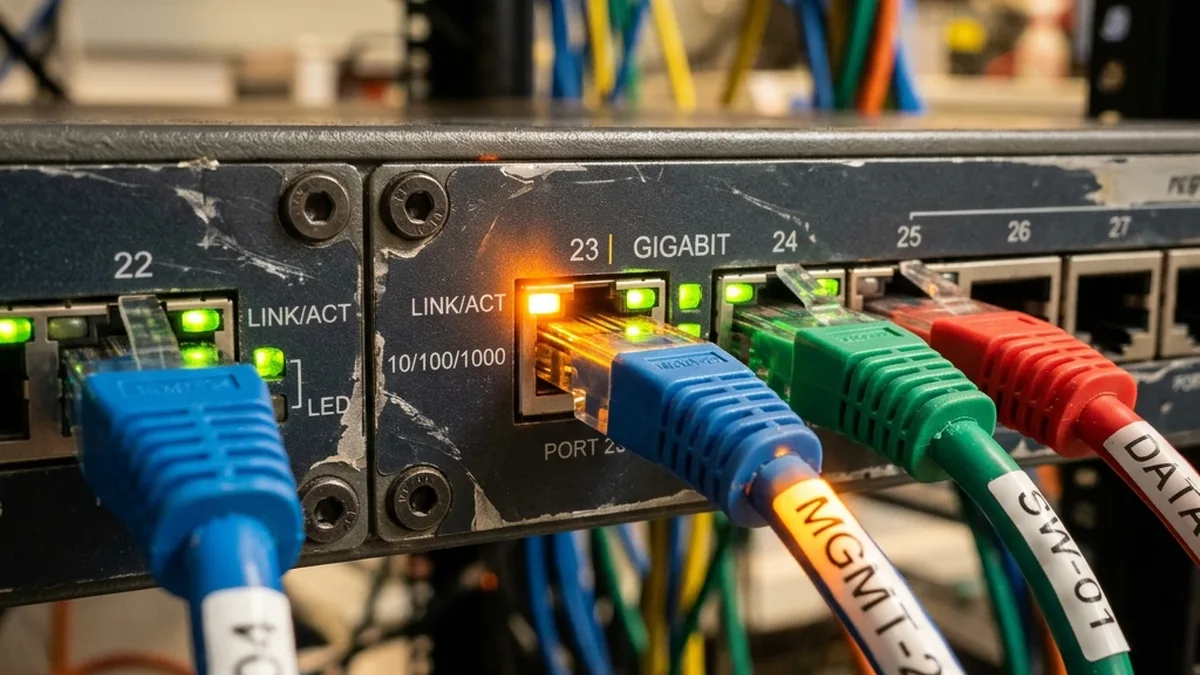
IP Conflict Visualization: The Digital Collision
The anatomy of a digital collision—two devices contending for the same network identity, confusing the router’s address resolution mechanism.
The Anatomy of an IP Conflict: A Deep Dive
To truly resolve IP conflicts, one must understand the underlying protocols governing network communication. The interplay between DHCP and ARP is central to this issue.
DHCP: The Dynamic Host Configuration Protocol
DHCP is a client/server protocol designed to automate the assignment of IP addresses and other network configuration parameters (like subnet mask, default gateway, and DNS servers) to devices on an IP network. When a device connects to a network, it initiates a DHCP Discovery process:
Device (Client)         Router (DHCP Server)
       |                        |
       |----- DHCP DISCOVER ---->| (Broadcasts for a DHCP server)
       |                        |
       |<----- DHCP OFFER ------| (Suggests an IP address)
       |                        |
       |----- DHCP REQUEST ---->| (Requests the offered IP)
       |                        |
       |<----- DHCP ACK --------| (Confirms IP assignment & lease time)
       |                        |
Each assigned IP address comes with a “lease time,” after which the device must renew its lease. Problems arise when:
- Short Lease Times: Frequently expiring leases increase the burden on the DHCP server, making it more prone to errors, especially in large networks.
- Router Reboots/Power Cycles: A router losing its DHCP lease table (e.g., after a power outage or firmware update) may reassign IPs without proper checks, leading to duplicates if devices with old leases reconnect.
- Multiple DHCP Servers: Rogue DHCP servers (e.g., a misconfigured printer or secondary router) can introduce chaos by offering conflicting IP addresses.
- DHCP Server Overload/Bugs: Consumer-grade firmware can sometimes contain bugs or simply lack the robustness to manage hundreds of leases simultaneously, especially when devices frequently connect and disconnect.
ARP: Address Resolution Protocol
While DHCP assigns IP addresses, ARP is responsible for mapping an IP address to a physical MAC (Media Access Control) address on the local network segment. When a device wants to communicate with another device on the same subnet, it first checks its ARP cache. If the MAC address for the target IP is not found, it sends an ARP request (a broadcast asking “Who has this IP address? Tell me your MAC address”). The device with that IP replies with an ARP reply containing its MAC address, which the requesting device then caches.
An IP conflict fundamentally corrupts the router’s ARP table. If two devices claim the same IP, the router’s ARP cache becomes unstable, associating that single IP with two different MAC addresses intermittently. This leads to:
- Packet Misdirection: Data intended for one device is sent to another.
- Intermittent Connectivity: Devices may appear online and then offline as the router’s ARP cache fluctuates.
- Network Congestion: Excessive ARP requests and replies as devices try to resolve ambiguous addresses.
The Collision Event: How it Happens
Consider a scenario: a smart hub (MAC A) is assigned 192.168.1.50 by the DHCP server. Later, the router reboots. When a new smart light bulb (MAC B) connects, the router, having lost its lease table or due to a race condition, assigns 192.168.1.50 to the light bulb. Now, both devices believe they own 192.168.1.50. When another device tries to communicate with 192.168.1.50, the router’s ARP table will flip-flop between MAC A and MAC B, causing data meant for the hub to go to the bulb, and vice-versa, or simply be dropped altogether. Some devices might even detect the conflict and disable their network interface to prevent further issues, appearing “offline.”
Beyond IP: Multicast and Service Discovery Protocols
IP conflicts don’t just affect direct device-to-device communication; they severely impact multicast-based service discovery protocols, which are critical for many smart home ecosystems.
mDNS and Bonjour: Apple HomeKit’s Achilles’ Heel
Multicast DNS (mDNS), often implemented via Apple’s Bonjour protocol, is fundamental for automatic device discovery and service advertisement on local networks without requiring a central DNS server. HomeKit accessories, AirPlay devices, and networked printers extensively use mDNS. Devices announce their services (e.g., “I am a HomeKit light, IP is X, Port is Y”) via multicast packets (typically sent to 224.0.0.251). Other devices listen for these announcements.
When an IP conflict occurs, especially involving critical HomeKit hubs like an Apple TV 4K or HomePod, the mDNS packets sent by that device become unreliable. The conflicting IP address means that the mDNS announcements might not be correctly associated with the originating device’s MAC address, or the router might drop them entirely due to ARP confusion. This directly translates to:
- “No Response” Errors: HomeKit devices failing to respond to commands.
- “Updating…” Status Errors: Devices perpetually stuck in a state of trying to resolve their status.
- Intermittent Availability: Devices appearing and disappearing from the Home app.
Resolving the underlying IP conflict typically restores mDNS functionality and, consequently, HomeKit stability immediately.
SSDP and UPnP: Discovery in the Wider IoT Ecosystem
Simple Service Discovery Protocol (SSDP), part of the Universal Plug and Play (UPnP) suite, serves a similar purpose to mDNS for many non-Apple IoT devices, smart TVs, and network media players. Devices announce their presence and services via multicast UDP packets. An IP conflict can similarly disrupt SSDP broadcasts, preventing devices from discovering each other or advertising their capabilities to control applications. This can lead to issues with:
- Google Cast Devices: Chromecast, Google Home speakers failing to appear as casting targets.
- DLNA/UPnP Media Servers: Plex, Emby, or local NAS devices not being discoverable by clients.
- Smart TV Integrations: TVs not appearing in smart home dashboards or voice assistants.
RF Layer Interactions and Smart Home Protocols
While IP conflicts are fundamentally a Layer 3 (Network Layer) problem, their effects cascade through the entire network stack, impacting devices connected via various radio frequency (RF) technologies.
Wi-Fi: The Foundation
For Wi-Fi (IEEE 802.11) devices, which directly participate in the IP network, an IP conflict is a direct hit. A device might successfully associate with an Access Point (AP) at Layer 2, but fail to establish stable Layer 3 communication. This can manifest as:
- Failed DHCP Handshakes: Device requests an IP, but the router’s response is confused or delayed due to a conflict.
- Dropped Connections: Established TCP sessions are abruptly terminated.
- High Latency: Packets are retransmitted repeatedly as ARP resolution fails.
The ubiquity of Wi-Fi in smart homes makes it the primary vector for IP conflict issues.
Zigbee & Thread: Mesh Networking and Border Routers
Zigbee and Thread are low-power mesh networking protocols designed for IoT devices. While they use their own addressing schemes internally (e.g., IEEE 802.15.4 MAC addresses and 6LoWPAN for Thread), they still rely on a “Border Router” or “Gateway” to connect to the main IP network (typically Wi-Fi or Ethernet). This Border Router translates between the mesh network and the IP network.
An IP conflict on the Border Router itself (e.g., a Philips Hue Bridge, a HomePod mini acting as a Thread Border Router, or a SmartThings Hub) can be catastrophic. If the Border Router’s IP address is unstable, it cannot reliably:
- Forward Commands: Instructions from your phone (on the Wi-Fi network) cannot reach Zigbee/Thread devices.
- Relay Status Updates: Device states (e.g., “light is on”) cannot be reported back to the smart home controller or cloud.
- Provide Internet Access: If mesh devices require cloud connectivity via the Border Router, this will fail.
Essentially, the entire mesh network becomes an isolated island if its IP gateway experiences a conflict.
Bluetooth Low Energy (BLE): Gateways and IP Dependencies
Bluetooth Low Energy (BLE) devices, prevalent in smart homes, operate on 40 distinct 2 MHz wide channels within the 2.4 GHz ISM band, a significant departure from the 79 channels used by Classic Bluetooth (BR/EDR). BLE employs Adaptive Frequency Hopping (AFH) to dynamically avoid interference from Wi-Fi and other 2.4 GHz sources, enhancing coexistence. Crucially, BLE reserves three dedicated advertising channels (channels 37, 38, and 39) strategically placed in the spectral guard bands between the primary non-overlapping Wi-Fi channels (1, 6, and 11). This design minimizes interference during the critical device discovery and connection phases. BLE devices often operate in conjunction with a gateway (e.g., a smart speaker, a dedicated BLE hub, or even a smartphone) that provides IP connectivity. These gateways bridge the BLE advertisements and control commands to the Wi-Fi or Ethernet network. Similar to Zigbee/Thread, if this BLE gateway experiences an IP conflict, the BLE devices connected through it will lose their ability to interact with the broader smart home system or the internet.
Proactive Mitigation: Architecting a Stable Smart Home Network
The key to eliminating IP conflicts is a structured, deterministic approach to IP address management, moving away from purely dynamic assignments for critical smart home infrastructure.
DHCP Reservation vs. Static IP: A Critical Distinction
It’s crucial to differentiate between two methods of assigning fixed IP addresses:
- Static IP (Manual Assignment on Device): This involves logging into the device itself (e.g., a smart camera’s web interface) and manually configuring its IP address, subnet mask, gateway, and DNS servers. The device will then always attempt to use this IP.
- Pros: Guarantees the device will use that IP.
- Cons: If the network configuration changes (e.g., new router, new subnet), you must manually update every static device. More importantly, the DHCP server is unaware of these manually assigned IPs, increasing the risk of it accidentally assigning the same IP to another device, causing a conflict. This is generally discouraged for typical smart home setups.
- DHCP Reservation (Address Reservation / Static DHCP): This is the preferred method. You configure the DHCP server (your router) to always assign a specific IP address to a specific device’s MAC address. The device still requests an IP dynamically, but the DHCP server is instructed to always offer the same reserved IP.
- Pros: Centralized management on the router. The DHCP server is aware of all reserved IPs and will not assign them dynamically to other devices, preventing conflicts. Devices automatically receive correct network parameters.
- Cons: Requires initial setup on the router for each device.
For smart homes, DHCP Reservation is the golden standard For all critical, always-on devices.
Key Smart Home Devices for DHCP Reservation
To ensure a stable smart home, prioritize assigning DHCP reservations to the following categories of devices:
| Device Category | Examples | Reason for Reservation |
|---|---|---|
| Network Infrastructure | Router, Access Points, Managed Switches, Network Attached Storage (NAS) | Core network stability; all other devices depend on these. |
| Smart Home Hubs/Bridges | Philips Hue Bridge, Lutron Caseta Hub, SmartThings Hub, Homey, Home Assistant Server, Hubitat | Gateways for entire ecosystems; critical for device communication and automation. |
| Security Devices | IP Cameras (e.g., Arlo, Reolink), NVRs, Video Doorbells (e.g., Ring, Eufy), Alarm System Panels | Continuous monitoring and reliable access are paramount. |
| Media Servers/Streamers | Plex Server, Apple TV, NVIDIA Shield, Sonos Speakers, Google Chromecast | Consistent discoverability and smooth streaming performance. |
| Smart Displays/Voice Assistants | Google Nest Hub, Amazon Echo Show, HomePod | Reliable command processing and display of information. |
Advanced Router Configuration: Mastering Your DHCP Server
The primary tool for managing IP addresses is your router’s DHCP server. The goal is to narrow the DHCP pool (the range of IPs the router can dynamically assign) and then reserve specific IPs for your smart home devices outside this dynamic pool.
| Router Brand/Platform | Configuration Path (General) | Feature Name for Reservation | Notes & Best Practices |
|---|---|---|---|
| ASUS (ASUSWRT) | LAN > DHCP Server | Manually Assigned IP / DHCP Reservations | Look for a section to add MAC-IP pairs. Set ‘Start IP’ for DHCP pool to a higher number (e.g., 192.168.1.100). |
| Netgear (Nighthawk/Orbi) | Advanced > Setup > LAN Setup | Address Reservation | Often found under “LAN IP Setup” or “DHCP Server”. Ensure the reserved IPs are outside the dynamic range. |
| Linksys (Velop/Smart Wi-Fi) | Connectivity > Local Network | DHCP Reservations | Sometimes listed under “Advanced Routing” or “Network Setup”. Easy to add devices from current DHCP lease list. |
| Ubiquiti (UniFi) | Settings > Networks > (Your Network) > DHCP Reservations | Static IP / DHCP Lease Reservation | Managed centrally via the UniFi Controller. Offers robust control and clear visualization. |
| TP-Link (Deco/Omada) | Network > DHCP Server > Address Reservation | Address Reservation | Similar to other brands, often found under DHCP settings. Good for mesh systems. |
Logical Segmentation: The Subnet Mapping Strategy
Beyond individual reservations, a strategic approach to subnet mapping provides additional layers of stability and organization. This “logical segmentation” helps categorize devices and makes troubleshooting significantly easier. For a standard /24 subnet (e.g., 192.168.1.0/24 with a subnet mask of 255.255.255.0, providing 254 usable IPs), consider the following structure:
192.168.1.0/24 Subnet (254 Usable IPs)
+-------------------------------------------------+
| .1 to.20   | Network Core & Infrastructure     |
|             | (Router, APs, Switches, NAS)      |
+-------------------------------------------------+
| .21 to.50  | Smart Home Hubs & Bridges         |
|             | (Hue Bridge, Lutron Hub, Hubitat, |
|             |  SmartThings, Homey, Home Assistant)|
+-------------------------------------------------+
| .51 to.99  | Static Security & Always-On IoT   |
|             | (IP Cameras, NVRs, Doorbell Cams, |
|             |  Smart Displays, Media Servers)   |
+-------------------------------------------------+
| .100 to.254| Dynamic Devices & Guest Network   |
|             | (Phones, Laptops, Tablets, Guest   |
|             |  IoT, Less Critical Smart Plugs)  |
+-------------------------------------------------+
By implementing this strategy, you:
- Minimize Collision Risk: Critical infrastructure occupies a distinct, reserved block, separate from the dynamic pool.
- Simplify Troubleshooting: Knowing a device’s category immediately tells you its expected IP range.
- Improve Network Management: Easier to identify rogue devices or categorize traffic.
Example Configuration: If your router’s default IP is 192.168.1.1, you would configure its DHCP server to start assigning dynamic IPs from 192.168.1.100 onwards (e.g., DHCP Pool: 192.168.1.100 – 192.168.1.254). Then, you would manually create DHCP reservations for your smart hubs in the 192.168.1.21-192.168.1.50 range, and cameras in the 192.168.1.51-192.168.1.99 range.
VLANs: Enterprise-Grade Isolation for the Prosumer
For advanced users with managed switches and more capable routers (e.g., Ubiquiti UniFi, pfSense, OPNsense), Virtual Local Area Networks (VLANs) offer the ultimate solution for network segmentation. VLANs allow you to logically separate devices into entirely distinct broadcast domains, even if they are physically connected to the same switch. For example:
- VLAN 10: Management Network (Router, APs)
- VLAN 20: Primary Home Network (Laptops, Phones)
- VLAN 30: Smart Home IoT (All hubs, cameras, smart devices)
- VLAN 40: Guest Network
Each VLAN would have its own IP subnet (e.g., 192.168.10.x, 192.168.20.x, 192.168.30.x, 192.168.40.x) and its own DHCP server instance. This completely isolates potential IP conflicts within a specific VLAN, prevents IoT devices from “seeing” your personal devices, and enhances security. While more complex to set up, VLANs are the gold standard for robust and secure smart home networks.
Diagnostic Tools and Troubleshooting Workflow
When an IP conflict is suspected, precise diagnostic steps are essential to identify the culprit.
Command-Line Diagnostics: ARP Cache Inspection
The most direct way to detect an IP conflict is by examining the ARP cache of a device on the same network or, ideally, the router itself.
On a Windows PC:
Open Command Prompt (CMD) and type: arp -a
Look for entries where the same IP address is listed with two different MAC addresses. This is a definitive sign of a conflict. For example:
Interface: 192.168.1.10 --- 0x3
  Internet Address      Physical Address      Type
  192.168.1.1           aa-bb-cc-dd-ee-ff     dynamic
  192.168.1.50          00-11-22-33-44-55     dynamic  (Smart Hub MAC)
  192.168.1.50          66-77-88-99-aa-bb     dynamic  (Smart Camera MAC)  <-- CONFLICT!
On a macOS/Linux Terminal:
Open Terminal and type: arp -a or ip neigh (for Linux). The output will be similar, showing IP to MAC mappings.
Once a conflict is identified, note both conflicting MAC addresses. You can then use online MAC address lookup tools to identify the device manufacturers, helping you pinpoint the exact devices involved.
Network Scanners and Analyzers
Tools like Angry IP Scanner (cross-platform), Nmap (advanced, command-line), or mobile apps like Fing Can scan your network and list all active IP addresses and their corresponding MAC addresses. These tools can often highlight duplicate IPs or devices with unusual network behavior. They provide a comprehensive overview of your network topology, which is invaluable for identifying unexpected devices or IP assignments.
Router Logs: Your First Line of Defense
Most routers maintain system logs that record DHCP lease assignments, network errors, and other events. Access your router’s web interface and look for sections like “System Log,” “DHCP Log,” or “Event Log.” These logs can often reveal warnings about duplicate IP addresses being detected or failed DHCP assignments, providing crucial clues about the timing and nature of conflicts.
Step-by-Step Resolution Guide
Follow these actionable steps to systematically eliminate IP address conflicts and establish a resilient smart home network:
- Document Your Network:
- Action: Create a list of all your smart home devices, especially hubs, bridges, cameras, and critical always-on components. For each, identify its MAC address. This is typically found on a sticker on the device, in its companion app, or by checking your router’s DHCP client list.
- Why: This inventory is crucial for accurate DHCP reservation and future troubleshooting.
- Plan Your IP Address Scheme:
- Action: Adopt the “Subnet Mapping Strategy” (e.g., .21-.50 for hubs, .51-.99 for cameras). Choose a DHCP starting range for dynamic devices (e.g., 192.168.1.100).
- Why: Provides structure and clear boundaries, preventing accidental overlaps.
- Access Your Router’s Configuration:
- Action: Log into your router’s web interface (e.g., 192.168.1.1, 192.168.0.1, or router.asus.com). Navigate to the “LAN” or “Network” settings, then find the “DHCP Server” section.
- Why: This is where all IP address management takes place.
- Narrow the DHCP Pool:
- Action: Modify the DHCP server’s starting IP address to a higher value (e.g., 192.168.1.100). This creates a “safe zone” for your reserved IPs at the lower end of the subnet. Ensure the ending IP address remains appropriate (e.g., 192.168.1.254).
- Why: Prevents the router from dynamically assigning IPs that you intend to reserve for critical devices.
- Implement DHCP Reservations:
- Action: In the “DHCP Reservations” or “Static DHCP” section of your router, add an entry for each critical smart home device. For each entry, input the device’s MAC address And the desired reserved IP address (e.g., 192.168.1.25 for a Hue Bridge).
- Why: Guarantees that these specific devices will always receive the same, unique IP address from the DHCP server.
- Reboot All Relevant Devices:
- Action:
- First, reboot your router. This clears its ARP cache and forces it to re-read its DHCP configuration.
- Next, power cycle all smart home hubs, bridges, and cameras For which you created reservations. This forces them to request a new IP lease from the router, which will now issue the reserved IP.
- Finally, reboot any other devices That were experiencing issues.
- Why: Ensures all devices obtain fresh, unique IP leases from the newly configured DHCP server, clearing any lingering ARP conflicts.
- Action:
- Verify Connectivity:
- Action: After rebooting, check your router’s DHCP client list to confirm that devices have received their reserved IPs. Test the functionality of your smart home system. Perform an
arp -ascan from your PC to confirm no duplicate IPs exist. - Why: Confirms the resolution of conflicts and the stability of your network.
- Action: After rebooting, check your router’s DHCP client list to confirm that devices have received their reserved IPs. Test the functionality of your smart home system. Perform an
A clean DHCP reservation table is not just good practice; it is the foundational requirement for a stable, responsive, and reliable smart home ecosystem.
Frequently Asked Questions
Why do consumer routers struggle with IP address management more than enterprise-grade equipment?
Consumer routers are designed for simplicity and cost-effectiveness, not for managing hundreds of concurrent connections or complex network topologies. Their DHCP server implementations often have less robust lease management algorithms, smaller ARP cache capacities, and less powerful CPUs/memory, making them more susceptible to errors under high load or frequent reboots. Enterprise-grade equipment (e.g., Cisco, Juniper, Ubiquiti) features dedicated hardware, advanced firmware, and more sophisticated DHCP/ARP handling mechanisms, including ARP inspection and DHCP snooping, designed for high reliability and scalability.
Can IP conflicts damage my smart home hardware?
IP conflicts typically do not cause physical damage to hardware. However, they can lead to significant operational issues. Devices may enter error states, repeatedly attempt to reconnect, or exhibit high CPU usage due to constant network retries, which could potentially shorten their lifespan or lead to performance degradation. More commonly, the “damage” is to the user experience, causing frustration and a perceived lack of reliability in the smart home system.
What about guest networks and IoT isolation? Does that help prevent conflicts?
Yes, significantly. Implementing a dedicated guest network or, ideally, a separate VLAN for IoT devices, achieves network isolation. Each isolated network segment operates its own DHCP server and IP address range, effectively preventing IP conflicts between devices in different segments. For example, an IP conflict on your main personal device network won’t affect your IoT devices, and vice-versa. This enhances both security (isolating potentially vulnerable IoT devices) and stability by segmenting the DHCP domain.
How often should I check for IP conflicts, and what’s a good maintenance schedule?
Once you’ve implemented DHCP reservations and a logical subnet mapping, the need for frequent checks should diminish significantly. However, it’s good practice to perform a quick arp -a scan or use a network scanner annually, or whenever you add a significant number of new devices, replace your router, or experience persistent “device offline” issues. Regular maintenance should focus on reviewing your DHCP reservation list and updating your network documentation.
What role does IPv6 play in preventing IP conflicts?
IPv6 (Internet Protocol version 6) uses 128-bit addresses, offering an astronomically larger address space compared to IPv4’s 32-bit addresses. This vastness virtually eliminates the possibility of address exhaustion and, consequently, reduces the likelihood of random IP conflicts. IPv6 also supports Stateless Address Autoconfiguration (SLAAC), allowing devices to generate their own unique IP addresses without a DHCP server. While many smart home devices still primarily use IPv4, the increasing adoption of IPv6 will inherently make IP address conflicts a far less common issue in the future, particularly for devices that natively support it throughout their stack.
Conclusion
The “Ghost in the Machine” plaguing many smart homes is rarely supernatural; it is almost always a predictable, resolvable networking issue. IP address conflicts, while seemingly minor, can destabilize an entire smart home ecosystem, rendering advanced automation useless. By understanding the fundamental principles of DHCP and ARP, adopting a meticulous approach to network architecture through DHCP reservations and logical subnet mapping, and utilizing basic diagnostic tools, you can transform a chaotic network into a robust, reliable foundation for your smart home. Prioritizing network stability is not merely a technical exercise; it is an essential step towards unlocking the full potential and convenience of modern home automation.
About these guides
These guides are compiled and maintained by the Smart Home Expert editorial desk. Each one is built from manufacturer documentation and the published Zigbee, Z-Wave, Thread and Wi-Fi specifications, then written up as a diagnostic sequence you can follow in order. Found something that does not match your hardware? Tell us and we will correct the sheet.
Specifications and references
The primary documentation for the protocols and products discussed above. Where this guide gives a figure — a frequency, a voltage, a timeout — these are where it comes from.