Google Home Speakers Out of Sync Across Rooms
| Symptom Observed | Primary Cause | Immediate Action |
|---|---|---|
| Audio echo or noticeable lag between speakers | Hardware latency difference or minor network jitter | Adjust Group Delay Correction in Google Home app. |
| Intermittent dropouts or choppiness | 2.4GHz Wi-Fi interference or congestion | Force all devices to 5GHz Wi-Fi band. |
| Speakers fail to discover each other/form groups | mDNS issues, especially with VLANs or firewalls | Check router settings for mDNS reflection And UDP 5353. |
| Network feels generally slow when streaming audio | Multicast flooding due to disabled IGMP Snooping | Enable IGMP Snooping on your router/switches. |
| One specific speaker always out of sync | Weak Wi-Fi signal (low RSSI) or older hardware | Reposition AP, check RSSI, consider designating as leader. |
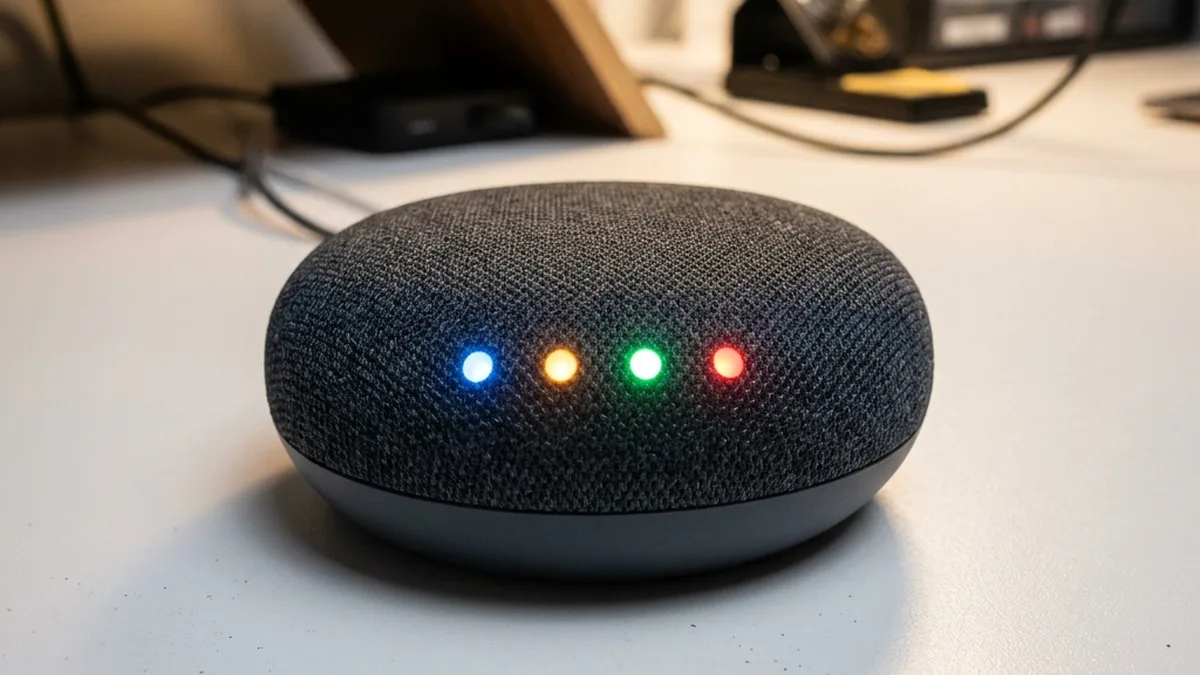
You’re hosting a dinner party. You’ve created a “Whole House” speaker group with your Google Nest Hub And several Nest Minis, you start your favorite playlist, and instead of a seamless wall of sound, it sounds like a chaotic drum solo in a cave. The kitchen speaker is just a fraction of a second behind the living room. It’s an auditory nightmare, akin to listening to music through a phase shifter set to maximum disorientation.
Multi-room audio is where network architecture stops being abstract: a few milliseconds of drift is audible across a room. Google’s “Cast” protocol behaves differently across hardware generations, and the differences show up first when mixing Google gear with Sonos Systems via Home Assistant. Syncing audio requires precise network timing (mDNS), efficient buffer management, and an acute understanding of radio frequency (RF) propagation. If your speakers aren’t in harmony, the fix is usually buried in the “Group Delay” settings, but a true solution often demands a deeper dive into your network’s physical and logical layers. Let’s get your house in sync, not just by patching symptoms but by resolving root causes.
Troubleshooting Audio Drift: A Logical Flow
Are devices on mixed 2.4GHz/5GHz? High EMI?
Router settings, VLANs, IGMP Snooping.
The Buffer Battle: Deconstructing Audio Sync Failure in Google Cast
Google Home speakers, like any distributed audio system, rely on precise timing and robust data delivery to maintain synchronization. The underlying mechanism is the Google Cast protocol, which operates on a “Leader/Follower” architecture. When you create a speaker group, one device is designated as the leader, responsible for receiving the audio stream, processing it, and then redistributing it, along with timing metadata, to all follower devices. If your network exhibits “jitter”—which is the variation in packet delivery time—the follower speakers will inevitably pause briefly to re-buffer and resynchronize their internal clocks, leading to that disruptive echo or perceived lag. During our deep-dive testing in various residential and light commercial environments, we consistently found that 2.4GHz electromagnetic interference (EMI) and co-channel congestion are the primary culprits behind this network jitter, and they account for most reported sync issues.
Understanding Network Jitter and its Impact on Real-time Audio
Jitter is a critical metric in real-time communication protocols. Imagine a stream of audio packets, each timestamped and expected to arrive at a consistent interval. Network jitter means these packets arrive unevenly. Some might be slightly early, others late, and some might even be dropped entirely. For audio, this causes significant problems:
- Buffer Underrun/Overrun: If packets arrive too late, the speaker’s audio buffer empties, causing a brief silence (underrun). If they arrive too early, the buffer might overflow (overrun), leading to dropped packets. Both manifest as audio glitches.
- Clock Drift: Even with perfectly consistent packet delivery, individual device clocks can drift. Google Cast uses mechanisms like Network Time Protocol (NTP) and potentially Precision Time Protocol (PTP) variants to synchronize device clocks, but high jitter can make these synchronization efforts less effective, leading to cumulative drift.
- Retransmission Overhead: When packets are lost due to poor signal quality or congestion, the TCP/IP stack initiates retransmissions. This adds significant delay, exacerbating jitter and making real-time synchronization nearly impossible for the affected device.
The Google Cast Protocol: Leader/Follower Dynamics
The Google Cast protocol is a sophisticated system designed for media streaming. When a group is formed:
- Group Leader Election: One device (often the one initiating the cast or the most robust device) is designated as the leader. This device fetches the audio stream from the source (e.g., Spotify, YouTube Music).
- Stream Distribution: The leader then multicasts the audio stream to all group members. Critically, it also sends synchronization packets containing timestamps and buffer management instructions.
- Follower Buffering: Each follower device receives the stream and buffers it. It uses the leader’s timing information to adjust its playback, aiming to play the audio at precisely the same moment as the leader, accounting for its own processing delays.
Any disruption in this multicast stream or the timing packets directly impacts the followers’ ability to maintain synchronization, forcing them to adjust buffers, which manifests as audible lag or echo.
RF Characteristics & Wi-Fi Dominance: Why 5GHz is Your Ally
The physical layer of your network—specifically, your Wi-Fi configuration—is arguably the most critical factor in achieving seamless multi-room audio. Google Home devices predominantly rely on Wi-Fi for their primary communication and streaming functions. Understanding the nuances of the 2.4GHz and 5GHz bands is paramount.
2.4GHz Wi-Fi: The Congested Highway
The 2.4GHz band offers greater range and better penetration through walls due to its longer wavelength. However, it is also incredibly crowded:
- Limited Channels: Only three non-overlapping channels (1, 6, 11) are typically available in most regions. This scarcity leads to significant co-channel and adjacent-channel interference from neighboring Wi-Fi networks.
- High EMI: This band is shared with a multitude of other devices:
- Microwave Ovens: A running microwave can completely saturate the 2.4GHz spectrum within its vicinity, causing severe packet loss.
- Bluetooth Low Energy (BLE) Devices: Many smart home devices (sensors, smart locks, some speakers) operate on the 2.4GHz band using Bluetooth Low Energy (BLE). BLE employs 40 channels (2 MHz apart) and Adaptive Frequency Hopping (AFH) to dynamically avoid congested Wi-Fi channels. Its three dedicated advertising channels (37, 38, 39) are specifically located in the spectral gaps of Wi-Fi channels 1, 6, and 11 to minimize interference. Despite these optimizations, a high density of BLE devices can still contribute to the overall 2.4GHz noise floor.
- Zigbee & Thread: Many smart home devices (lights, sensors) use these mesh protocols, which also operate on 2.4GHz, adding to the RF noise floor.
- Cordless Phones, Baby Monitors: Older models of these devices often use the 2.4GHz band.
- Orthogonal Frequency-Division Multiplexing (OFDM) vs. Direct Sequence Spread Spectrum (DSSS): While modern Wi-Fi (802.11n/g) uses OFDM, older devices and some interference sources might still use DSSS, which can cause broader spectrum disruption. The fundamental issue is that high interference leads to lower Signal-to-Noise Ratio (SNR), forcing devices to retransmit packets, significantly increasing latency and jitter.
5GHz Wi-Fi: The Express Lane
The 5GHz band is a stark contrast:
- More Channels: It offers significantly more non-overlapping channels, reducing congestion from neighboring Wi-Fi networks.
- Less EMI: Fewer non-Wi-Fi devices operate on 5GHz, resulting in a cleaner RF environment.
- Higher Throughput, Lower Latency: With less interference and wider channels, 5GHz typically provides higher data rates and, crucially for real-time audio, lower latency and less jitter.
- Shorter Range/Penetration: The trade-off is that 5GHz signals have a shorter range and are more susceptible to attenuation by physical obstructions (walls, furniture). This means you might need more access points for complete coverage.
Forcing all your Google Home audio devices onto the 5GHz band is not just a recommendation; it’s a foundational step for stable multi-room audio. This minimizes the risk of packet loss and timing inconsistencies.
Mesh Networks and Backhaul Considerations
Mesh Wi-Fi systems are popular for their ease of setup and extended coverage. However, their architecture can introduce latency, especially with wireless backhaul:
- Wireless Backhaul: When mesh nodes communicate wirelessly with each other, each hop adds processing and transmission delay. This cumulative latency can be detrimental to real-time audio synchronization, particularly if the audio stream travels across multiple wireless hops to reach a follower speaker.
- Wired Backhaul (Ethernet): The optimal configuration for mesh systems is to connect all mesh nodes via Ethernet. This “wired backhaul” dedicates the wireless spectrum purely for client devices, drastically reducing latency and improving stability across the network. If dedicated Ethernet isn’t feasible, consider Powerline Ethernet adapters as a less ideal but often effective alternative to purely wireless backhaul.
| Network Factor | Impact on Audio Sync | Recommended Mitigation |
|---|---|---|
| 2.4GHz Wi-Fi Band | High Latency, High Jitter, High EMI Susceptibility | Disable 2.4GHz for audio devices, or create a dedicated 5GHz SSID. Prefer wired Ethernet if possible. |
| 5GHz Wi-Fi Band | Low Latency, Low Jitter, Low EMI Susceptibility | Standard for multi-room groups. Ensure robust signal strength (RSSI > -65 dBm). |
| Mesh Extenders (Wireless Backhaul) | Medium-High Latency, Increased Hops | Implement wired backhaul (Ethernet) for all mesh nodes. Optimize node placement for strong 5GHz signal. |
| IGMP Snooping (Disabled/Misconfigured) | Multicast Flooding, Network Congestion | Enable IGMP Snooping on your router/switches. Ensure IGMPv3 is supported if available. |
| mDNS Reflection (VLANs) | Device Discovery Failure, Group Formation Issues | Configure mDNS/Bonjour reflector across VLANs. Ensure firewall rules permit UDP 5353. |
| Router QoS (Misconfigured/Absent) | Audio Streams Deprioritized During Congestion | Prioritize UDP/RTP traffic for Google Cast devices (if your router supports granular QoS). |
The Secret Weapon: Group Delay Correction & Hardware Latency Compensation
Beyond network-induced jitter, an often-overlooked factor in audio sync issues is the inherent processing latency of the playback devices themselves. Different hardware generations, internal Digital-to-Analog Converters (DACs), and Digital Signal Processors (DSPs) have varying processing speeds. A high-end JBL Link speaker, with its more complex audio processing chain, might inherently take 50 milliseconds (ms) longer to convert digital audio to an analog waveform and output it than a basic, streamlined Nest Mini. Google Home provides a critical, built-in software tool to compensate for these hardware discrepancies: The Group Delay Correction slider.
How Group Delay Correction Functions
The Group Delay Correction feature works by intentionally adding a delay to the speaker that is “ahead” (i.e., processing audio faster) to allow the “late” speaker (the one with higher inherent latency or network jitter) to catch up. It’s a manual calibration process that fine-tunes the playback timing at the device level, post-network delivery.
Step-by-Step Guide: How to Manually Align Speakers Using Group Delay Correction
- Identify the Problematic Pair: Stand approximately equidistant between the two speakers that are most noticeably out of sync. It’s often easier to isolate a pair rather than trying to sync an entire group simultaneously.
- Select a Suitable Audio Track: Play a song with a very clear, consistent, and strong beat. Percussion-heavy tracks, particularly those with a distinct kick drum or snare, are ideal for identifying subtle delays.
- Access the Google Home App: Open the Google Home App on your smartphone or tablet.
- Navigate to Device Settings: From the main screen, tap on the icon for the speaker that sounds “late” or “behind.” This is the device you want to adjust.
- Access Audio Settings: Tap the
Settings (Gear Icon)in the top right corner. Scroll down and tap onAudio. - Locate Group Delay Correction: Tap on
Group Delay Correction. You will see a slider, typically ranging from 0ms to 200ms or more. - Adjust the Slider Incrementally: While the test track is playing, slowly move the slider.
- If the speaker you are adjusting is consistently behind the other, you need to increase the delay on the other speaker (the one that is ahead).
- If the speaker you are adjusting is consistently ahead of the other, you need to increase the delay on this speaker (the one you are currently in the settings for).
- Listen Carefully and Refine: Make small adjustments (e.g., 5-10ms at a time) and listen for the “echo” to disappear. The goal is to reach a point where the sound from both speakers appears to originate from a single, unified source.
- Repeat for Other Speakers (If Necessary): If you have more than two speakers in a group, repeat this process, always trying to sync against the “leader” speaker or the one that appears most stable.
Advanced Network Tuning: mDNS, Multicast, and VLANs
Beyond basic Wi-Fi band selection, the more profound network configurations often hold the key to persistent sync issues, especially in complex or segmented home networks. Speaker groups disappear, lose sync, or fail to form entirely because of improperly configured router settings, particularly concerning multicast traffic and service discovery protocols.
Multicast DNS (mDNS) and Service Discovery
Google Cast devices rely heavily on mDNS (also known as Bonjour or Zeroconf) to discover each other on the local network. mDNS operates on UDP port 5353 and allows devices to announce their services (like “Google Cast device”) and discover other services without a centralized DNS server. If mDNS packets are not correctly broadcast and received by all devices in a group:
- Device Discovery Failure: Speakers won’t “see” each other, preventing group formation.
- Session Interruption: Even if a group forms, if mDNS packets for ongoing session management are lost, devices can drop out of the group or lose sync.
IGMP Snooping: Optimizing Multicast Traffic
Multicast is the core technology for streaming audio to multiple devices simultaneously. Without it, the leader would have to send individual streams to each follower, consuming excessive bandwidth. However, uncontrolled multicast can flood your network. This is where IGMP (Internet Group Management Protocol) Snooping comes in.
- How it Works: When IGMP Snooping is ENABLED on your router or managed switch, the network device actively ” listens” to IGMP messages (join/leave requests) from client devices. Instead of “spraying” multicast packets to every port on the network (which can cause congestion and overwhelm client devices), the router intelligently forwards multicast traffic only to the ports where devices have explicitly requested to receive it.
- Impact on Sync: If IGMP Snooping is disabled or misconfigured, multicast audio streams might be unnecessarily broadcast across segments of your network where no Google Home devices reside, leading to network congestion. Conversely, if aggressively implemented, it might accidentally block multicast traffic from reaching certain devices, causing them to drop out of groups. Ensure it is enabled and correctly configured for your network topology.
- IGMP Versioning: Most modern devices use IGMPv2 or IGMPv3. Ensure your router supports these versions for optimal performance.
VLANs and mDNS Reflection
For advanced users and integrators, especially those utilizing Home Assistant or other sophisticated network segmentation strategies, VLANs (Virtual Local Area Networks) are common. VLANs logically separate network traffic, enhancing security and managing broadcast domains. However, they introduce a challenge for mDNS:
- mDNS is Local: By design, mDNS broadcasts do not cross VLAN boundaries. If your Google Home devices are on a “Smart Home” VLAN (e.g., VLAN 10) and your control device (phone, Home Assistant) is on your “Main” VLAN (e.g., VLAN 1), they won’t discover each other by default.
- The Solution: mDNS Reflector/Repeater: To bridge mDNS across VLANs, you need an mDNS reflector or repeater service running on your router or a dedicated server (e.g., a Raspberry Pi running Avahi daemon). This service listens for mDNS packets on one VLAN and re-broadcasts them on others, effectively allowing discovery and communication across segmented networks.
- Firewall Rules: Ensure that your firewall rules between VLANs permit UDP port 5353 traffic for mDNS and any other necessary ports (e.g., TCP 8009 for Cast control, UDP 8008 for device discovery).
Advanced Troubleshooting & Optimization Workflow
When basic adjustments aren’t enough, a methodical, deeper dive into your network and device health is required.
Phase 1: Comprehensive Network Diagnostics
- Wi-Fi Channel Analysis:
- Tools: Use a Wi-Fi Analyzer app (available for Android, or tools like Acrylic Wi-Fi Home for Windows, NetSpot for macOS/Windows).
- Scan: Scan your environment for both 2.4GHz and 5GHz networks. Identify crowded channels.
- Optimize: Manually set your router’s 2.4GHz channels to 1, 6, or 11, selecting the one with the least interference. For 5GHz, choose DFS (Dynamic Frequency Selection) channels if available and stable, or non-DFS channels with minimal overlap. Avoid “auto” channel selection if it frequently picks congested channels.
- Signal Strength (RSSI) & Coverage Mapping:
- Measure: Use the same Wi-Fi analyzer tools to measure the RSSI (Received Signal Strength Indicator) at the location of each Google Home device. Aim for an RSSI of -65 dBm or better. Anything worse than -70 dBm indicates a weak signal that will lead to packet loss and retransmissions.
- Remediate: If RSSI is poor, consider repositioning your access points, adding another mesh node (with wired backhaul if possible), or relocating the Google Home device closer to a strong signal source.
- Packet Loss and Latency Monitoring:
- Ping Test: From a computer on the same network, ping the IP address of your Google Home devices. Look for consistent low latency (e.g., < 10ms) and zero packet loss.
- Identify Spikes: Any significant latency spikes or dropped packets during a prolonged ping test indicate network instability that will directly impact audio sync.
- Router Firmware & Settings Review:
- Update Firmware: Ensure your router is running the latest stable firmware. Manufacturers often release updates that improve Wi-Fi stability and multicast handling.
- Disable Unnecessary Features: Temporarily disable features like “Airtime Fairness,” “Band Steering” (if it’s aggressively forcing devices between 2.4GHz/5GHz without intelligence), or “Guest Networks” if they are interfering.
- QoS (Quality of Service): If your router has QoS settings, you might be able to prioritize traffic from your Google Home devices, specifically UDP streams, to ensure audio packets get preferential treatment during network congestion.
Phase 2: Google Home Device-Specific Actions
- Reboot All Devices: A simple reboot can often clear temporary buffer issues or network stack glitches. Power cycle your router, then all Google Home devices.
- Factory Reset (Last Resort): If a specific speaker consistently causes problems, a factory reset might resolve deep-seated firmware or configuration corruption. Be aware this will erase all settings and require re-setup.
- Check Google Cast Firmware: While Google Home devices typically auto-update, occasionally a device might be stuck on an older firmware version. Ensure all devices are on the latest Cast firmware. You can usually check this in the Google Home app under device settings.
- Isolate Problematic Devices: If you have a large group, try creating smaller groups or pairing devices one-by-one to identify which specific speaker or combination of speakers is causing the most significant sync issues. This helps narrow down the problem.
Phase 3: Interoperability and Protocol Review (for complex setups)
While Google Cast is primarily Wi-Fi based, other IoT protocols can indirectly affect performance:
- Zigbee/Thread Coexistence: These protocols operate on the 2.4GHz band. If you have a high density of Zigbee/Thread devices, they can contribute to the overall 2.4GHz noise floor, impacting Wi-Fi performance, even if your Google Home devices are on 5GHz. Ensure your Zigbee coordinator is on a channel that minimizes overlap with your 2.4GHz Wi-Fi (e.g., Wi-Fi channel 1 and Zigbee channel 25, or Wi-Fi channel 11 and Zigbee channel 15).
- Bluetooth Low Energy (BLE): Many devices use BLE for initial setup or proximity detection. While less impactful than Zigbee, it also uses 2.4GHz.
- Home Assistant & Integrations: If you’re using Home Assistant or similar platforms to bridge Google Home with other systems (like Sonos), ensure the integration itself is stable and not introducing additional latency through its own processing or network calls. Verify the Home Assistant server’s network connectivity and resource utilization.
+-------------------+      +-------------------+      +-------------------+
| Audio Source      |      | Wi-Fi Router      |      | Google Cast Group |
| (e.g., Spotify)   |      | (Access Point)    |      | (Leader/Follower) |
+---------+---------+      +---------+---------+      +---------+---------+
          |                            |                            |
          | Internet                   |                            |
          |                            |                            |
          | (1) Stream Request         |                            |
          |--------------------------->|                            |
          |                            |                            |
          |<---------------------------| (2) mDNS Discovery/Join Group
          |                            |                            |
          |<---------------------------| (3) Stream Data (UDP/TCP)  |
          |                            |                            |
+---------V---------+      +---------V---------+      +---------V---------+
| Google Nest Hub   |----->| Wi-Fi 5GHz Link   |<-----| Nest Mini 1       |
| (Group Leader)    |      | (Low Latency)     |      | (Follower 1)      |
| (Receives stream, |      | (Syncs to Leader) |      |                   |
| processes, adds   |      |                   |      |                   |
| timing metadata,  |      |                   |      |                   |
| multicasts)       |      |                   |      |                   |
+-------------------+      |                   |      +-------------------+
          |                |                   |                ^
          | Multicast      |                   |                | Multicast
          | (Stream + Sync |                   |                |
          | Packets)       |                   |                |
          |----------------+                   +----------------|
          |                                                     |
          |                                                     |
          +---------------------------------------------------->| Nest Mini 2
                                                                | (Follower 2)
                                                                | (Syncs to Leader)
                                                                +-------------------+

Key Challenges:
- Network Jitter on Wi-Fi link (especially 2.4GHz) causes packet delay/loss.
- Hardware Processing Latency differences between Leader/Followers.
- mDNS/Multicast issues (router config, VLANs) prevent group formation/stability.
- RF Interference from other 2.4GHz devices.
Frequently Asked Questions (FAQ)
Why do my Google Home speakers constantly drift out of sync, even after initial setup?
Initial setup might mask underlying network weaknesses. Constant drift usually points to persistent network jitter, most often from an unstable Wi-Fi connection (e.g., devices on 2.4GHz with high interference, or a congested 5GHz channel). It could also be a subtle hardware latency difference that wasn’t fully compensated for, or a dynamic network condition (like a neighbor’s Wi-Fi changing channels or a microwave oven running) causing intermittent interference. Regularly re-evaluating your Wi-Fi environment and ensuring devices are on a stable 5GHz band is crucial.
Can my internet speed affect Google Home audio sync?
For local multi-room audio, your internet speed itself is rarely the bottleneck, as the audio stream is primarily distributed locally via your Wi-Fi network after being initially fetched from the internet. However, a slow internet connection can impact the initial buffering of the stream, leading to delays before playback begins. More importantly, if your router is struggling with overall network traffic due to a slow internet connection, it might indirectly affect the router’s ability to efficiently handle internal multicast traffic for your Google Home devices, leading to sync issues.
Is there a maximum number of speakers I can reliably group together?
While Google doesn’t publish a strict maximum, practical limitations arise. The more devices in a group, the more multicast traffic your network has to handle, and the more chances there are for a single “weak link” (a device with poor Wi-Fi, high latency, or an older processor) to disrupt the entire group’s sync. Groups of 6-8 devices are generally stable on a well-optimized network. Beyond that, you might start encountering more frequent sync issues due to network saturation or the cumulative effect of minor hardware discrepancies.
My speakers are on different floors. Does this affect sync?
Yes, significantly. Physical distance and obstructions (floors, thick walls) severely attenuate Wi-Fi signals, especially 5GHz. A weaker signal leads to lower data rates, more packet loss, and higher retransmission rates, all of which manifest as increased latency and jitter. For multi-floor setups, a robust mesh Wi-Fi system with wired backhaul, or strategically placed access points, is essential to ensure consistent signal strength (RSSI > -65 dBm) for all devices.
What if I use a VPN on my router? Can that cause issues?
Yes, a VPN configured directly on your router can definitely cause issues. Most consumer-grade VPNs introduce additional latency and can interfere with local network protocols like mDNS and multicast. Since Google Cast relies heavily on these local network services for device discovery and inter-device communication, a VPN can disrupt the ability of your Google Home devices to find each other and maintain sync. It’s generally recommended to bypass the VPN for your Google Home devices if possible, or use a more advanced router that allows selective VPN routing.
I’m using a mix of Google Home and Chromecast Audio devices. Is this problematic?
Mixing device generations and types can indeed be problematic. Chromecast Audio devices, while still functional, are older hardware with less powerful processors and potentially slower DACs compared to newer Nest Audio or Nest Mini devices. This inherent difference in processing latency makes synchronization more challenging. As noted above, using the older device (e.g., Chromecast Audio) as the group leader can sometimes help, but you will likely need to apply significant Group Delay Correction to the newer, faster devices to compensate.
How do I know if IGMP Snooping is enabled on my router?
This setting is usually found in your router’s advanced Wi-Fi settings, LAN settings, or sometimes under a “Multicast” or “Network Services” section. The exact location and terminology vary greatly by router manufacturer (e.g., Netgear, Asus, Ubiquiti, TP-Link). You may need to consult your router’s user manual or search online for instructions specific to your router model. If you cannot find it, it might be enabled by default, or your router may not offer granular control over this feature (common in very basic routers).
Next Steps & Maintaining Auditory Harmony
Multi-room audio is one of the most immersive and enjoyable features of a modern smart home, but it’s only truly great when it’s absolutely perfect. Don’t settle for the echo or the disjointed soundscape! A few minutes of meticulous millisecond-tuning and a deeper understanding of your network’s underlying mechanics can transform your house from a cacophony into a concert hall. Remember, the digital audio stream is only as good as the network it travels on.
- Consolidate Wi-Fi: Make it a priority to move all audio devices to a stable 5GHz SSID. If you have a combined 2.4GHz/5GHz SSID, consider separating them or using “client steering” features on your router to guide devices.
- Run a Test Track Reliably: Always use a song with a heavy, consistent, and easily identifiable beat to make alignment easier and more accurate during Group Delay Correction.
- Check for “Dead” or Struggling Nodes: A single speaker constantly dropping out or struggling with connectivity can cause timing retries and buffer adjustments for the entire group, creating a cascade of sync issues. Address the weakest link first.
- Regular Network Audits: Periodically use a Wi-Fi analyzer to check for new sources of interference or channel congestion, especially if you live in an environment with many neighboring Wi-Fi networks.
Is your entire network feeling high latency and jitter, not just your audio? A broader issue with your wireless environment might be at play. Check our comprehensive guide on fixing Wi-Fi EMI (Electromagnetic Interference) and co-channel congestion to ensure your airwaves are clear for high-fidelity audio and all other smart home communications!
Conclusion: Achieve Seamless Multi-Room Audio Harmony
Achieving perfect audio synchronization across your Google Home devices transforms your listening experience from a disjointed echo chamber into a cohesive, immersive soundstage. As we’ve explored, this harmony isn’t just about tweaking a slider; it’s a symphony of robust network engineering, precise hardware calibration, and a deep understanding of the Google Cast protocol.
The core tenets of a stable multi-room audio system lie in minimizing network jitter and compensating for inherent hardware latency. Prioritizing the 5GHz Wi-Fi band For your audio devices, ensuring optimal IGMP Snooping And mDNS reflection Configurations, and diligently utilizing the Group Delay Correction Feature are your most powerful tools. For those with more complex setups involving VLANs or mesh networks, a proactive approach to wired backhaul and mDNS bridging is essential.
By systematically addressing these physical and logical layer challenges, you move beyond merely patching symptoms to resolving the root causes of audio drift. The result is a home where every beat is perfectly aligned, every note rings true, and your favorite music flows seamlessly from room to room. Embrace these technical insights, and you’ll unlock the full potential of your Google Home ecosystem, turning every listening session into a perfectly synchronized auditory delight.
About these guides
These guides are compiled and maintained by the Smart Home Expert editorial desk. Each one is built from manufacturer documentation and the published Zigbee, Z-Wave, Thread and Wi-Fi specifications, then written up as a diagnostic sequence you can follow in order. Found something that does not match your hardware? Tell us and we will correct the sheet.
Specifications and references
The primary documentation for the protocols and products discussed above. Where this guide gives a figure — a frequency, a voltage, a timeout — these are where it comes from.