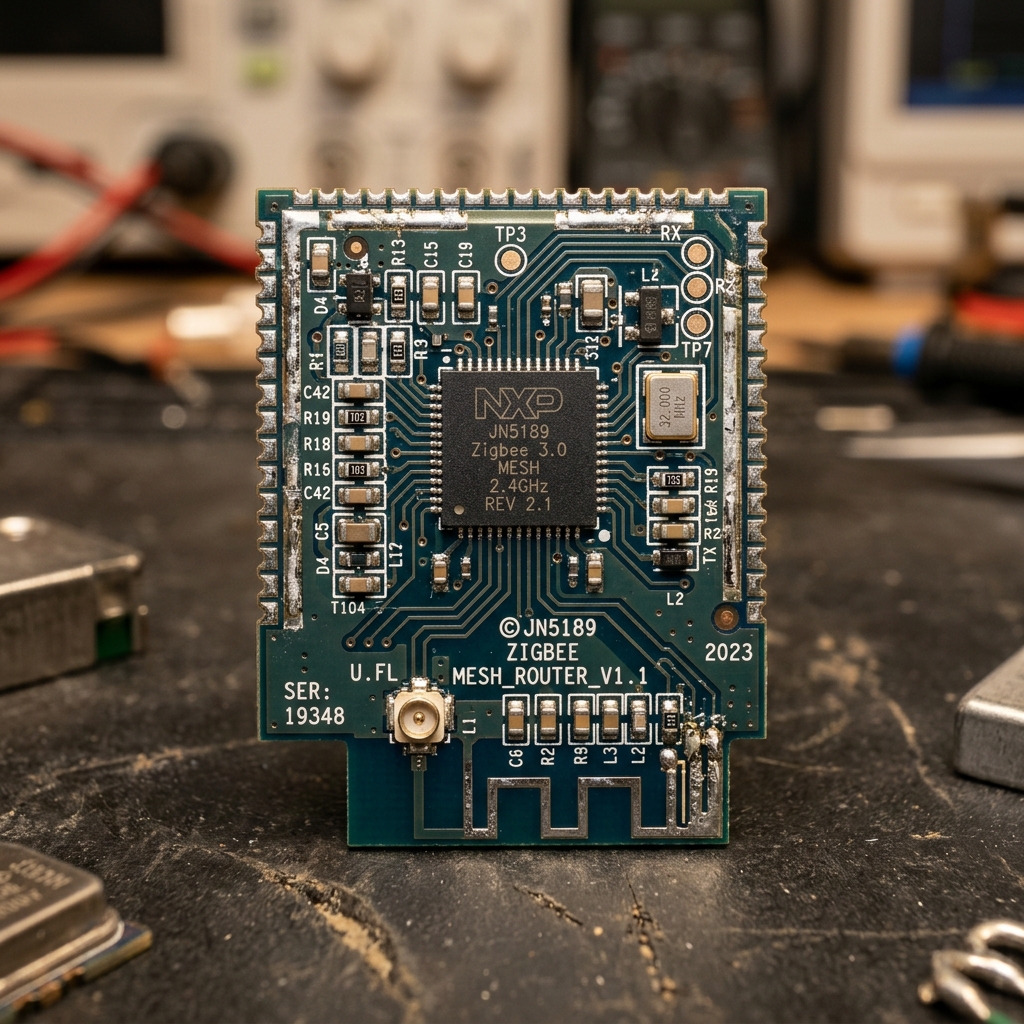
You bought the smart bulbs, the sensors, and the high-end hub. Everything worked great for a week, but now your bedroom light takes three seconds to turn on. Welcome to the “Zigbee Mesh Mess.” As a systems architect, I’ve seen countless smart home enthusiasts fall into this trap, overlooking the fundamental principles of robust wireless network design. Zigbee, while incredibly efficient and versatile, operates within a challenging radio frequency (RF) environment, making proper network architecture paramount for stability and responsiveness.
I’ve built Zigbee networks ranging from small apartments to 5,000-square-foot estates. Zigbee is a fantastic protocol, but it shares the 2.4 GHz frequency band with almost everything else. If your mesh isn’t built correctly, it’s like trying to have a conversation in a crowded stadium. This guide will delve into the intricate technicalities of Zigbee, exploring its underlying IEEE 802.15.4 standard, RF interference mitigation strategies, and advanced network topology optimization to transform your flaky setup into a rock-solid smart home foundation.
Zigbee Mesh Healing Flow
The Architecture of Stability: Zigbee Network Roles and Topology
At its core, Zigbee is a low-power, low-data-rate, short-range wireless mesh network protocol built upon the IEEE 802.15.4 physical (PHY) and media access control (MAC) layers. Understanding its hierarchical structure is crucial for stabilization.
Coordinator, Router, and End Device: The Pillars of Your Mesh
Every Zigbee network consists of three distinct device types, each with a critical role:
- Coordinator (ZC): This is your hub (e.g., SmartThings, Hubitat, Home Assistant with a Zigbee dongle). There can only be one Coordinator per network. It initiates the network, manages security keys (AES-128 encryption), and acts as the root of the mesh topology. If the Coordinator fails, the entire network fails.
- Router (ZR): These are mains-powered devices (e.g., smart plugs, hardwired switches, certain smart bulbs). Routers are always “on” and can relay messages from End Devices to the Coordinator, and vice-versa. They extend the network’s range and provide redundant communication paths, forming the true “mesh.” A robust network relies heavily on a sufficient number of strategically placed Routers.
- End Device (ZED): These are typically battery-powered sensors (e.g., motion sensors, door/window contacts, temperature sensors, buttons). End Devices are designed for ultra-low power consumption, spending most of their time asleep to conserve battery. They can only communicate with their designated parent Router or the Coordinator directly. They cannot relay messages for other devices, nor can they act as parents. When an End Device wakes up, it polls its parent for any pending messages. If its parent is unavailable, it must re-associate with a new parent, which can cause delays or disconnections.
Most people only buy “End-Devices” (sensors). To have a healthy network, at least 20% of your devices must be mains-powered Routers. This isn’t just a rule of thumb; it’s a critical density requirement for mesh resilience. Without enough Routers, End Devices will have limited parent options, leading to single points of failure and poor signal quality. A sparse network resembling a “star” topology around the Coordinator is inherently unstable, especially in environments with RF interference.
| Device Type | Role in Mesh | Power Source | Message Relay | Typical LQI Range |
|---|---|---|---|---|
| Coordinator (ZC) | Network initiator, security manager, root node | Mains-powered | Yes (to/from Routers/EDs) | N/A (central to all) |
| Router (ZR) | Extends range, repeats signals, forms mesh backbone | Mains-powered | Yes (for other ZRs/ZEDs) | 150-255 (optimal) |
| End-Device (ZED) | Sensor, actuator, low-power operation | Battery-powered | No (communicates only with parent) | 50-255 (varies by distance/parent) |
The Invisible Battlefield: 2.4 GHz RF Interference and Channel Management
Zigbee operates in the 2.4 GHz Industrial, Scientific, and Medical (ISM) band, a crowded slice of the radio spectrum shared with a multitude of other wireless technologies. This co-existence is the primary source of instability in many Zigbee networks.
The 2.4 GHz Spectrum: Wi-Fi, Zigbee, Bluetooth Low Energy, and Beyond
The 2.4 GHz band spans from 2.400 GHz to 2.500 GHz. Within this, Wi-Fi (802.11b/g/n) channels are wide, overlapping, and powerful. Zigbee channels, based on 802.15.4, are narrower and typically lower power. Other common occupants include Bluetooth Low Energy (BLE), which uses 40 channels (2 MHz spacing) and Adaptive Frequency Hopping (AFH) to navigate the spectrum, often utilizing advertising channels (37, 38, 39) in the guard bands of Wi-Fi. Additionally, cordless phones, microwave ovens, and even some baby monitors can contribute to interference.
Wi-Fi Channel Overlap: The Silent Killer
Standard 2.4 GHz Wi-Fi uses 11 or 13 channels, each 22 MHz wide. The only non-overlapping Wi-Fi channels are 1, 6, and 11. Most Wi-Fi routers default to Channel 6 or 11, leading to significant congestion. Zigbee, on the other hand, uses 16 channels (11-26). Each Zigbee channel occupies approximately 2 MHz of bandwidth, but their center frequencies are spaced 5 MHz apart. The critical overlap occurs as follows:
+----------------------------------------------------------------------------------+
| 2.4 GHz ISM Band Frequency Map (Simplified)                                      |
+----------------------------------------------------------------------------------+
| Frequency (GHz)  : 2.400      2.420      2.440      2.460      2.480      2.500 |
|                  :    |          |          |          |          |          |
|------------------+----+----------+----------+----------+----------+----------+
| Wi-Fi Channel 1  : [====================]                                      |
| Wi-Fi Channel 6  :           [====================]                            |
| Wi-Fi Channel 11 :                     [====================]                  |
|------------------+----+----------+----------+----------+----------+----------+
| Zigbee Channel 11:    [--]                                                      |
| Zigbee Channel 15:            [--]                                              |
| Zigbee Channel 20:                           [--]                               |
| Zigbee Channel 25:                                       [--]                    |
| Zigbee Channel 26:                                          [--]                 |
+----------------------------------------------------------------------------------+
As the diagram illustrates, Zigbee channels 11 (2405 MHz), 12 (2410 MHz), 13 (2415 MHz), and 14 (2420 MHz) overlap heavily with Wi-Fi Channel 1 (center 2412 MHz, occupies 2401-2423 MHz). Zigbee channels 16 (2430 MHz), 17 (2435 MHz), 18 (2440 MHz), and 19 (2445 MHz) overlap heavily with Wi-Fi Channel 6 (center 2437 MHz, occupies 2426-2448 MHz). Zigbee Channel 15 (2425 MHz) sits in the guard band between Wi-Fi Channels 1 and 6, while Zigbee Channel 20 (2450 MHz) sits in the guard band between Wi-Fi Channels 6 and 11. Zigbee channels 21 (2455 MHz), 22 (2460 MHz), 23 (2465 MHz), and 24 (2470 MHz) overlap with Wi-Fi Channel 11 (center 2462 MHz, occupies 2451-2473 MHz). Zigbee channels 25 (2475 MHz) and 26 (2480 MHz) are entirely outside the standard 22 MHz bandwidth of Wi-Fi channels 1, 6, and 11. This makes them excellent choices for minimal interference, as they do not spectrally overlap with the primary Wi-Fi channels. Conversely, Wi-Fi Channel 11 is the #1 killer of Zigbee performance if your Zigbee network is on an overlapping channel like 21-24.
Optimal Channel Selection Strategy
The goal is to create as much spectral separation as possible:
- Set your 2.4 GHz Wi-Fi to Channel 1, 6, or 11. These are the only non-overlapping Wi-Fi channels.
- Set your Zigbee network to a channel that avoids your chosen Wi-Fi channel.
- If Wi-Fi is on Channel 1 (2412 MHz): Zigbee Channels 20 (2450 MHz), 25 (2475 MHz), or 26 (2480 MHz) are excellent choices. Avoid Zigbee Channels 11-14.
- If Wi-Fi is on Channel 6 (2437 MHz): Zigbee Channels 11 (2405 MHz), 25 (2475 MHz), or 26 (2480 MHz) are excellent choices. Avoid Zigbee Channels 16-19.
- If Wi-Fi is on Channel 11 (2462 MHz): Zigbee Channels 11 (2405 MHz), 15 (2425 MHz), 25 (2475 MHz), or 26 (2480 MHz) are excellent choices. Zigbee Channels 25 and 26 are particularly optimal as they are entirely outside the Wi-Fi 11 spectrum. Avoid Zigbee Channels 21-24.
- Avoid automatic channel selection on your Wi-Fi router. While seemingly convenient, auto-channel features often pick the “least crowded” channel at a given moment, which might change, or might still conflict with your Zigbee network. Manual selection provides predictable stability.
Detecting and Mitigating RF Interference
To truly diagnose interference, advanced tools are beneficial:
- Wi-Fi Analyzer Apps: Tools like NetSpot (macOS/Windows) or Wi-Fi Analyzer (Android) can visualize local Wi-Fi channel usage, helping you identify the least congested Wi-Fi channel for your router.
- Spectrum Analyzers: For a deeper dive, a hardware spectrum analyzer (e.g., HackRF One, Ubertooth One with appropriate software) can show all RF activity across the 2.4 GHz band, revealing non-Wi-Fi interferers like microwave ovens or poorly shielded electronics.
- Hub Diagnostics: Most Zigbee hubs provide some level of Link Quality Indicator (LQI) or Received Signal Strength Indicator (RSSI) data. While not a direct measure of interference, consistently low LQI/RSSI across multiple devices, even those close to Routers, can indicate external RF noise.
The Hub Placement Secret: Minimizing Local EMI/RFI
The physical placement of your Zigbee Coordinator (hub or USB dongle) is far more critical than many realize. It’s not just about range; it’s about minimizing local electromagnetic interference (EMI) and radio frequency interference (RFI).
Never place your Zigbee hub directly next to your Wi-Fi router, network switch, or computer. These devices generate significant electromagnetic noise that can “drown out” the comparatively low-power Zigbee radio. The 2.4 GHz band is particularly susceptible to noise from digital electronics.
- Wi-Fi Routers: Emit strong 2.4 GHz signals, overpowering Zigbee.
- USB 3.0 Ports: Can generate broadband noise in the 2.4 GHz range.
- Power Supplies/Wall Warts: Poorly shielded power bricks can radiate EMI.
- Metal Enclosures: Placing a hub inside a metal cabinet or directly behind large metal objects (appliances, structural beams) will significantly attenuate Zigbee signals.
Pro Tip: If your Zigbee Coordinator is a USB dongle (e.g., for Home Assistant), use a 3-foot (1-meter) USB 2.0 extension cable. This simple trick achieves several objectives:
- Distance from Noise Sources: Moves the Zigbee radio away from the high-frequency switching noise of your computer’s motherboard, power supply, or the Wi-Fi router’s radio.
- Antenna Orientation: Allows you to position the dongle’s antenna vertically and clear of obstructions, optimizing signal propagation. Many small USB dongles have omnidirectional antennas that perform best when oriented vertically.
- Reduced Local Attenuation: Prevents signal blocking by the host device itself.
Hyper-Specific Troubleshooting: Diagnosing and Healing Your Mesh
Understanding Link Quality (LQI) and RSSI
These metrics are your window into the health of individual device connections:
| Metric | Range/Value | Link Quality Description |
|---|---|---|
| LQI (Link Quality Indicator) | > 200 | Excellent link, highly reliable. |
| 150 – 200 | Good link, stable performance. | |
| 100 – 150 | Weak link, potential for dropped packets and delays. | |
| < 100 | Very weak, highly prone to disconnection and instability. | |
| < 50 | Failing connection, device will likely drop off. | |
| RSSI (Received Signal Strength Indicator) | > -60 dBm | Excellent signal strength. |
| -60 to -75 dBm | Good signal strength, stable. | |
| -75 to -85 dBm | Weak signal, prone to issues and unreliability. | |
| < -85 dBm | Very weak signal, highly unreliable connection. |
Hub-Specific Diagnostics and Healing Procedures
Hubitat Elevation: Zigbee Map and Route Auditing
- Access Zigbee Details: Navigate to Settings > Zigbee Details in your Hubitat UI.
- Analyze the Zigbee Route Map: This graphical representation shows your Coordinator, Routers, and End Devices, along with their reported LQI values and direct parentage.
- Identify End Devices with an LQI below 150. These are “weak” and require attention.
- Note the parent Router for failing End Devices. Is it physically distant or potentially obstructed?
- Look for “orphan” devices that appear to have no parent or a very low LQI connection directly to the Coordinator when they should be routing through a closer Router.
- Strategic Router Placement: For devices with LQI < 150, identify the gap between the device and its current parent (or the Coordinator). Add a smart plug (Router) halfway into this gap. This creates a shorter, stronger hop.
- Force Route Recalculation (Optional, Advanced): While Zigbee is self-healing, you can sometimes expedite the process. For a specific problematic device, you might temporarily remove power from its current parent Router for a few minutes. This forces the End Device to search for a new parent when the original parent returns online, potentially finding the newly added Router. Alternatively, re-pairing the problematic End Device (without deleting it first, if supported) can force it to establish new routes.
Samsung SmartThings: The “Zigbee Heal” Protocol
SmartThings hubs, particularly older models, can sometimes benefit from a manual “heal” process, especially after adding new routers or experiencing prolonged instability. This is less about a command and more about exploiting Zigbee’s re-association mechanisms:
- Add New Routers: Ensure you’ve physically installed and paired your new smart plugs or other mains-powered Zigbee routers. Give them time (at least 15-30 minutes) to establish themselves in the network.
- Power Cycle the Hub: Physically unplug your SmartThings hub (or other Zigbee Coordinator) from both power and Ethernet (if applicable) for a prolonged period, typically 20-30 minutes.
- Rationale: This extended downtime is crucial. When the Coordinator is offline, all battery-powered End Devices will repeatedly attempt to contact their parent. After several failed attempts, they enter a “panic” or “discovery” mode, actively searching for *any* available Zigbee network and parent. When the hub eventually comes back online, these End Devices will scan for the strongest available parent, which now includes your newly added routers. This process effectively forces a network rebuild from the perspective of the End Devices, often resulting in more optimized routes.
- Restore Power: Plug the hub back in. Allow 15-30 minutes for the network to stabilize and devices to re-associate. Monitor device responsiveness.
Home Assistant (ZHA/Zigbee2MQTT): Visualizing and Optimizing
Home Assistant users have powerful tools for Zigbee network management:
- Zigbee2MQTT Web UI: If using Zigbee2MQTT, access its web interface. The “Map” tab provides a dynamic, graphical representation of your mesh, showing connections, LQI/RSSI values, and parent-child relationships. This is invaluable for identifying weak links and device routing paths.
- ZHA Network Visualization: For ZHA, install the “ZHA Network Card” custom integration or use the built-in network visualization (if available, depends on HA version). This offers similar insights into network topology and link quality.
- Router Placement and Re-pairing: Similar to Hubitat, identify devices with poor LQI/RSSI (e.g., < 150 LQI or > -80 dBm RSSI). Place new routers strategically. For stubborn devices, you may need to re-pair them. In ZHA, you can often “Reconfigure” or “Re-interview” a device, which can sometimes force it to re-evaluate its parent. For Zigbee2MQTT, simply re-pairing the device (without removing it first) often works best.
- Permit Join (Re-pairing): To re-pair a device, enable “Permit Join” on your Coordinator (ZHA: Configuration > Integrations > ZHA > Configure > ADD DEVICE; Zigbee2MQTT: Web UI > Permit Join). Then, put the specific problematic device into pairing mode. It should join without losing its entity ID or previous automations.
Beyond the Basics: Advanced Zigbee Considerations
Zigbee Protocol Deep Dive: IEEE 802.15.4 and Network Layers
Zigbee builds upon the IEEE 802.15.4 standard, which defines the physical (PHY) and media access control (MAC) layers for low-rate wireless personal area networks (LR-WPANs). The Zigbee Alliance (now part of the Connectivity Standards Alliance – CSA) defined the higher layers:
- PHY Layer: Handles radio transmission and reception. Specifies modulation schemes (O-QPSK), data rates (250 kbps in 2.4 GHz), and channel allocation.
- MAC Layer: Manages access to the shared radio channel (CSMA-CA – Carrier Sense Multiple Access with Collision Avoidance), packet framing, and acknowledgments.
- Network Layer (NWK): Responsible for routing messages across the mesh. It uses a routing algorithm (often AODV – Ad-hoc On-demand Distance Vector) to find the most efficient path between devices. This is where the concept of “hops” comes into play.
- Application Layer (APL): Contains the Zigbee Cluster Library (ZCL) which defines standard commands and attributes for various device types (e.g., On/Off clusters for lights, Temperature Measurement clusters for sensors). This layer enables interoperability between different manufacturers, *ideally*.
Security is baked in, with AES-128 encryption used for network and application layer frames, ensuring data privacy and integrity.
Interoperability Challenges: The “Aqara/Xiaomi Problem”
If you’ve built a strong backbone and cleared the frequencies, but an Aqara or Xiaomi sensor still drops off, it’s likely a compatibility issue. These brands often implement the Zigbee standard with slight deviations, sometimes referred to as “quirks.”
- Non-Standard Polling: Some Aqara sensors have shorter polling intervals or unique parent-check mechanisms that don’t always align with how certain Zigbee routers or coordinators expect them to behave. They might “stick” to their original parent even if a better route is available, or drop off if their parent briefly becomes unresponsive.
- Manufacturer-Specific Clusters: While they use standard ZCL clusters, some devices rely on proprietary clusters for certain functions, which generic Zigbee stacks might not fully support.
- Solution Strategies:
- Dedicated Hub: The most reliable solution for Aqara devices is often their own Aqara Hub, as it’s designed to understand their specific quirks.
- Specialized Routers: Certain Zigbee routers are known to be more “forgiving” or compatible with non-standard devices. IKEA Tradfri smart plugs/repeaters and newer ThirdReality smart plugs are frequently cited as good routers for Aqara/Xiaomi devices due to their robust firmware and willingness to accept “non-standard” child devices.
- Zigbee2MQTT / ZHA Quirks: For Home Assistant users, Zigbee2MQTT and ZHA have extensive “quirks” libraries that implement workarounds for known device eccentricities, significantly improving compatibility. Ensure your Zigbee2MQTT/ZHA setup is up-to-date.
Thread and Matter: The Future Co-existence
It’s important to note that Thread, the IP-based mesh networking protocol used by Matter, also operates on the IEEE 802.15.4 radio layer in the 2.4 GHz band. This means Thread devices share the same RF spectrum as Zigbee, inheriting similar interference challenges. However, Matter over Thread provides a standardized application layer that promises much better interoperability than legacy Zigbee. As Thread/Matter gains traction, careful channel planning will become even more critical to manage co-existence between Zigbee, Thread, and Wi-Fi networks.
Comprehensive Troubleshooting and Optimization Guide
Follow these steps systematically to stabilize your Zigbee network:
- Assess Your Network Foundation:
- Count Your Devices: Determine the total number of Zigbee devices.
- Identify Routers: List all mains-powered devices acting as Routers (smart plugs, hardwired switches, certain bulbs).
- Apply the 20% Rule: Ensure at least 20% of your devices are Routers. If not, prioritize purchasing and adding more.
- Optimize Hub Placement:
- Relocate Coordinator: Move your Zigbee hub/dongle at least 3-5 feet (1-1.5 meters) away from your Wi-Fi router, computer, or other high-EMI electronics.
- Use a USB Extension: If using a dongle, employ a 3-foot USB 2.0 extension cable to improve placement and antenna orientation.
- Avoid Obstructions: Ensure the hub is not enclosed in metal or directly behind large appliances.
- Resolve RF Channel Conflicts:
- Analyze Wi-Fi: Use a Wi-Fi analyzer app to identify the least congested 2.4 GHz Wi-Fi channel (1, 6, or 11) in your environment.
- Set Static Wi-Fi Channel: Manually configure your Wi-Fi router to the chosen non-overlapping channel (e.g., Channel 1 or 6). Disable auto-channel selection.
- Set Static Zigbee Channel: Configure your Zigbee Coordinator to a non-overlapping channel (e.g., 20, 25, or 26). This typically requires re-pairing all devices if changing an existing network’s channel, which is a significant undertaking but often necessary for long-term stability. If you cannot change Zigbee channel, adjust Wi-Fi to avoid it.
- Strengthen Your Mesh with Routers:
- Add Routers Strategically: Place new smart plugs or other mains-powered Zigbee routers in areas where End Devices are struggling or halfway between the Coordinator and distant End Devices.
- Distribute Routers: Aim for a router in every room or within 15-20 feet of battery-powered sensors. Avoid placing all routers in one concentrated area.
- Allow Stabilization Time: After adding new routers, allow the network 24-48 hours to self-heal and for devices to find new optimal routes.
- Audit and Heal Weak Links:
- Check LQI/RSSI: Access your hub’s Zigbee network map or details page. Identify any End Devices with consistently low LQI (< 150) or high negative RSSI (< -80 dBm).
- Force Re-association:
- SmartThings: Perform the “Zigbee Heal” (unplug hub for 20-30 minutes).
- Hubitat/Home Assistant: Temporarily remove power from the *parent* of the problematic device for a few minutes, or re-pair the device (without deleting) to force it to find a new parent.
- Firmware Updates: Ensure your hub and all Zigbee devices have the latest firmware. Updates often contain bug fixes and performance improvements for routing and compatibility.
- Address Compatibility Issues (e.g., Aqara/Xiaomi):
- Dedicated Hub: If specific devices (like Aqara) consistently fail despite a strong mesh, consider their manufacturer’s dedicated hub.
- Compatible Routers: Introduce IKEA Tradfri repeaters or ThirdReality smart plugs into your network, as they are known to be more robust parents for these “quirky” devices.
Frequently Asked Questions (FAQ)
Why do some Zigbee devices, like Aqara, drop off more than others even with a strong mesh?
Aqara and Xiaomi devices often adhere less strictly to the standard Zigbee specification, particularly concerning their polling intervals and re-association logic. They might “stick” to their initial parent router more aggressively, even if that parent becomes weak or unavailable, instead of actively searching for a stronger alternative. This behavior, sometimes called “non-standard parent binding,” makes them more susceptible to disconnections. Using specific routers known for better compatibility (e.g., IKEA Tradfri) or a dedicated Aqara hub can mitigate this.
How often should I “heal” my Zigbee network?
In a well-designed and stable Zigbee network, manual “healing” should rarely be necessary. Zigbee is designed to be self-healing, meaning devices should automatically find new routes if a parent goes offline or a link degrades. Frequent manual intervention (like unplugging the hub) usually indicates an underlying issue with router density, placement, or RF interference that needs to be permanently addressed, rather than temporarily fixed.
Can I mix different brands of Zigbee routers in my network?
Yes, generally you can and should mix different brands of Zigbee routers. The Zigbee standard is designed for interoperability. Different brands of routers can contribute to a robust mesh. However, as mentioned with Aqara, some routers might be more compatible with certain “quirky” End Devices. Using a variety of trusted router brands (e.g., Philips Hue, IKEA Tradfri, Sylvania/Osram, ThirdReality, Tuya-compatible plugs) can actually improve overall network resilience.
What’s the ideal number of routers for a typical smart home?
There isn’t a single “ideal” number, as it depends on house size, construction materials, and the number of End Devices. A good starting point is the “20% rule” – ensuring at least 20% of your total Zigbee devices are mains-powered routers. For a typical 2000-3000 sq ft home with 30-50 devices, you might aim for 8-15 routers strategically placed. Think of it as needing a router within 15-20 feet of every battery-powered End Device, and also ensuring good coverage through walls and floors.
Does a strong Wi-Fi signal help my Zigbee network?
No, quite the opposite. A strong Wi-Fi signal, especially on overlapping 2.4 GHz channels, will actively *interfere* with and degrade your Zigbee network. Wi-Fi radios typically transmit at higher power levels than Zigbee, effectively “drowning out” the weaker Zigbee signals. This is why careful channel separation between Wi-Fi and Zigbee is one of the most critical steps to stabilizing your mesh.
What about Z-Wave, Thread, or Matter? How do they compare?
Z-Wave: Operates on sub-1 GHz frequencies (e.g., 908.42 MHz in the US, 868.42 MHz in Europe), making it immune to 2.4 GHz Wi-Fi interference. It’s a robust mesh, but typically has fewer devices available and is often more expensive. Thread: Uses the same IEEE 802.15.4 physical layer as Zigbee (2.4 GHz), so it faces similar RF interference challenges. However, Thread is IP-based, offering more modern networking features. Matter: An application layer standard that runs over Wi-Fi, Ethernet, and Thread. It aims for universal interoperability. While Matter devices over Thread will share the 2.4 GHz band with Zigbee, the Matter standard itself is designed to abstract away many of the underlying protocol complexities and improve device compatibility.
Conclusion: Engineering Your Smart Home’s Backbone
Stabilizing a flaky Zigbee network is less about magic fixes and more about applying sound principles of wireless network engineering. By understanding the roles of Coordinators, Routers, and End Devices, diligently managing RF channel interference, optimizing hub placement, and strategically deploying mains-powered routers, you can transform a chaotic “mesh mess” into a resilient and responsive smart home backbone. Proactive network design, rather than reactive troubleshooting, is the key to unlocking the full potential of Zigbee’s efficiency and reliability. Invest in your network’s infrastructure, and your smart home will reward you with seamless automation and dependable performance.

About the Author: Sotiris
Sotiris is a senior systems integration engineer and home automation architect with 12+ years of professional experience in enterprise network administration and low-voltage control systems. He has custom-designed and troubleshot home automation networks for hundreds of properties, specializing in RF link analysis, local subnet isolation, and secure local IoT integrations.