Alexa or Google Waking Up on Its Own? Stop False Triggers
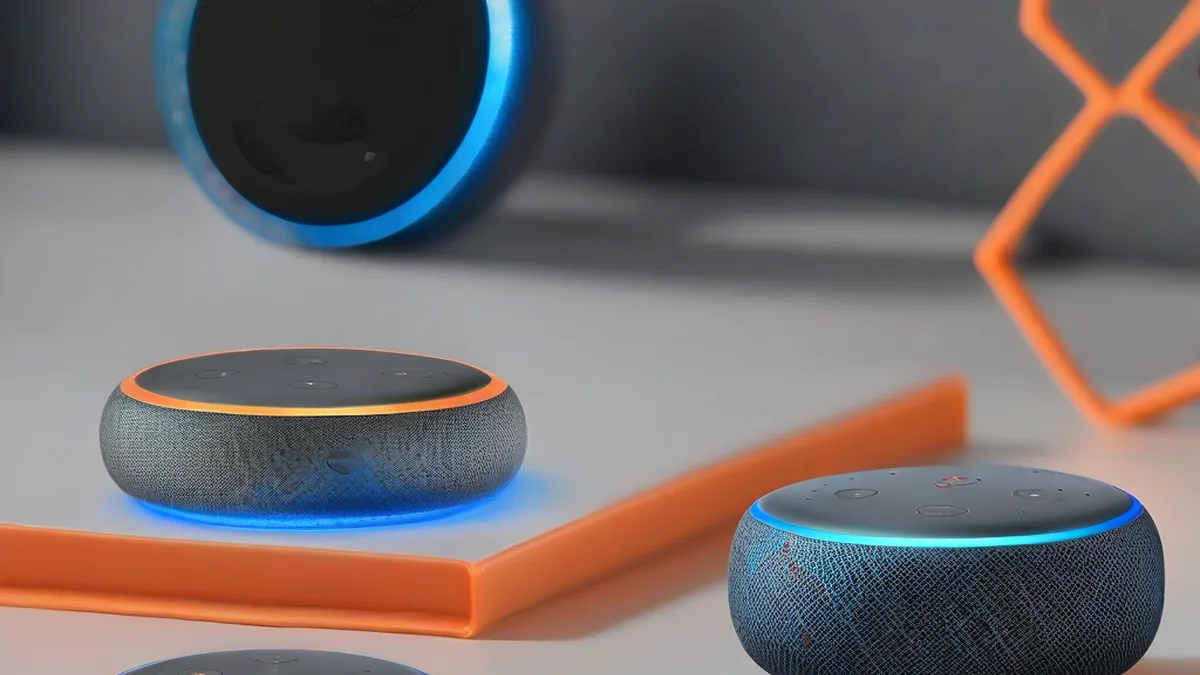
Quick Verdict: Taming Your Smart Speaker’s Unintended Ears
Randomly activating smart speakers like Alexa and Google Home are often victims of their own advanced acoustic processing. The root cause typically stems from a combination of environmental acoustic interference (TVs, background chatter, music), phonetic similarities to wake words, and occasionally, subtle network instabilities. Work through it by systematically isolating acoustic triggers through careful device placement and sensitivity adjustments, followed by a thorough network health check and firmware verification. Most ‘ghost activations’ can be silenced with a methodical diagnostic process.
There’s nothing quite as unsettling in a smart home as a device that seemingly has a mind of its own. You’re watching TV, having a conversation, or simply enjoying a moment of quiet, when suddenly your Amazon Echo or Google Home springs to life, announcing a weather forecast you didn’t ask for, or worse, attempting to execute a command you never uttered. These ‘ghost activations’ are more than just an annoyance; they erode trust in your smart home’s reliability and privacy. While these incidents can feel mysterious, they almost always have a logical, solvable cause. Let’s delve into why your smart speaker might be randomly activating and, more importantly, how to bring it back under your control.
The Deep Dive: Understanding Unintended Smart Speaker Activations
Smart speakers are incredibly sophisticated pieces of technology, constantly listening for their specific ‘wake word’ (‘Alexa’, ‘Hey Google’, ‘Computer’, etc.). This always-on listening is powered by dedicated digital signal processors (DSPs) and machine learning models that are designed to filter out background noise and identify spoken commands. However, this very sophistication can sometimes be its Achilles’ heel.
Acoustic Triggering: The Primary Culprit
The vast majority of random activations trace back to acoustic interference. Your smart speaker’s microphones are highly sensitive, designed to pick up your voice even from across a room or amidst moderate background noise. But this sensitivity means they can also pick up unintended sounds that are misinterpreted as a wake word.
- Phonetic Similarities: This is by far the most common cause. Words or phrases in TV shows, movies, radio broadcasts, or even casual conversations can sound phonetically similar enough to ‘Alexa’ or ‘Hey Google’ to trigger the device. For instance, ‘A Lexa’ from a character’s name, or ‘I’ll text her’ can easily be misconstrued.
- Ambient Noise Levels: A consistently noisy environment, such as a home with loud children, frequent construction sounds, or a constantly running appliance, can sometimes confuse the speaker’s noise reduction algorithms, leading to false positives.
- Music and Media Playback: If your smart speaker is near another speaker playing music or a TV, the audio from these sources can contain frequencies and speech patterns that mimic a wake word.
- Reverberation and Echo: In rooms with hard surfaces and minimal soft furnishings, sound can bounce around, creating echoes and reverberations that distort speech and make it harder for the speaker to accurately isolate commands.
- Inter-device Feedback: While less common for random activations, if two smart speakers are too close to each other and one activates, its own output could potentially trigger the other, creating a feedback loop of sorts.
Network Instability: A Silent Saboteur
While acoustic issues are usually front and center, don’t underestimate the role of your home network. Smart speakers rely heavily on a stable Wi-Fi connection to process complex commands in the cloud, receive firmware updates, and even to correctly interpret wake words in some advanced scenarios (though primary wake word detection is usually local). An unstable network can manifest in many ways:
- Intermittent Wi-Fi Drops: If your speaker briefly loses and regains connection, it might reboot or enter an unstable state where its internal processing becomes erratic.
- High Latency and Packet Loss: Even if connected, poor network quality can delay the speaker’s ability to communicate with cloud services, potentially leading to processing errors or delayed responses that might seem like random activations.
- Channel Congestion: Overlapping Wi-Fi channels with neighbors can cause interference, leading to data corruption and unreliable communication for your smart speaker.
- Band Steering Issues: Modern routers often ‘steer’ devices between 2.4 GHz and 5 GHz bands. If this process is poorly implemented or the bands are unbalanced, your speaker might experience connectivity hiccups.
Understanding the 2.4 GHz spectrum is crucial for mitigating channel congestion. This band is shared by Wi-Fi (802.11b/g/n), Zigbee (802.15.4), Thread, and Bluetooth Low Energy (BLE). Wi-Fi channels are 20 MHz wide, with only three non-overlapping channels (1, 6, and 11) typically recommended for optimal performance. Zigbee and Thread channels are 5 MHz spaced. Specifically:
- Wi-Fi Channel 1 (center 2412 MHz, range 2401–2423 MHz) overlaps with Zigbee/Thread channels 11 (2405 MHz), 12 (2410 MHz), 13 (2415 MHz), and 14 (2420 MHz).
- Wi-Fi Channel 6 (center 2437 MHz, range 2426–2448 MHz) overlaps with Zigbee/Thread channels 16 (2430 MHz), 17 (2435 MHz), 18 (2440 MHz), and 19 (2445 MHz).
- Wi-Fi Channel 11 (center 2462 MHz, range 2451–2473 MHz) overlaps with Zigbee/Thread channels 21 (2455 MHz), 22 (2460 MHz), 23 (2465 MHz), and 24 (2470 MHz).
- For Zigbee/Thread, channels 25 (2475 MHz) and 26 (2480 MHz) are often considered the safest choices as they sit entirely outside the primary Wi-Fi channels 1, 6, and 11, minimizing direct spectral overlap.
Bluetooth Low Energy (BLE), commonly used in smart home devices, operates across 40 channels, each 2 MHz wide. BLE employs Adaptive Frequency Hopping (AFH) to dynamically avoid congested Wi-Fi channels. Crucially, BLE reserves three dedicated advertising channels (channels 37, 38, and 39) which are strategically placed in the spectral gaps between Wi-Fi channels 1, 6, and 11 to minimize interference during device discovery and connection establishment.
Software Glitches and Firmware Bugs
While rarer, software can sometimes be the culprit. Firmware updates are designed to improve performance and add features, but occasionally, a bug might slip through, affecting wake word detection or causing unexpected behavior. Keeping your device’s software up-to-date is crucial, but it’s also worth noting if issues arise immediately after an update.
Multi-Device Conflicts and Settings
If you have multiple smart speakers in close proximity, they are all listening. While they usually have an ‘Echo Spatial Perception’ (ESP) or ‘Voice Match’ feature to determine which device is closest and should respond, this system isn’t infallible. Sometimes, two devices might ‘hear’ the wake word simultaneously, or one might incorrectly assume it was the intended recipient.
Here’s a breakdown of common acoustic interference sources:
| Interference Type | Source Examples | Frequency Range (Approx.) | Mitigation Strategy |
|---|---|---|---|
| Phonetic Similarity | TV dialog, radio hosts, background conversations | 300 Hz – 3 kHz (Speech) | Adjust device placement, review activity history, use different wake words (if available), enable ‘Brief Mode’. |
| Broadband Noise | HVAC systems, fans, vacuum cleaners, traffic | 20 Hz – 20 kHz (Wide) | Isolate speaker from noise source, improve room acoustics, consider device sensitivity settings. |
| Music/Media Playback | Loud music, movie soundtracks, podcasts | 20 Hz – 20 kHz | Reduce media volume, ensure speaker is not playing its own media too loudly, test different genres. |
| Reverberation/Echo | Large, empty rooms, hard surfaces | N/A (Acoustic Property) | Add soft furnishings (rugs, curtains), position speaker away from reflective walls. |
| Inter-device Feedback | Two smart speakers too close, microphone picking up speaker output | N/A (Systemic) | Increase distance between devices, adjust volume, ensure unique wake words for distinct devices. |
The Smart Speaker’s Listening Process
To better understand where false triggers can occur, let’s visualize the basic signal path from sound to action:
                      +-------------------+
                      |  Ambient Sounds   |
                      | (TV, Music, Talk) |
                      +--------+----------+
                               |
                               v
               +-----------------------------+
               |  Smart Speaker Microphone   |
               |       Array (Input)         |
               +--------------+--------------+
                              |
                              v
               +-----------------------------+
               |  Acoustic Pre-processing    |
               | (Noise Reduction, Filtering)|
               +--------------+--------------+
                              |
                              v
               +-----------------------------+
               |   Wake Word Detection Engine|
               | (Local DSP for 'Alexa'/'Hey G')|
               +--------------+--------------+
                              |
                      (Potential False Trigger Point)
                              |
                              v
               +-----------------------------+
               |  Voice Command Transmitted  |
               |   (to Cloud for Full NLP)   |
               +-----------------------------+
As you can see, the ‘Wake Word Detection Engine’ is the critical juncture where acoustic input is analyzed. Any sound that sufficiently matches the phonetic pattern of the wake word, even after pre-processing, will trigger the device.
Step-by-Step Troubleshooting: Silencing the Unseen
Addressing random activations requires a systematic approach. Start with the most likely culprits and work your way through the less common ones.
- Step 1: Review Activity History – Pinpoint the ‘When’ and ‘What’
- Action: Open the Alexa app or Google Home app. Navigate to ‘Settings’ > ‘Alexa Privacy’ > ‘Review Voice History’ (for Alexa) or ‘My Activity’ (for Google Assistant).
- Observation: Look for entries where your speaker activated without a clear command. Many will be labeled ‘unrecognized command’ or ‘false wake’.
- Clue: Note the timestamps. Do they correlate with specific TV shows, conversations, or times of day? This is your strongest diagnostic tool. Listen to the audio snippets if available; you might immediately identify the triggering phrase.
- Step 2: Optimize Device Placement – Reduce Acoustic Interference
- Action: Move your smart speaker at least 3-5 feet away from TVs, radios, other smart speakers, and high-traffic areas where conversations are frequent. Avoid placing it in direct line of sight of loud appliances like dishwashers or washing machines.
- Observation: Monitor for a reduction in random activations.
- Clue: If moving the speaker significantly reduces false triggers, it confirms an acoustic interference issue related to its previous location.
- Step 3: Adjust Wake Word Sensitivity (Where Available)
- Action: Some devices (especially older ones or specific models) allow you to adjust wake word sensitivity in their respective apps. For Alexa, check individual device settings for a ‘Wake Word Sensitivity’ option. Google Home devices generally adjust this automatically but benefit from ‘Voice Match’ training.
- Observation: A lower sensitivity setting should reduce false positives but might require you to speak louder or closer to the device for legitimate commands.
- Clue: This is a balancing act. If you find a sweet spot, you’ve likely mitigated the issue.
- Step 4: Address Multi-Speaker Conflicts
- Action: If you have multiple devices in the same room, ensure they are sufficiently spaced. Consider using different wake words for different devices if your platform supports it (e.g., ‘Echo’ for one, ‘Alexa’ for another). For Google Home, ensure ‘Voice Match’ is set up for all household members.
- Observation: One device consistently responds, or false activations are reduced.
- Clue: If activations frequently involve the ‘wrong’ speaker, improving spatial separation or wake word differentiation is key.
- Step 5: Perform a Network Health Check – Ensure Stability
- Action:
- Reboot your router and modem: Unplug for 30 seconds, then plug back in.
- Check Wi-Fi channel: Use a Wi-Fi analyzer app on your phone to identify congested 2.4 GHz or 5 GHz channels in your area. Log into your router’s admin panel and manually set your Wi-Fi channel to a less congested one (e.g., 1, 6, or 11 for 2.4 GHz).
- Test network speed and stability: Use a speed test tool to ensure consistent speeds and low latency.
- Observation: Improved network performance, fewer general connectivity issues, and potentially reduced random activations if network instability was a contributing factor.
- Clue: If network issues were apparent before and now resolve, and activations decrease, network health was likely playing a role.
- Action:
- Step 6: Update Firmware and Software
- Action: Smart speakers usually update automatically. However, you can often manually check for updates via the respective app. Ensure your phone’s app is also up-to-date.
- Observation: Device runs on the latest software, potentially resolving known bugs.
- Clue: If the issue started after an update, or a new update is available, applying it might fix an underlying software bug.
- Step 7: Factory Reset (Last Resort)
- Action: As a final troubleshooting step, perform a factory reset on the device. This will wipe all settings and require you to set it up again. Consult your device’s manual for specific instructions.
- Observation: The device behaves like new, potentially resolving persistent software glitches.
- Clue: If all else fails and a factory reset resolves the issue, it suggests a corrupted configuration or a deep-seated software problem that was not resolved by updates.
To aid in your diagnostic process, here’s a table mapping common actions to expected outcomes:
| Action Step | Expected Outcome (Positive) | Potential Outcome (Negative/Problem) | Diagnostic Clue |
|---|---|---|---|
| Check Activity History (App) | See clear commands, no unexplained entries. | Many ‘unrecognized command’ or ‘false wake’ entries. | Indicates frequent accidental wake word detection; review timestamps for patterns. |
| Move Speaker Location | Fewer random activations, improved command recognition. | No change, or new random activations in new spot. | Suggests environmental noise is localized or wake word sensitivity is too high. |
| Adjust Wake Word Sensitivity | Reduced false triggers, but might require louder commands. | Still frequent activations, or speaker becomes unresponsive to actual commands. | Sensitivity setting needs fine-tuning; balance false positives vs. Responsiveness. |
| Reboot Router/Access Point | Improved network stability, faster responses, no dropouts. | No change in false activations, or continued network issues. | If network improves but false triggers persist, focus on acoustic factors. |
| Disable ‘Follow-Up Mode’ (Alexa) | Stops continuous listening after a command. | No change, or user misses convenience of follow-up questions. | If false triggers happen after a legitimate command, this might be the cause. |
| Test with Muted Microphone | No random activations occur (as expected). | Still activates (highly unlikely, indicates hardware fault). | Confirms issue is related to acoustic input; if it still activates, device is severely faulty. |
Frequently Asked Questions About Smart Speaker False Triggers
Why does my smart speaker activate when no one says the wake word?
Most commonly, your smart speaker is detecting sounds that are phonetically similar to its wake word (e.g., ‘Alexa’, ‘Hey Google’). This could be dialogue from a TV show, a song playing, or even background conversations. Less frequently, it could be due to extreme ambient noise levels confusing the device’s noise reduction algorithms, or a rare software glitch.
Can other smart devices cause my Alexa/Google Home to activate?
Indirectly, yes. If another smart device (like a smart TV or soundbar) is playing audio that contains phrases similar to the wake word, it can trigger your smart speaker. However, one smart speaker typically won’t directly ‘command’ another to activate unless specific routines or multi-device features are explicitly configured and the wake word is detected.
How do I check my smart speaker’s activity history?
For Alexa, open the Alexa app, go to ‘More’ > ‘Settings’ > ‘Alexa Privacy’ > ‘Review Voice History’. For Google Home, open the Google Home app, tap your profile picture > ‘Assistant settings’ > ‘Your data in the Assistant’ > ‘My Activity’. Both platforms allow you to review and often listen to recordings of detected commands, which is invaluable for diagnosis.
What is ‘wake word sensitivity’ and how do I change it?
Wake word sensitivity refers to how easily your smart speaker detects its wake word. A higher sensitivity means it’s more likely to pick up commands from further away or in noisy environments, but also more prone to false positives. A lower sensitivity means it requires a clearer, closer command. You can often adjust this setting for individual Alexa devices within the Alexa app under the device’s settings. Google Home devices primarily use ‘Voice Match’ and adapt automatically, with fewer manual sensitivity controls.
Does Wi-Fi interference really affect wake word detection?
While the initial wake word detection is largely processed locally on the device’s DSP, a stable Wi-Fi connection is critical for subsequent command processing, cloud communication, and receiving firmware updates. Persistent Wi-Fi interference, dropouts, or high latency can lead to erratic behavior, delayed responses, and in rare cases, contribute to misinterpretations or system instability that could indirectly result in seemingly random activations. Ensuring robust network health is always a foundational step in smart home troubleshooting.
Conclusion
Dealing with smart speakers that randomly activate can be frustrating, but it’s a problem that’s almost always solvable through a methodical approach. By carefully examining your device’s activity history, optimizing its physical placement, fine-tuning sensitivity settings, and ensuring a robust home network, you can significantly reduce or eliminate these ‘ghost activations’. A stable, predictable smart home is a comfortable smart home, and with these steps, you’ll regain control over your intelligent assistants, ensuring they only speak when spoken to.
About these guides
These guides are compiled and maintained by the Smart Home Expert editorial desk. Each one is built from manufacturer documentation and the published Zigbee, Z-Wave, Thread and Wi-Fi specifications, then written up as a diagnostic sequence you can follow in order. Found something that does not match your hardware? Tell us and we will correct the sheet.
Specifications and references
The primary documentation for the protocols and products discussed above. Where this guide gives a figure — a frequency, a voltage, a timeout — these are where it comes from.