Alexa Keeps Saying I Didn’t Get That? Fix Voice Recognition
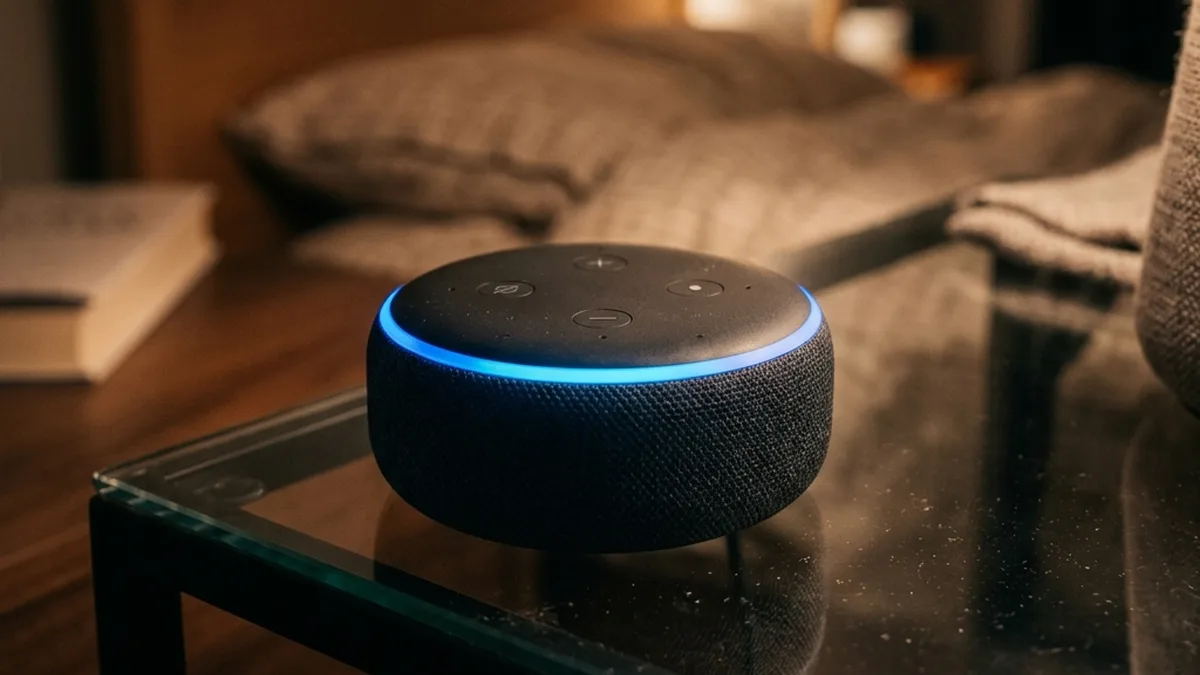
You utter a command to your Amazon Echo Dot, Sonos Era 100 (with Alexa built-in), or another compatible smart speaker, expecting an immediate and accurate response. Instead, you’re met with silence, a generic “I’m sorry, I didn’t get that,” or a completely irrelevant action – perhaps a mushroom risotto recipe when you requested the local weather forecast. This frustrating experience often leads users to believe their device is “going deaf” or suffering from hardware degradation. However, in the vast majority of cases, the underlying issue is not a wearing out of the device’s internal components, but rather a dynamic degradation of its operating environment, particularly its acoustic and radio frequency (RF) landscape.
The subtle yet profound impact of “Corner Loading” on Alexa’s sophisticated beamforming microphone array, leading to signal ambiguity and recognition failures.
The core of voice recognition problems seldom lies in the sophisticated Artificial Intelligence (AI) algorithms residing in the cloud. Instead, the bottleneck is typically at the initial data acquisition stage: The microphone array’s ability to accurately capture, isolate, and pre-process your spoken command amidst the ambient noise and acoustic complexities of your living space. Even seemingly minor physical adjustments and methodical software reconfigurations can yield dramatically superior results compared to a full factory reset. Let’s delve into the intricate physics, digital signal processing, and network protocols that govern effective voice control.
Comprehensive Alexa Voice Recognition Troubleshooting Flow
- Initial Problem Identification: Alexa consistently fails to respond or misinterprets commands.
- Acoustic Environment Audit:
- Device Placement Review:
- Is the device in a corner or directly against a hard wall/backsplash?
- Action: Relocate device to an open tabletop or shelf, ensuring at least 8-12 inches (20-30 cm) clearance from all reflective surfaces.
- Ambient Noise Assessment:
- Are there constant background noises (HVAC, fans, loud appliances, TV)?
- Action: Reduce or eliminate significant noise sources if possible.
- Device Placement Review:
- Voice ID and Profile Integrity Check:
- Has your Voice ID been recently updated or is it several years old?
- Action: Navigate to the Alexa App >
More > Settings > Your Profile & Family > Voice ID. Delete existing Voice ID and perform a complete retraining in a quiet environment from your typical speaking position.
- Physical Hardware Inspection:
- Are the microphone ports visibly obstructed by dust, debris, or grime?
- Action: Gently clean microphone apertures using compressed air. Never insert sharp objects.
- Network Layer Diagnostics:
- Is the device experiencing Wi-Fi signal strength issues or high latency?
- Action:
- Verify Wi-Fi signal strength (RSSI ≥ -65 dBm is ideal).
- Check for Wi-Fi channel congestion using a Wi-Fi analyzer tool. Adjust router channel if necessary.
- Ensure adequate internet bandwidth and low latency to Alexa’s cloud services.
- Advanced Software Configuration Review:
- Are Adaptive Volume, Follow-up Mode, and Brief Mode optimally configured for your usage?
- Action: Experiment with these settings in
Device Settings > Audio Settingsto fine-tune responsiveness and prevent audio overlap.
- Skill & Integration Health Check:
- Are specific smart home commands failing, indicating an issue with a particular skill?
- Action: Disable and re-enable the problematic skill in the Alexa App. Check for skill updates or known outages from the skill developer.
- Firmware & System Reboot:
- Has the device’s firmware been recently updated? A simple reboot can resolve transient software glitches.
- Action: Power cycle the device (unplug for 30 seconds, then plug back in). Check for pending firmware updates in the Alexa App.
- Optimal Voice Control Achieved: Consistent and accurate command recognition.
The Physics of Placement: Demystifying Acoustic Reflections and Beamforming Degradation
Alexa-enabled devices employ a sophisticated Beamforming Microphone Array. This is not simply a single omnidirectional microphone, but rather a carefully engineered arrangement of multiple Microelectromechanical Systems (MEMS) microphones (typically 4-7 units). These microphones work in concert, leveraging minute differences in the time-of-arrival (TDOA) and phase of sound waves across the array to computationally “steer” a virtual microphone beam towards the sound source – your voice. This spatial filtering technique significantly enhances the Signal-to-Noise Ratio (SNR) by attenuating sounds originating from other directions, allowing Alexa to effectively isolate your command from ambient noise.
Multipath Interference and Reverberation Time (RT60)
When you place a smart speaker in a corner or directly against a hard, reflective surface (like a wall, glass, or a kitchen backsplash), you introduce severe acoustic degradation. Your voice, a complex waveform, travels directly to the microphone array (the direct path). Simultaneously, it bounces off nearby surfaces, creating delayed, attenuated, and phase-shifted copies of itself (reflected paths). These reflected sound waves reach the microphone array at slightly different times and angles than the direct sound. This phenomenon is known as multipath interference.
In the context of beamforming, multipath interference creates “acoustic ghosts.” The beamforming algorithms, designed to focus on a single, coherent sound source, become confused. They receive multiple, conflicting versions of your voice, making it exceedingly difficult to accurately calculate the TDOA and phase differences required for effective spatial filtering. The result is a degraded or incoherent input signal to the Analog-to-Digital Converter (ADC) and subsequent Digital Signal Processing (DSP) stages. This is akin to trying to triangulate a signal when multiple, slightly out-of-sync transmitters are sending the same message from different locations.
Furthermore, reflective environments increase the Reverberation Time (RT60) – the time it takes for sound intensity to decay by 60 dB after the source has stopped. High RT60 values mean echoes persist longer, blurring successive phonemes and words, making it harder for Alexa’s Voice Activity Detection (VAD) and Automatic Speech Recognition (ASR) models to accurately segment and interpret speech.
| Acoustic Environment Factor | Impact on Alexa’s Performance | Technical Explanation & Resolution |
|---|---|---|
| Corner / Backsplash Placement | Severe Degradation | Generates significant multipath interference, confusing beamforming algorithms. Reduced SNR for direct speech. Resolution: Move device 8-12 inches (20-30 cm) from all hard surfaces. |
| Open Tabletop / Central Room | Optimal Performance | Minimizes reflections, allowing clear direct sound path. Maximizes beamforming efficacy and SNR. Resolution: Ideal placement; consider acoustic dampening materials if room is overly reverberant. |
| Near Wi-Fi Router / High-RF Devices | Moderate Interference | Electromagnetic Interference (EMI) and RF noise can couple into microphone pre-amplifiers or internal circuitry, degrading the analog signal before ADC. Resolution: Maintain at least 3-6 feet (1-2 meters) separation from Wi-Fi routers, microwaves, and DECT cordless phones. |
| High Ambient Noise (TV, HVAC, Music) | Reduced Accuracy | Increases overall noise floor, reducing the effective SNR of the user’s voice even with beamforming. Strains Noise Reduction and Echo Cancellation algorithms. Resolution: Reduce background noise where possible. Speak louder and more clearly. Enable “Adaptive Volume” on the device. |
Deep Dive: Digital Signal Processing (DSP) & Automated Speech Recognition (ASR) Pipeline
Once sound waves hit the MEMS microphones, they embark on a complex journey through the device’s internal DSP pipeline and, critically, Alexa’s cloud-based ASR engines. Understanding this pipeline reveals further points of failure and optimization:
    USER VOICE
        ↓
    MEMS Microphone Arrayn        ↓
    Analog-to-Digital Conversion (ADC)
        ↓
    Pre-processing & Filteringn        (Noise Reduction, AEC, VAD)
        ↓
    Beamforming & Spatial Filteringn        ↓
    Feature Extraction (MFCCs)
        ↓
    Wake Word Detection (On-device NN)
        ↓ (IF Wake Word Detected)
    Cloud Transmission (Encrypted Wi-Fi)
        ↓
    Cloud-based ASR & NLU
        (Large Vocabulary ASR, Intent/Entity Extraction)
        ↓
    Response Generation & Action Executionn        (Text-to-Speech, Smart Home Command)
        ↓
ALEXA RESPONSE / DEVICE ACTIONn- Analog-to-Digital Conversion (ADC): The raw analog sound waves are converted into digital data. Any electrical noise (EMI/RF interference from nearby electronics) introduced at this stage corrupts the signal before any intelligent processing can occur.
- Pre-processing & Filtering:
- Noise Reduction: Algorithms attempt to separate speech from continuous background noise (e.g., fan hum).
- Acoustic Echo Cancellation (AEC): Essential for devices that also play audio. AEC identifies and subtracts the device’s own output audio from the microphone input, preventing feedback loops and ensuring the device doesn’t hear itself. Poor AEC can lead to commands being missed if the device is playing music loudly.
- Voice Activity Detection (VAD): Identifies segments of the audio stream that contain human speech, discarding silence or non-speech sounds. An inconsistent VAD due to low SNR or heavy reverberation can cause the device to “miss” the wake word.
- Beamforming & Spatial Filtering: As discussed, this stage uses the microphone array to enhance the target speech signal and suppress off-axis noise.
- Feature Extraction (e.g., MFCCs): The processed speech signal is transformed into a compact, robust representation (e.g., Mel-frequency cepstral coefficients – MFCCs) that emphasizes characteristics relevant for speech recognition, while being less sensitive to variations in speaking style or environment.
- Wake Word Detection: A small, on-device neural network continuously listens for the specific wake word (“Alexa”). This is a low-power, localized process. If the wake word is detected with sufficient confidence, the device buffers a few seconds of audio before and after the wake word.
- Cloud Transmission: The buffered audio, along with context (device ID, user profile), is encrypted and transmitted over the network (Wi-Fi) to Alexa’s cloud servers.
- Cloud-based ASR & NLU:
- Large Vocabulary ASR: Powerful cloud-based neural networks transcribe the audio into text.
- Natural Language Understanding (NLU): The transcribed text is then processed to understand the user’s intent, extract entities (e.g., “lights,” “living room”), and map it to a specific action or skill.
- Response Generation & Action Execution: Based on the NLU output, Alexa generates a textual response, which is then converted to speech (Text-to-Speech – TTS), and initiates the requested action (e.g., sends a command to a smart light bulb via Zigbee, Thread, or Wi-Fi).
Each step in this pipeline is critical. A failure or degradation at any point, particularly in the initial acoustic capture and DSP stages, will cascade and invariably lead to recognition errors or complete command failures.
Network Layer Integrity: The Unsung Hero of Cloud-Powered Voice Assistants
While often overlooked in “hearing” problems, the network connection is fundamental to Alexa’s operation. After local wake word detection, the device depends entirely on a stable, low-latency connection to the cloud for ASR and NLU processing. Any compromise in this link can manifest as delayed responses, misinterpretations, or complete non-responsiveness.
Wi-Fi & RF Interference
- Signal Strength (RSSI) & Quality (SNR): Alexa devices typically connect via 2.4 GHz or 5 GHz Wi-Fi. A weak Received Signal Strength Indicator (RSSI) (e.g., weaker than -70 dBm) or a low Wi-Fi Signal-to-Noise Ratio (SNR) indicates a poor wireless link. This leads to packet retransmissions, increased latency, and potential data corruption, all of which delay or prevent the audio stream from reaching the cloud efficiently. Tools like Wi-Fi analyzer apps can help diagnose this.
- Channel Congestion: The 2.4 GHz band, commonly used by many smart home devices (Wi-Fi, Zigbee, Bluetooth Low Energy), is prone to congestion, especially in dense urban environments. Overlapping Wi-Fi channels (1, 6, 11 are the only non-overlapping 20 MHz channels in 2.4 GHz) or interference from neighboring networks, microwaves, or cordless phones can degrade throughput and increase latency. For optimal coexistence, it’s crucial to understand that standard 20 MHz Wi-Fi channels (e.g., Channel 1: 2401-2423 MHz, center 2412 MHz; Channel 6: 2426-2448 MHz, center 2437 MHz; Channel 11: 2451-2473 MHz, center 2462 MHz) directly overlap with multiple 802.15.4 (Zigbee/Thread) channels. For instance, Wi-Fi Channel 1 overlaps Zigbee channels 11 (2405 MHz), 12 (2410 MHz), 13 (2415 MHz), and 14 (2420 MHz). Wi-Fi Channel 6 overlaps Zigbee channels 16 (2430 MHz), 17 (2435 MHz), 18 (2440 MHz), and 19 (2445 MHz). Wi-Fi Channel 11 overlaps Zigbee channels 21 (2455 MHz), 22 (2460 MHz), 23 (2465 MHz), and 24 (2470 MHz). Zigbee channels 25 (center 2475 MHz) and 26 (center 2480 MHz) are specifically designed to sit entirely outside the primary Wi-Fi channels 1, 6, and 11, making them ideal choices for Zigbee/Thread networks to minimize interference. Using a Wi-Fi analyzer tool to identify the least congested Wi-Fi channel and, if possible, configuring your Zigbee/Thread network to use channels 25 or 26 can significantly improve stability. Bluetooth Low Energy (BLE), commonly used in modern smart home devices, also operates in the 2.4 GHz band. Unlike Classic Bluetooth (which uses 79 channels), BLE utilizes 40 channels, each 2 MHz wide. Crucially, BLE employs Adaptive Frequency Hopping (AFH) to dynamically map out congested Wi-Fi channels and has three dedicated advertising channels (37, 38, 39) strategically placed in the spectral gaps between Wi-Fi channels 1, 6, and 11 to minimize interference. Despite these mitigation techniques, a very high density of any 2.4 GHz devices can still contribute to overall RF noise.
- Electromagnetic Interference (EMI): Certain electronic devices (e.g., cheap power adapters, unshielded cables, even some LED lights) can emit broadband electromagnetic noise that interferes with the device’s internal circuitry, particularly the sensitive microphone pre-amplifiers. This adds electrical noise directly to the audio signal before ADC, making it harder for DSP algorithms to clean.
Optimal 2.4 GHz Channel Coexistence Strategy
| Wireless Technology | Frequency Band / Channels | Interference Considerations & Optimization |
|---|---|---|
| Wi-Fi (802.11 b/g/n) | 2.4 GHz (Channels 1-11/13); 20 MHz bandwidth | Only channels 1, 6, and 11 are non-overlapping. Use a Wi-Fi analyzer to select the least congested channel. Avoid automatic channel selection if congestion is frequent. |
| Zigbee / Thread (802.15.4) | 2.4 GHz (Channels 11-26); 5 MHz bandwidth | Channels 25 (2475 MHz) and 26 (2480 MHz) are specifically outside the primary Wi-Fi channels (1, 6, 11), offering optimal coexistence. Configure your Zigbee/Thread coordinator to use these if possible. |
| Bluetooth Low Energy (BLE) | 2.4 GHz (40 channels); 2 MHz bandwidth | Uses Adaptive Frequency Hopping (AFH) to avoid congested Wi-Fi channels. Advertising channels (37, 38, 39) are in Wi-Fi spectral gaps. Generally coexists well, but extremely high device density can still contribute to overall RF noise. |
| Other 2.4 GHz Devices | Cordless phones (DECT 6.0), microwaves, older baby monitors | These can cause severe, broadband interference. Maintain a minimum distance of 3-6 feet (1-2 meters) from Alexa devices and Wi-Fi routers. |
Network Latency & Cloud Dependency
The round-trip time (RTT) from your device to Alexa’s cloud servers and back is critical. High latency (e.g., >150-200 ms) due to poor Wi-Fi, internet service provider (ISP) issues, or overloaded cloud servers can cause perceptible delays. If the latency is too high, the device might time out waiting for a response, leading to a “didn’t get that” message even if the command was ultimately processed. Jitter (variation in latency) is equally detrimental, as it disrupts the smooth flow of audio data.
mDNS (Multicast DNS) / Bonjour: For local device discovery (e.g., finding Sonos speakers, Philips Hue bridges), Alexa relies on mDNS. If your router has “AP Isolation” enabled or improperly handles multicast traffic, devices on your local network may not be able to discover each other, leading to “device not found” errors even if Alexa heard your command perfectly.
Tuning the Brain: Voice Profiles and Machine Learning Models
Beyond acoustics and networking, Alexa’s ability to “understand” you is deeply tied to its personalized machine learning models, specifically Voice ID (also known as voice profiles or vocal fingerprints).
How Voice ID Works
When you set up a Voice ID, Alexa collects samples of your voice. These samples are analyzed to extract unique acoustic features (e.g., pitch, tone, cadence, formant frequencies) that form a distinct “voiceprint” or feature vector. This vector is then stored in the cloud, associated with your user profile. Subsequent voice commands are compared against this stored voiceprint. This allows Alexa to:
- Speaker Verification: Confirm that the person speaking is a registered user, enabling access to personal information (calendar, shopping lists) or personalized music preferences.
- Speaker Diarization (Implicit): In multi-user households, it helps differentiate between speakers, even if explicit “who am I speaking to?” commands aren’t used.
Over time, your voice might change slightly (e.g., due to age, illness, or even just speaking habits). The acoustic environment you trained your voice in might also have changed. If the stored Voice ID model no longer accurately reflects your current vocal characteristics, Alexa’s confidence in identifying you, or even recognizing your speech, can degrade. This is why periodic retraining is crucial.
Step-by-Step: Retraining Alexa’s Vocal Fingerprint for Enhanced Accuracy
- Access the Alexa Application: Open the official Alexa App on your smartphone or tablet. Ensure the app is updated to the latest version for optimal functionality and access to all settings.
- Navigate to Settings: Tap on the
Moreicon (usually three horizontal lines or dots) in the bottom navigation bar, then selectSettings. - Locate Voice ID Configuration: Scroll down and tap on
Your Profile & Family, then selectVoice ID. This section manages all registered voice profiles. - Delete Existing Profile: To ensure a clean slate and eliminate any potentially corrupted or outdated data, select
Delete Voice IDfor your profile. Confirm the action when prompted. This removes your old vocal fingerprint from Alexa’s cloud. - Initiate New Voice ID Setup: Tap
Set Up Voice IDand carefully follow the on-screen prompts. Alexa will guide you through a series of phrases designed to capture a comprehensive vocal fingerprint. Pro Tip for Optimal Training:- Acoustic Environment: Perform the retraining in the quietest environment possible, minimizing background noise.
- Speaking Position: Stand or sit in the exact location and at the typical distance you usually interact with your Alexa device from. This ensures the new voice profile is optimized for your primary interaction context.
- Natural Voice: Speak in your natural tone and volume, as you would typically give a command.
- Completion and Verification: Once you’ve completed all the prompts, Alexa will confirm that your Voice ID has been successfully set up. Test it immediately with a few commands to verify improved recognition.
The precise menu path within the Alexa App to manage and reset your personalized vocal fingerprint, a critical step in resolving recognition ambiguities.
Advanced Configuration & Maintenance for High-Accuracy Environments
Beyond placement and voice profiles, several often-overlooked software settings and physical maintenance steps can significantly enhance Alexa’s performance.
- Adaptive Volume: Found in
Device Settings > Audio Settings. When enabled, Alexa dynamically adjusts its response volume based on detected background noise levels. Crucially, the underlying mechanism often involves a tighter focus of the microphone array and more aggressive noise reduction when high ambient noise is detected, indirectly improving input clarity. - Follow-up Mode: This feature, available in
Device Settings, keeps the microphone open for approximately 5 seconds after a command is processed, allowing for sequential commands without repeating the wake word. For example, “Alexa, turn on the living room lights… And play some jazz on Sonos Radio.” This reduces the cognitive load and potential for interruption between commands. - Brief Mode: Located in
Settings > Voice Responses. Enabling Brief Mode replaces lengthy “Okay” confirmations with a simple chime or shorter affirmative. This is vital in preventing “audio overlap” where Alexa’s lengthy verbal response might inadvertently cover and obscure your subsequent command, leading to missed instructions. - Communication Mode (Drop In/Announcements): While not directly related to command recognition, ensuring these features are correctly configured and not inadvertently triggering can prevent unintended microphone activation or system conflicts.
Troubleshooting Device-Specific Integrations: Skills and Firmware
Sometimes, Alexa “hears” you perfectly, but fails to execute a smart home command. This indicates the issue lies downstream of ASR/NLU, typically within the integration layer.
- Skill Health Check: If Alexa responds with “Device not found” or “I’m having trouble connecting to your smart device” for specific smart home gear (e.g., Philips Hue, TP-Link Kasa, Samsung SmartThings), the problem is frequently with the corresponding “skill” or the cloud-to-cloud integration, not the microphone array.
- Action: In the Alexa App, navigate to
More > Skills & Games. Search for the problematic skill, disable it, and then re-enable it. This often refreshes the authentication token and device list. - Action: Check the manufacturer’s app for the smart device itself to ensure it’s online and functioning correctly independently of Alexa.
- Action: In the Alexa App, navigate to
- Firmware Updates: Device manufacturers constantly release firmware updates that include improvements to ASR models, DSP algorithms, Wi-Fi drivers, and bug fixes. Ensure your Alexa device is always running the latest firmware. Most devices update automatically, but a manual check or reboot can sometimes trigger a pending update.
Comprehensive FAQ: Addressing Common Alexa Recognition Challenges
Q1: Why does Alexa sometimes respond to conversations on the TV or radio?
A: This phenomenon, known as a “false positive” wake word detection, occurs when the audio on your TV or radio contains phonetic sequences that closely resemble the “Alexa” wake word. While wake word detection algorithms are highly optimized to minimize this, they are not infallible. Factors like the speaker’s accent on TV, the clarity of the audio, and the proximity of the device to the sound source can increase the likelihood. The on-device neural network for wake word detection is designed to be low-power and fast, meaning it’s less complex than the full cloud ASR, making it more susceptible to such false triggers. Ensuring your device is not directly facing a TV speaker and retraining your voice profile can sometimes help, as a stronger Voice ID can help differentiate valid commands.
Q2: How do I check for Wi-Fi interference or channel congestion affecting my Alexa device?
A: You can use a Wi-Fi analyzer application on your smartphone or computer (e.g., NetSpot, Wi-Fi Analyzer, inSSIDer). These tools scan your local RF environment and display active Wi-Fi networks, their channels, and signal strengths. Look for your network’s signal strength (RSSI) at the device’s location (ideally -65 dBm or stronger). More importantly, identify if your 2.4 GHz Wi-Fi channel (typically 1, 6, or 11 are non-overlapping) is heavily utilized by neighboring networks. If so, log into your Wi-Fi router’s administrative interface and manually change your 2.4 GHz channel to a less congested one. Also, ensure your Alexa device is not located within 3 feet (1 meter) of devices like microwaves, cordless phones (especially DECT 6.0), or older baby monitors, which operate in the same 2.4 GHz band and can cause significant RF interference.
Q3: What’s the fundamental difference between “voice recognition” and “Voice ID” for Alexa?
A: “Voice recognition” (or Automatic Speech Recognition – ASR) refers to the process of converting spoken language into text, understanding the semantic meaning (Natural Language Understanding – NLU), and executing commands. This is about what was said. “Voice ID” (or speaker recognition/verification) is a specialized subset that focuses on identifying who is speaking. It creates a unique vocal fingerprint for each registered user, allowing Alexa to personalize responses, access private information (e.g., calendars, shopping lists), and differentiate between family members. While distinct, a robust Voice ID can indirectly improve overall voice recognition by providing additional context to the ASR/NLU models, helping them better interpret ambiguous commands by associating them with a known user’s preferences or speaking style.
Q4: My device is in an open space, my Wi-Fi is strong, and I’ve retrained my voice, but it’s still struggling. What next?
A: If primary troubleshooting steps haven’t worked, consider these advanced diagnostics:
- Router Multicast Settings: Verify your router’s settings. Ensure “AP Isolation” or “Client Isolation” is disabled. Check for specific settings related to “Multicast” or “IGMP Snooping” and ensure they are configured to allow local device discovery (mDNS/Bonjour).
- DNS Resolution: While less common, issues with your router’s DNS server or your ISP’s DNS can impact connectivity to Alexa’s cloud services. Try temporarily changing your router’s DNS settings to a public DNS service like Google DNS (8.8.8.8, 8.8.4.4) or Cloudflare (1.1.1.1, 1.0.0.1).
- VPN/Firewall: If you use a VPN at the router level or have a highly restrictive firewall, ensure that traffic to and from Alexa’s cloud endpoints (which vary by region) is not blocked.
- Factory Reset (Last Resort): As a final step, a factory reset will wipe all settings and force the device to re-download its firmware and configurations. This can resolve deep-seated software corruption but should only be attempted after all other steps have failed due to the inconvenience of re-setup.
Q5: Can other smart home devices interfere with Alexa’s hearing?
A: Yes, indirectly. While Zigbee and Thread (operating in 2.4 GHz) are designed to coexist with Wi-Fi, a very dense network of these devices, especially with poorly configured channels, can contribute to overall 2.4 GHz RF noise, potentially impacting Wi-Fi performance and, by extension, Alexa’s cloud connectivity. Specifically, 20 MHz Wi-Fi channels (1, 6, 11) directly overlap with multiple 5 MHz-spaced Zigbee/Thread channels. For example, Wi-Fi Channel 11 (2451-2473 MHz) overlaps Zigbee channels 21-24. To minimize this, ensure your Wi-Fi router is on a non-overlapping channel (1, 6, or 11) that is least congested, and if your Zigbee/Thread coordinator allows, configure it to use channels 25 (2475 MHz) or 26 (2480 MHz), which are outside the spectrum of Wi-Fi channels 1, 6, and 11. Bluetooth Low Energy (BLE) devices also operate in the 2.4 GHz band but are designed for coexistence. BLE uses 40 channels (2 MHz wide) and employs Adaptive Frequency Hopping (AFH) to dynamically avoid congested Wi-Fi channels. Furthermore, its three primary advertising channels (37, 38, 39) are strategically located in the spectral gaps between Wi-Fi channels 1, 6, and 11 to minimize interference. However, a high density of any 2.4 GHz devices can still contribute to overall noise. Furthermore, if a faulty smart device (e.g., a smart bulb with a failing power supply) emits significant EMI, it could directly affect the Alexa device if placed in close proximity. Always ensure smart home hubs and devices are placed a reasonable distance from your Alexa speaker.
Conclusion: A Holistic Approach to Voice Assistant Reliability
Achieving consistently reliable voice control with Alexa is not merely a matter of hardware or software, but a delicate interplay of acoustic physics, robust digital signal processing, stable network connectivity, and intelligently trained machine learning models. We’ve explored how seemingly minor factors like device placement can dramatically impact the sophisticated beamforming microphone arrays, leading to multipath interference and degraded signal-to-noise ratios. Furthermore, the integrity of your Wi-Fi network and the accuracy of your personalized Voice ID profile are equally crucial, serving as the digital arteries and cognitive map for Alexa’s cloud-based intelligence. By adopting a holistic troubleshooting methodology that meticulously addresses environmental factors, network health, and personalized voice profiles, users can transform a frustrating “I’m sorry, I didn’t get that” experience into seamless, intuitive interaction. Remember, your smart speaker isn’t “going deaf”; it’s simply struggling to discern and interpret your voice amidst the complex symphony of your home environment. A few strategic, technically informed adjustments, grounded in a deeper understanding of the underlying technology, can unlock its full potential and restore the magic of effortless voice control.
About these guides
These guides are compiled and maintained by the Smart Home Expert editorial desk. Each one is built from manufacturer documentation and the published Zigbee, Z-Wave, Thread and Wi-Fi specifications, then written up as a diagnostic sequence you can follow in order. Found something that does not match your hardware? Tell us and we will correct the sheet.
Specifications and references
The primary documentation for the protocols and products discussed above. Where this guide gives a figure — a frequency, a voltage, a timeout — these are where it comes from.